The Business Tracking Register is designed specifically to support budgeting. It allows income from each deposit to be automatically distributed into customizable virtual envelopes based on percentages you define, helping you plan, allocate, and monitor how funds are saved or spent across different areas of your business.
Designed to assist with budgeting your business income and expenses, the Business Tracking Register, assists you with setting goals and factor how much you spend and save.
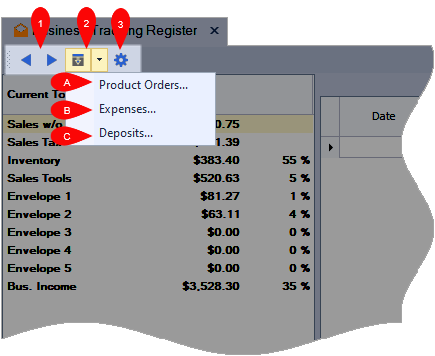
Toolbar
- (1) Navigation: Use the left and right arrows to navigate the monthly breakdown grid portion backward and forward a month at a time to view a detailed list of transactions for that month.
-
(2) Import: Displays the Business Tracking Import form, which allows you to import product orders, expenses, and deposits into the BTR from these other areas in Boulevard.
- (A) Product Orders: Imports product order totals from the Inventory Orders form, excluding any unplaced (or open) orders.
- (B) Expenses: Imports expense transactions that have a Business Tracking category assigned from the Expense Categories form.
-
(C) Deposits: Imports a complete list of all check and cash payments for each deposit, and card payments you transfer into your bank account from the Deposits form. A history of all deposits entered can be viewed at any time from the Deposits form (from the Business Tools menu, select
 Deposits to access).
- (3) Settings: Define the envelope labels and allocate a percentage to each (combined envelope percentages must equal 100%).
Current Monthly Totals & Breakdown
The Current Totals column shows cumulative totals for all accounts being tracked. The monthly table shows a detailed breakdown of imported and manually added transactions for the month displayed.
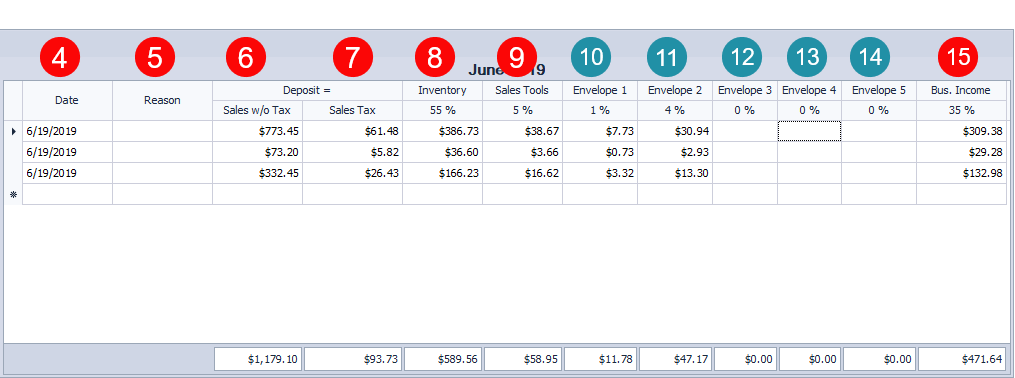
- (4) Date: When manually adding transactions, use this field to add the transaction date.
- (5) Reason: For manually adding transactions, use this field to enter optional information about the transaction. For imported transactions, this field may or may not contain information.
Deposit: For both manual and imported transactions, the Deposit area of the form includes two fields; sales without tax included and the sales tax. For manual transactions, enter the respective amounts in each field (Sales without tax and Sales tax).
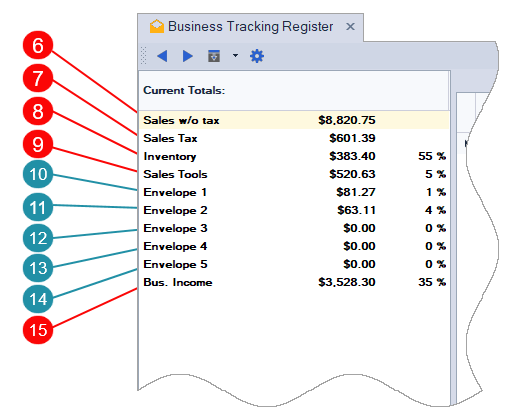
- (6) Sales w/o Tax: For imported deposits, if the information has been added to the Deposit form, the sales amount collected (minus tax) will be shown. For manual transactions, enter the sales amount collected, minus any tax. The amount shown in the Sales w/o tax field is automatically distributed into the pre-defined and custom fields (fields numbered 8 - 15 in the images) based on the percentages listed in the BTR settings. If necessary, the distributed amounts can be edited directly in each field.
- (7) Sales Tax: For imported deposits, if the information has been added to the Deposits tab of the Business Tracking Imports form, only sales tax will be shown. For manual transactions, enter the amount of tax collected.
- (8) Inventory The amount shown in this field is allocated to replenish the inventory that has been sold. The default for this category is 50% for Section 1 and 5% for Section 2 for a combined total of 55%.
- (9) Sales Tools: The amount shown in this field is meant to go towards marketing costs (such as the PC Program, your personal website, etc.).
- (10 - 14) Envelopes: The field labels shown and percentages set can be customized in the BTR settings (all five envelope fields do not have to be used).
- (15) Bus. Income: The Business Income field is also what is commonly referred to as profit. This field can be used as a guideline when drawing a paycheck for yourself from the business.