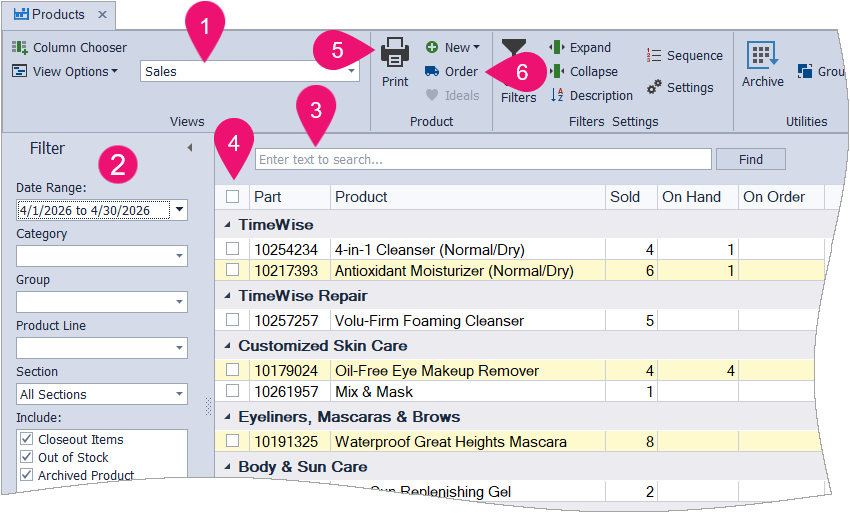
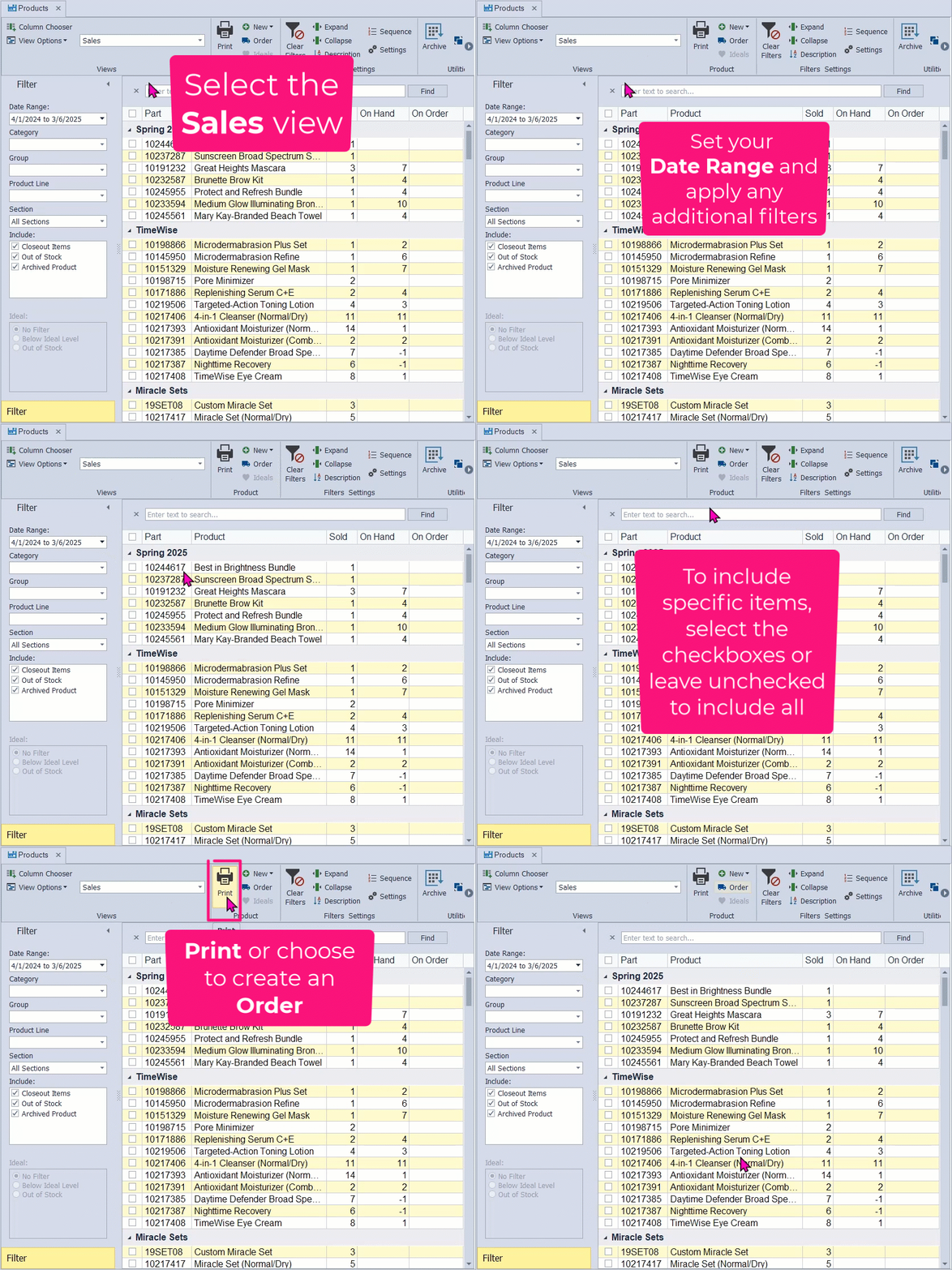
The Sales view in the product list displays items sold, current stock levels, and items on order within a chosen date range. Filters such as category, group, product line, and section help narrow results. After selecting the timeframe and any needed filters, the list is ready for printing as a report or for creating an inventory order.
Once you have the desired information, you can either print it as a report or create an inventory order.
From the main toolbar, select  Inventory (or from the Product menu, select Product List).
- From the view drop-down, select the Sales view.
- From the Filter sidebar, click
 in the Date Range field and select an option from the quick-pick list or choose Custom to enter a custom date range.
 - Set additional filters (Category, Group, Product Line, Section, and whether to include Closeout Items or Out of Stock) or use the search field to refine further.
- To include only specific items, select their checkbox; leave them unchecked to include all.
- From the toolbar, click
 , then from the preview window, click
  to print (or
  to export as a pdf).
 - To generate an inventory order, from the toolbar, select
 Order, then select OK to acknowledge that the order has been added. To view, select
  Orders from the main toolbar (or from the Product menu, select Inventory Order).
Tips:
- Click
 Clear Filters before you search to ensure you do not have any other filters applied.
 - From the toolbar, select
 View Options, then Reset to ensure your view is displayed with the default fields.
 - If your search field is hidden, right-click anywhere on the column header (Part #, Description, Retail, etc.) and choose Show Find Panel.