Boulevard lets you record and track your bank deposits by grouping the cash, check, and card payments you’ve received. Deposits can be entered manually or created by selecting existing payments already recorded in customer accounts. Once saved, each deposit shows the date, total amount, and the number of payments included, and you can edit, delete, print, or import deposits into the Business Tracking Register at any time.
Overview & Options:
Deposit History Toolbar & Columns
From the Business Tools menu, select Deposits.

Deposit History Toolbar & Columns
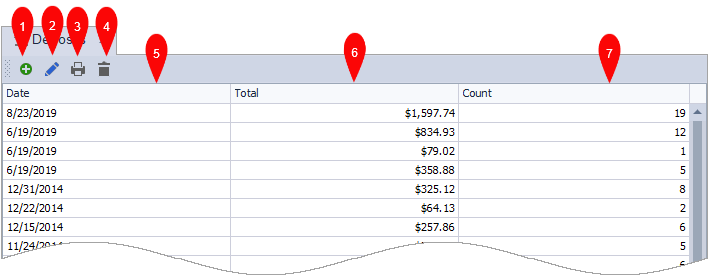
-
(1)
 : Opens the Deposit form to create a new deposit
 -
(2)
 : Edits the deposit
 -
(3)
 : Prints an itemized copy of the deposit View
-
(4)
 : Deletes the deposit
 - (5) Date: The date the deposit was made
- (6) Total: The total amount of all payments included in the deposit
- (7) Count: The number of payments included in the deposit. You can hover over the count to view a snapshot of the payments. View
Create a New Deposit
From the Business Tools menu, click Deposits.
- From the toolbar, click the add button
 to begin creating a new deposit.
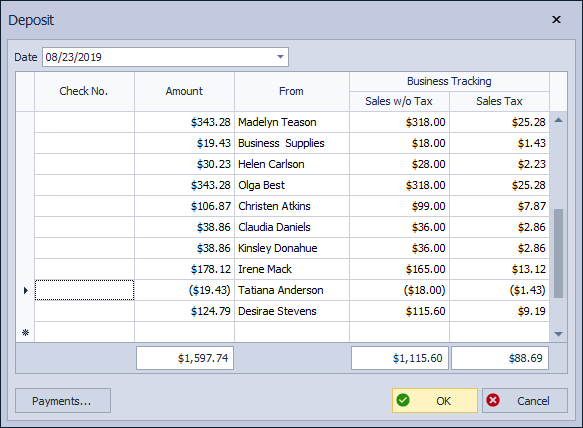
 - If necessary, change the Date to correspond with the actual date the deposit was made with your bank.
- Follow the steps below to add payments that are to be included in the deposit.
Add Payments:
There are two ways to add items to the deposit: add existing payments or manually add a transaction to the deposit (alternatively, if a payment needs to be removed from the deposit, right-click on the row and select Delete). Most of the time, you will add existing payments. Manually adding a transaction is used when depositing funds without an associated invoice.
- Click Payments, and if necessary, change the date in the Show all payments entered after field.
-
Cash and check payments recorded from customer invoices and payments made to their account will appear in this list. Select the checkbox next to each payment included in the bank deposit.
Note: If the payment entered does not include an invoice number, the full amount of the invoice (including tax) is entered under 'Sales w/o Tax' in the Deposit form. You must either adjust the Sales w/o Tax and Sales Tax amounts or include an invoice number when importing the payment into the Deposit form.
- Click OK to save the selected payments to the Deposits form.
- If a manual line item needs to be added, on the next available blank row, enter the appropriate information, including the check number, amount, and who the payment is from. If the deposit is going to be imported into the BTR, an amount must be entered in the Sales w/o tax field; otherwise, the deposit amount will be recorded as 0.
- After payments have been added and the amount in the Total field matches the amount of your bank deposit, click OK to save the deposit.
Edit or Delete a Deposit
Note: If you edit or delete a deposit that has already been imported into the BTR, the amounts do not change in the BTR itself. The transactions will also need to be edited in the BTR to reflect the changes
Edit a Deposit:
Choose from one of the following three options:
- Double-click on the deposit to be edited.
- Select the deposit, then from the toolbar, click the edit button .
- Right-click and select Edit. When finished, click OK.
Delete a Deposit:
Select the deposit, then from the toolbar, click the delete button , or right-click on the deposit, then select Delete.