To use the Business Tracking Register (BTR), first set up virtual envelopes with assigned percentages totaling 100%, such as Inventory (55%), Sales Tools (5%), and Business Income (40%). Next, allocate expense categories for tracking by selecting Expenses, adjusting category settings, and linking them to BTR categories. Finally, add deposits and transactions to complete the tracking process.
Step 1: Setting Up Your Envelopes
- From the Business Tools menu, select
 Business Tracking Register.
- Click the settings button
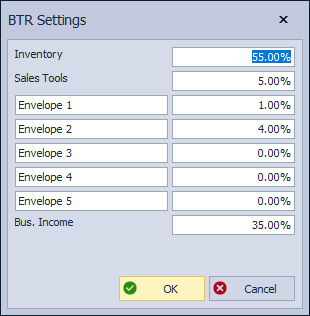
 to define the envelope labels and allocate a percentage to each (combined envelope percentages must equal 100%).
 - Click OK when finished.
Default Categories & Suggested Percentages:
- Inventory (55%): 50% for Section 1 (Retail Product) and 5% for Section 2 (Supplies)
- Sales Tools (5%): Marketing (PC Program, etc.)
- Bus. Income (40%): Profit (It is recommended that the amounts for envelopes 1 -5 be deducted from Bus. Income)
Step 2: Allocating Expense Categories
- From the main toolbar, select
 Expenses (or from the Business Tools menu select Expenses).
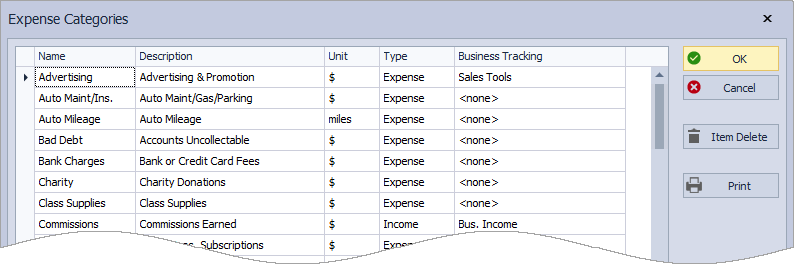
- Click the settings button then select Categories from the drop-down menu.
- Locate the category you want to track and select the BTR category from the drop-down items listed under the Business Tracking field.
- Click OK to save.