Invoice information can be filtered and grouped by the invoice Sale type from the Invoice Log. Print in a report format, individual invoices, or the corresponding mailing labels.
From the main toolbar, select  Invoices, then choose Invoice Log (or from the Business Tools menu, select Invoice Log).
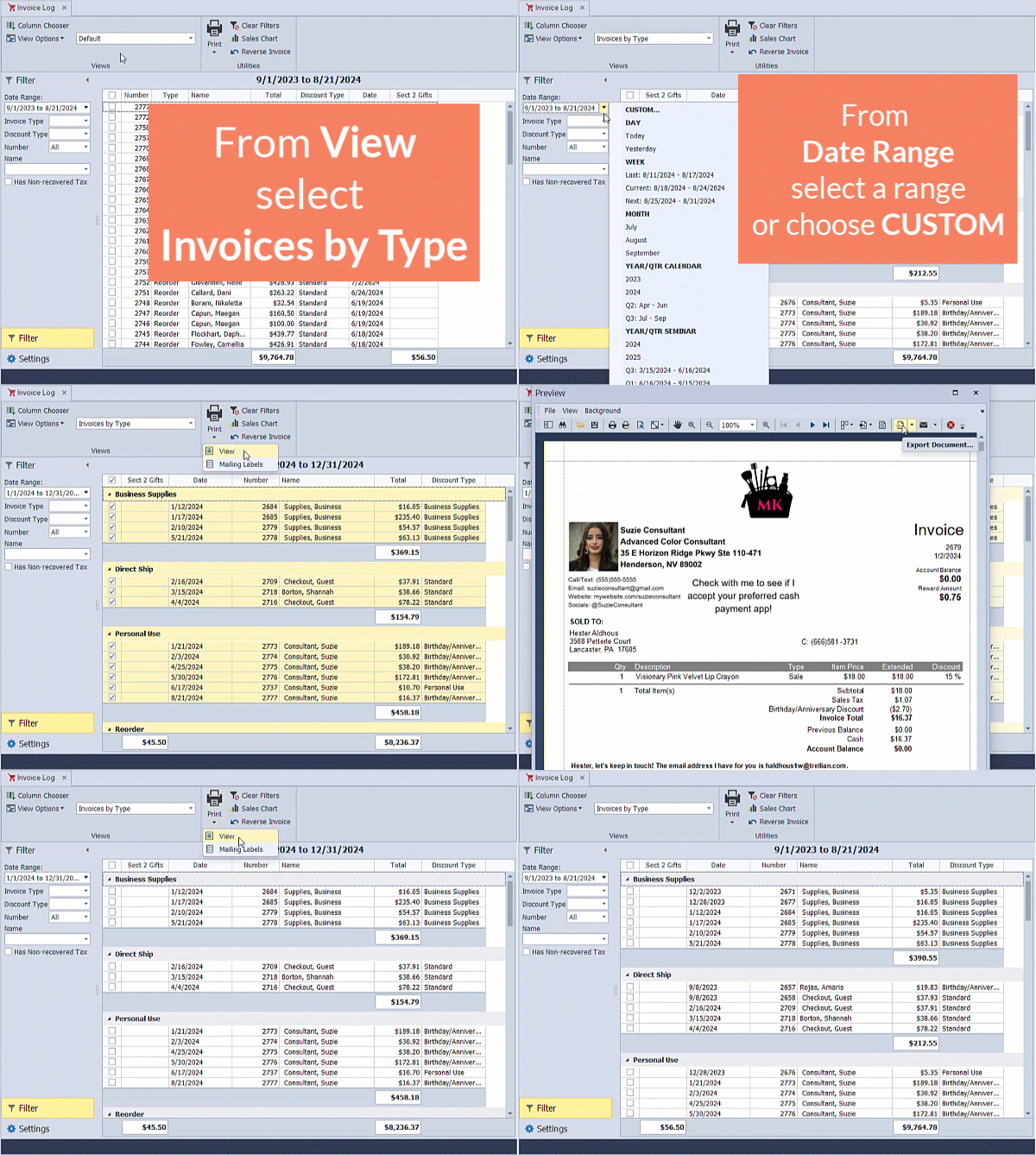
- From the drop-down menu, select the Invoices by Type view.
- If desired, you can drill down the list further by using any of the available sidebar filters, such as Date Range, Invoice Type, Discount Type, Name, or Has Non-recovered Tax.
- To print individual invoices, first select the checkbox (or checkbox column header to select all); otherwise, to print as a tabular report, click
 Print, then choose View.
 - From the Preview toolbar, click
 to print (or
  to export as a pdf).
 - When finished, to remove any filters set, click
 Clear Filters.
Additional Information:
- To add additional fields to the view, select
 Column Chooser. Drag and drop desired fields onto the current view.
 - To hide any columns, right-click on the column header and select Hide This Column. To reset back to the default, from the
 View Options drop-down, select
  Reset.
 - To sort by a specific column, click on the column header to be sorted by.
- To filter by a specific column, hover over the column header. Click on
 and choose your filter criteria. To clear any filters set, click Clear Filters.
 - To import a view, from the View Options drop-down, select
 Import. Alternatively, to delete the view shown, select
  Delete instead.
 - Wrapping Up Year-End for Tax Purposes