The export function can export customers from Boulevard; then you can import the contacts into other applications that accept an Outlook or Microsoft Excel comma-separated values (.csv) file format.
From the Contacts menu, select Preferred Customer.
- In the Preferred Program form, select the customers to export by selecting the checkbox to the left of their name. Alternatively, you can utilize the filters to refine the customers to export (Use
 or
or  to toggle adding or removing all).
- When finished selecting, click Export.
- From Save As, navigate to where you want to save the file. We suggest the Desktop.
- Name the file (e.g., Fall PCP), then click Save (Leave the Save as type option set to Outlook Export file or Microsoft Excel Comma Separated Values File (*.csv)).
- Click OK to accept and close the Preferred Customer Program form.
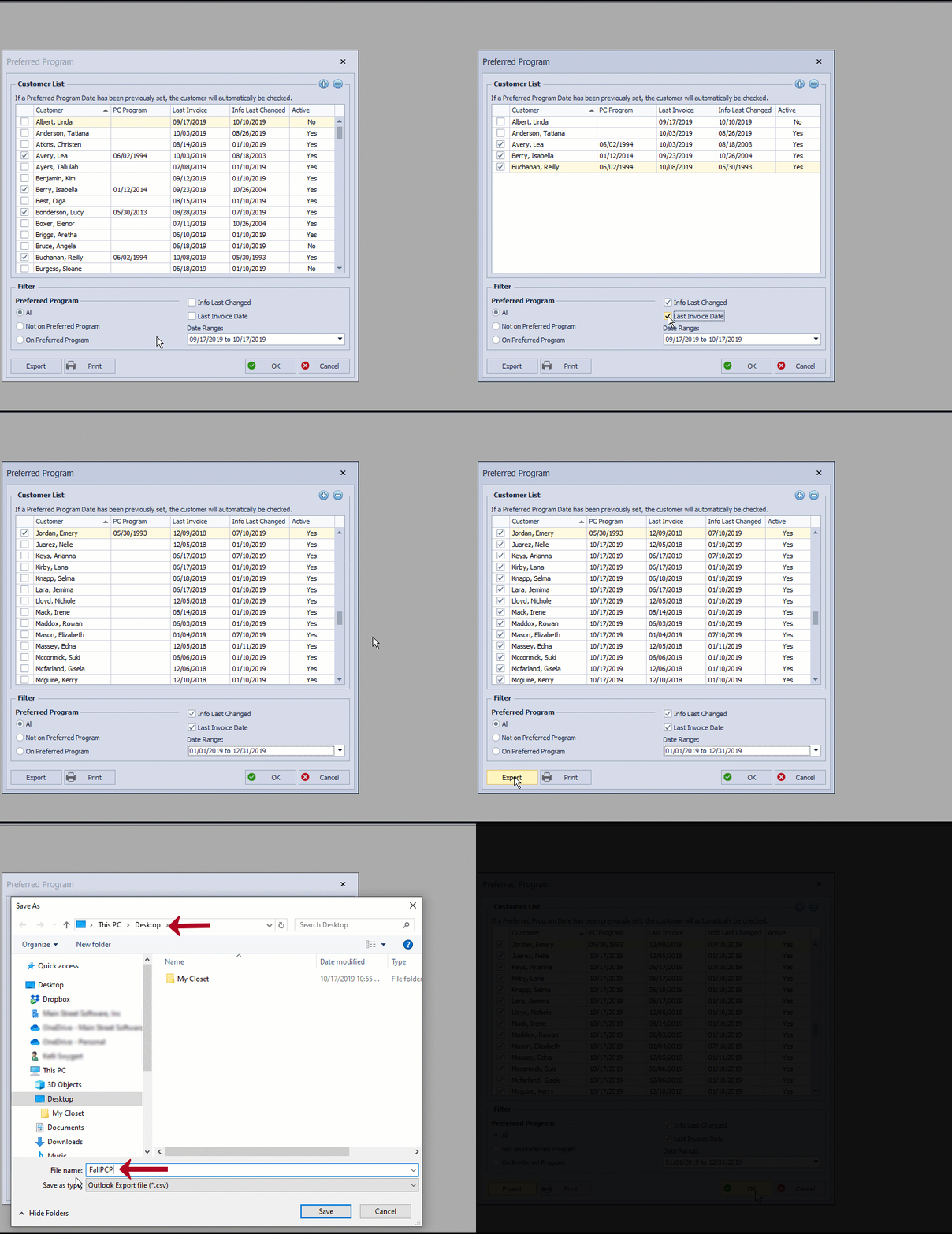
Note: Customers who are automatically checked after applying filters already have a date set on their profile for the PC Program field. Those not automatically checked do not have a date set but have either been invoiced, had their information updated, or been added to Boulevard within the specified date range.
Additional Information:
You can export all customers using this function, which exports in a .csv format (the same as Outlook). When finished exporting, click Cancel on the form so you don't update the date in the PC Program field.