A product Prepack is a fixed bundle made up of specific items that never change, such as seasonal sets or promotional collections. When the prepack is ordered or invoiced, Boulevard automatically adds or subtracts the individual items from inventory, while the invoice displays the bundle contents but uses the single prepack price.
When you order a prepack from the company (flash sales or other special promotions), the individual items included in the prepack are automatically added to your inventory. When you add the prepack to a customer's invoice, Boulevard automatically subtracts the individual items included in the prepack from your inventory. The printed/pdf copy of the invoice will show the contents of the prepack, but will not show the individual prices, only the price assigned to the prepack.
Note: Before creating the prepack, ensure you have created product profiles for all items you'd like to track and/or display within the product bundle (the example below uses a Seasonal Mug).
Create a Prepack
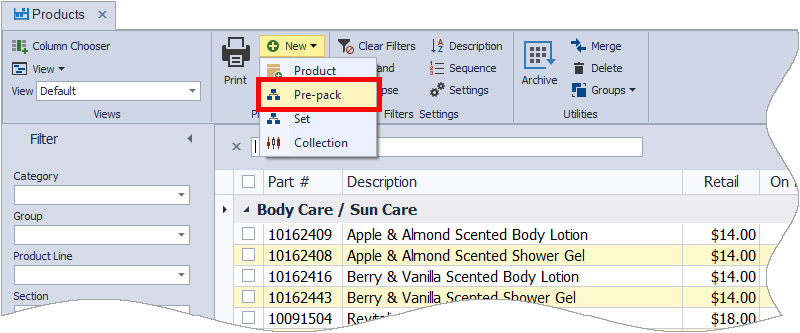
From the main toolbar, select  Inventory (or from the Product menu, select Product List).
- From the product list toolbar, click
 New, then select
  Pre-Pack from the drop-down list.
 - In the Product Itemize form, click
 Lookup to add all products included in the prepack.
 - In the Qty field, enter the quantity of each item contained in the collection.
-
When finished adding items, click OK to save and close the form.

- Assign a part number to the prepack and provide a description. For the example shown creating a set with two hand creams and a mug, MUGSET is used for the Part Number and Coffee & Cream Gift Set for the Description.
- From the Category list drop-down, choose the category where you want the collection located.
- Under the Pricing section, enter the amount you will charge in the Retail/Cost field (or leave blank if you will be entering a custom price each time you add it to an invoice).
- If applicable, select the Taxable* checkbox, then click
 to save the newly created prepack.

* For the Canadian version of Boulevard, click Settings, then select Advanced Settings to select the taxable settings.
Additional Information:
- To view or print the contents of a collection, from the profile toolbar, click
 Itemize then Print. View
- Product Profile Types
- Create & Invoice a Product Collection
- You can convert any prepack to a set from the Product List; simply
right-click on the prepack and choose Change to set. - Create a Product Set
- We'll create custom product bundles (collections, prepacks, and sets) for each season when subscribed to the Product Update Service.