A product Set groups multiple individual items into one combined product that can be invoiced as a single entry while still tracking each included item behind the scenes. Sets are created from the Product List by selecting the items to include, defining the set details, and saving it as its own bundled product type.
See Create a Product Collection if you want to add a product group that allows you to choose a specific item for each customer when adding to an invoice, or Create a Product Prepack to create a product profile that reduces the On Hand amount of individual items included when invoiced, without maintaining an On Hand quantity for the prepack itself.
Tip: Before creating the set, ensure you have created product profiles for all items you'd like to track within the product bundle (the example below uses a Seasonal Tea Cup).
From the main toolbar, select  Inventory (or from the Product menu, select Product List).
-
From the product list toolbar, click
 New, then select
  Set from the drop-down list.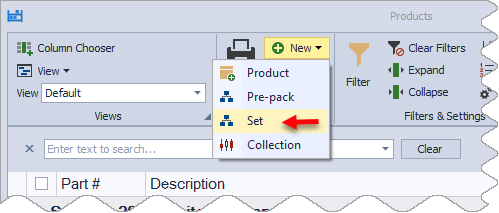
- Use
 Lookup to add all products that make up the set. Once the product is correctly itemized, click OK to save and close the Product Itemize form.
- Assign the set a part number and give it a description. For example, to create a gift set that included a hand cream with a teacup, you could enter TEASET1 for the part number and Pamper To a Tea! Set for the Description.
- From the Category list drop-down, choose the category where you want the set located.
- In the Pricing section, enter the amount you will be charging for the set in the Retail/Cost field (or leave it blank if you will be entering a custom price each time you add it to an invoice).
- If applicable, select the Taxable* checkbox, then click
 Save to save the newly created set.

* For the Canadian version of Boulevard, click Settings, then select Advanced Settings to select the taxable settings.
Additional Information:
- To view the contents of a set, ensure there is at least 1 On Hand (Edit Count), then click Split Set from the profile toolbar.
- Split Sets into Individual Items