Additional Product List Views expand the ways product information is displayed by importing predefined views directly from the View Options menu. These views organize products by factors such as customer usage, category, group, stock status, part number, or returns, allowing quick access to focused inventory details for reviewing, printing, or exporting as needed
From the main toolbar, select  Inventory (or from the Product menu, select Product List).
- From the toolbar, select
 View Options, then
  Import.
 - Select a view from the options listed, then click OK.
- To print the view, from the toolbar, click
 Print, then from the preview window, click
  to print (or
  to export as a pdf).
Tip: If you no longer need the view, from the View Options drop-down, select  Delete.
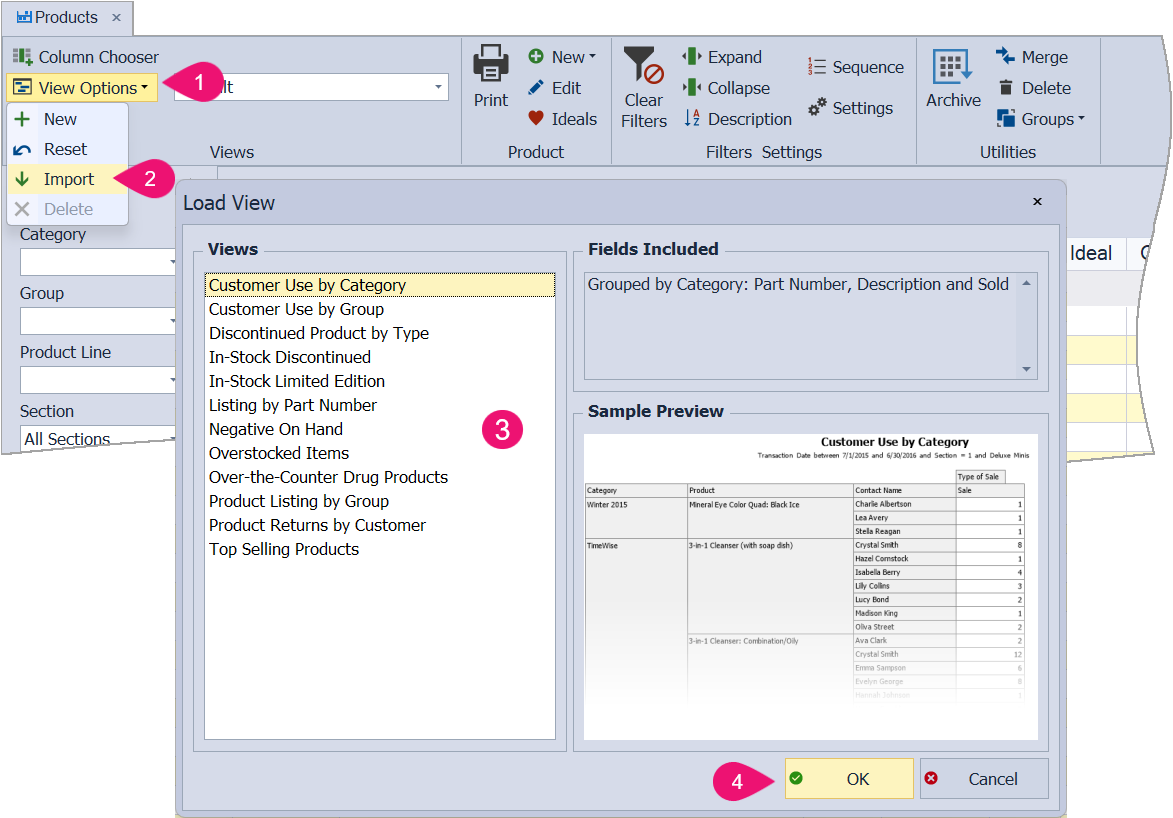
Views Available to Import
- Customer Use by Category: Items sold within a given timeframe grouped by category (default date range is the current month to the previous year). Fields displayed: Customer, amounts Sold, Gifts, Demo, and Returns.
- Customer Use by Group: Items sold within a given timeframe grouped by product group (default date range is the current month to the previous year). Fields displayed: Customer, amounts Sold, Gifts, Demo, and Returns.
- Discontinued Product by Type: Discontinued, retail section 1 items that are located in the closeout category, excluding Archived Product. Fields displayed and in the following order: Part #, Description, On Hand, Retail, and Closeout Date.
- In-Stock Discontinued: Retail section 1 items are in stock but can no longer be ordered. Fields displayed and in the following order: Part #, On Hand, Description, Retail, and Cost of Goods.
- In-Stock Limited Edition: Limited edition items that are in stock. Fields displayed and in the following order: Part #, Description, Retail, Ideal, On Hand, On Order, and Cost of Goods.
- Listing by Part Number: All items located in the product list are sorted by part number (Section 1 and Deluxe Minis are shown by default). Fields displayed: Part #, Description, Retail, On Hand, On Order, Release Date, Closeout Date, and Category.
- Negative On Hand: A listing of all items with a negative On Hand amount grouped by Category. Fields displayed: Part #, Description, Retail, On Hand, Ideal, and On Order.
- Overstocked Items: Items currently have a higher On Hand amount than their Ideal amount (if one is set) grouped by category; also includes a total Cost of Goods for the overstocked products. Fields displayed: Part #, Description, Retail, Ideal, On Hand, On Order, Cost of Goods.
- Over-the-Counter Drug Products: Items set as an Over-the-Counter drug product on the product profile and grouped by category (is not necessarily associated with their tax exemption status). Fields displayed: Part #, Description, Retail, OTC Drug, Taxable, On Hand.
- Product Listing by Group: Items assigned to a group and then sorted by group. Fields displayed: Part #, Description, Category, On Hand, On Order, Ideal, and Retail.
- Product Returns by Customer: Items that have been returned within a given timeframe grouped by customer (default date range is the current month to the previous year). Fields displayed: Customer, Part #, Retail, Description, and Return.