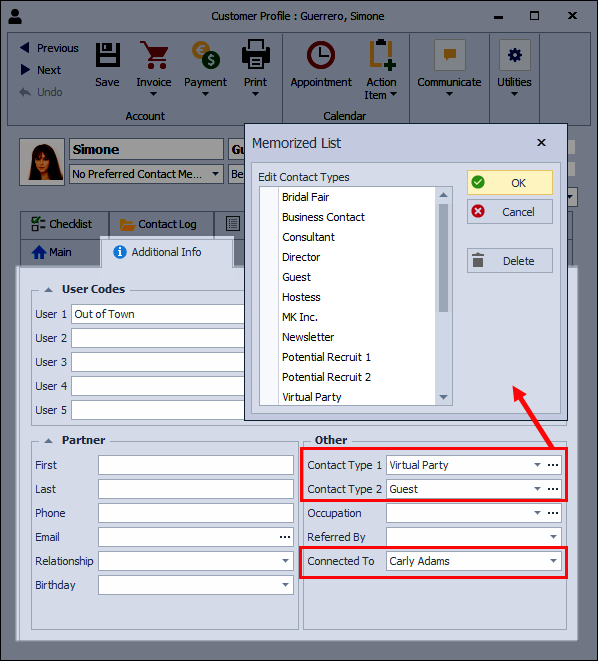
Connections link one contact profile to another by selecting the related profile in the Connected To field on the Additional Info tab. The relationship appears on the Connections tab of the linked profile, and optional Contact Type fields may be used to group or categorize these connections for organizing related customers or tracking shared activities.
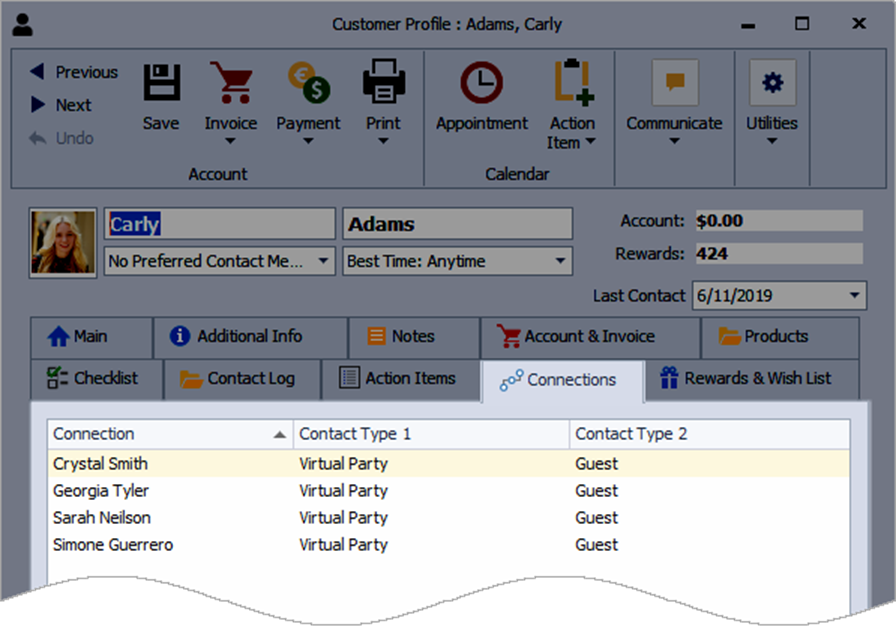
The Connections tab on a contact profile displays any connections to other contact profiles from the Connected To field located on the Additional Info tab.
- Open the profile of the contact being connected to another profile.
- From the Additional Info tab, in the Connected To field, click drop-down button
 .
. - Using the Find field, search and select the contact.
- When finished, click
 Save.
Save. - To view the connection, open the profile of the other contact and click the
 Connections tab.
Optionally, you can group the connections using Contact Type 1 and Contact Type 2 to customize this feature further and utilize it in various ways. See Organizing & Filtering Contacts using the Address List for more information.