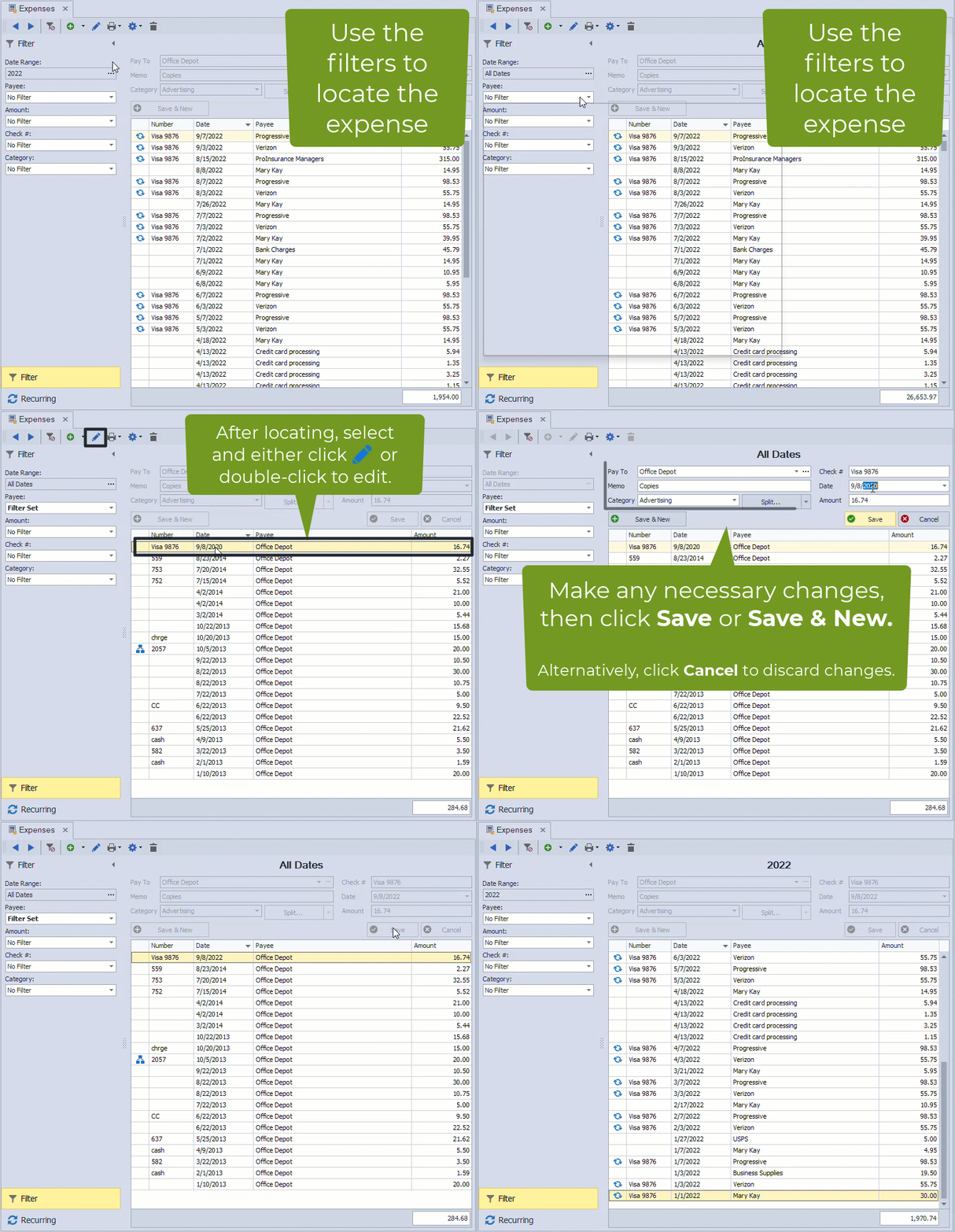
Expense entries can be found by using the filters in the Expenses sidebar, then opened and updated as needed. The Date Range filter can be adjusted whenever you are not in the middle of adding or editing an entry. After making any updates, save the changes and clear filters if you want to return to the full list.
From the main toolbar, select  Expenses, or under the Business Tools menu.
Note: The Date Range can only be adjusted if you are not currently editing or creating a new expense. If necessary, click Cancel or Save to adjust the range.
- If needed, from the Filter sidebar in the Date Range field, click ... to select from one of the quick date options listed.
- To further filter, select from the options listed under Payee, Amount, Check #, or Category.
- From the expense entries shown, double-click on the entry (or select the entry, then from the toolbar click
 ).
).
- Click Save (or Cancel, to discard changes made).
- When finished, click
 to remove any filters you have set.