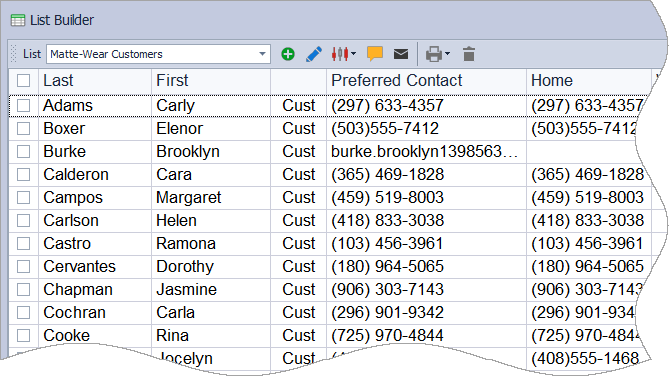
The List Builder is used to create, edit, and delete contact lists for labels, reports, group emails, and activity tracking captured in the Contact Log. It explains how to create a new list and how to modify or remove existing ones.
From the main toolbar, select  Contacts, then
  Builder (or from the Contacts menu, select List Builder).
Options:
- (1) Create a List: A new list can be created from any contact list (customer, unit, or address), from the product list using the Usage by Customer view, or directly within the List Builder.
- (2) Add or Remove Contacts: Existing lists can be adjusted to include new contacts or remove those that no longer apply. Removing a contact only removes them from the list and does not delete their information from the application.
- (3) Delete a List: Lists that are no longer needed can be permanently removed from the List Builder.
Create a List
-
From the List Builder toolbar, click
 to create a new list.
- In the Description field, enter a name for the list.
- From the Show drop-down list, select which type of names you want to see. View
-
Select the checkbox to add contacts to the list; or to add
all
displayed names to the list, click
 Select All .
-
Click
 OK
to save the list.
OK
to save the list.
Edit a List
- From the List drop-down, select the list to edit.
-
On the List Builder toolbar click
 .
.
-
Select the checkbox to add or remove contacts from the list;
or
to add all displayed names to the list, click
Select All .
-
Click
OK
to save the updated list.
Tip: To quickly remove a name from an existing list, right-click on the name, then select Remove Name from List. View
Delete a List
Important: Please proceed with caution. Once a list has been deleted, it cannot be retrieved unless a current backup is restored. Any data entered after the backup was created will not be included.
- From the List drop-down, select the list to delete.
-
On the List Builder toolbar, click
 .
.
- Click Yes to confirm deletion.