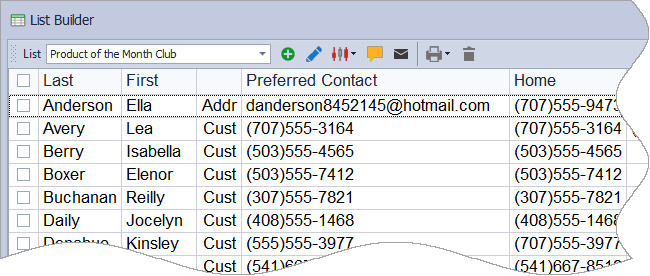
Columns in the List Builder may be added, moved, or hidden to customize the layout of any saved list. Additional profile fields can be added through the Column Chooser, columns may be rearranged by dragging their headers, and unwanted columns can be hidden. A list may also be reset to its default layout if needed.
The List Builder enables you to create custom groups and then set the layout by adding, moving, or hiding additional information. You can then print a report, export the data, print mailing labels, and more.
Options:
From the main toolbar, select  Contacts, then
  Builder (or from the Contacts menu, select List Builder).
Add Columns
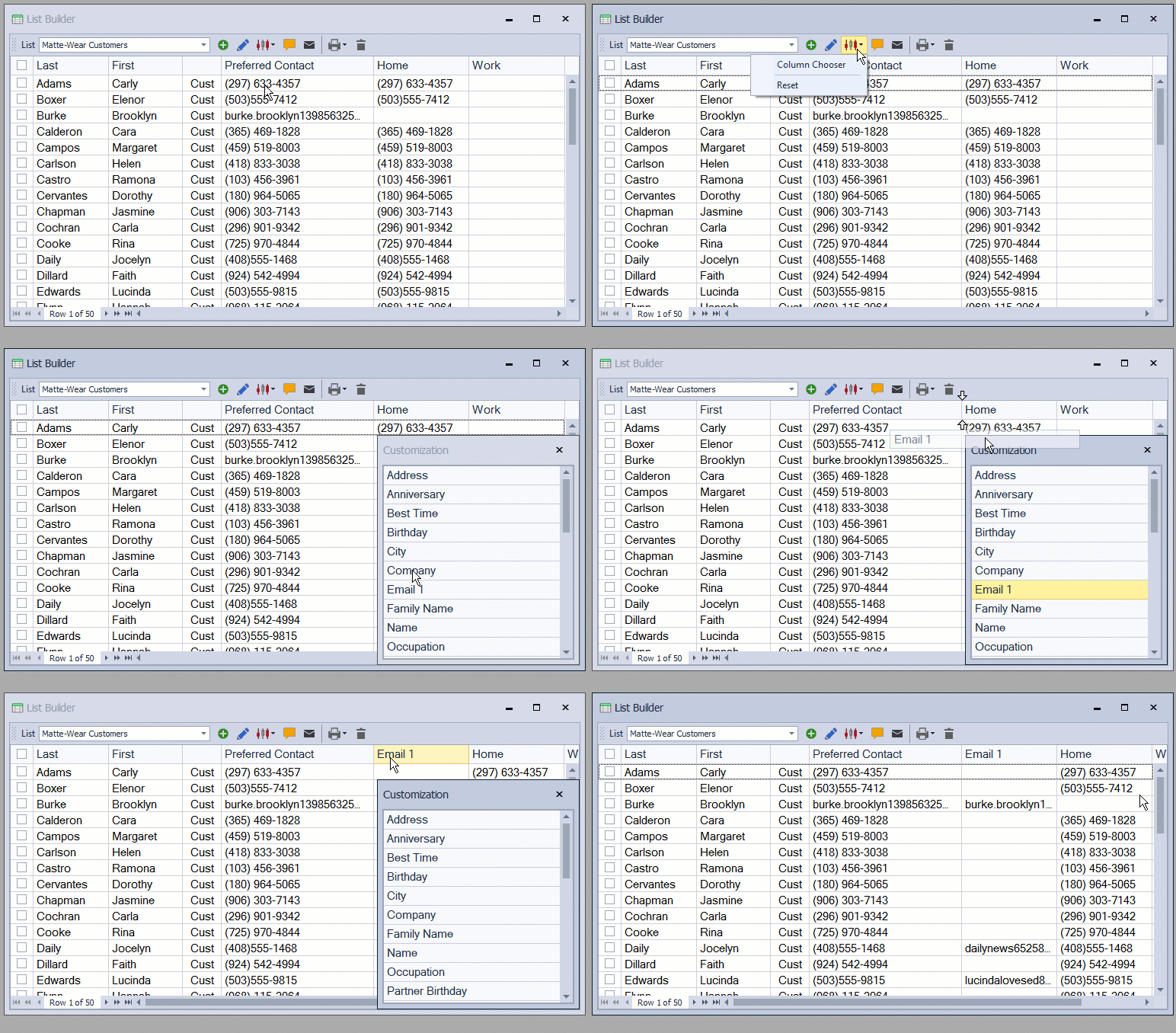
Additional profile fields can be added as columns to each group (or list) created in the List Builder.
- From the List drop-down, select the list to customize.
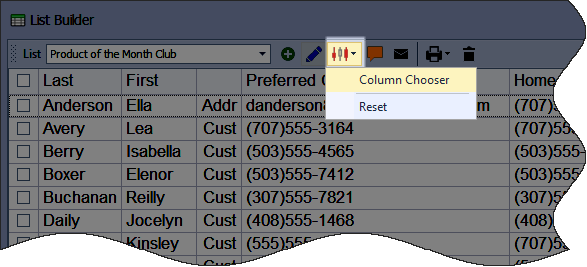
- From the List Builder toolbar, click
 and select Column Chooser.
 - From the Customization form, drag and drop any of the available columns onto the list.
Move Columns
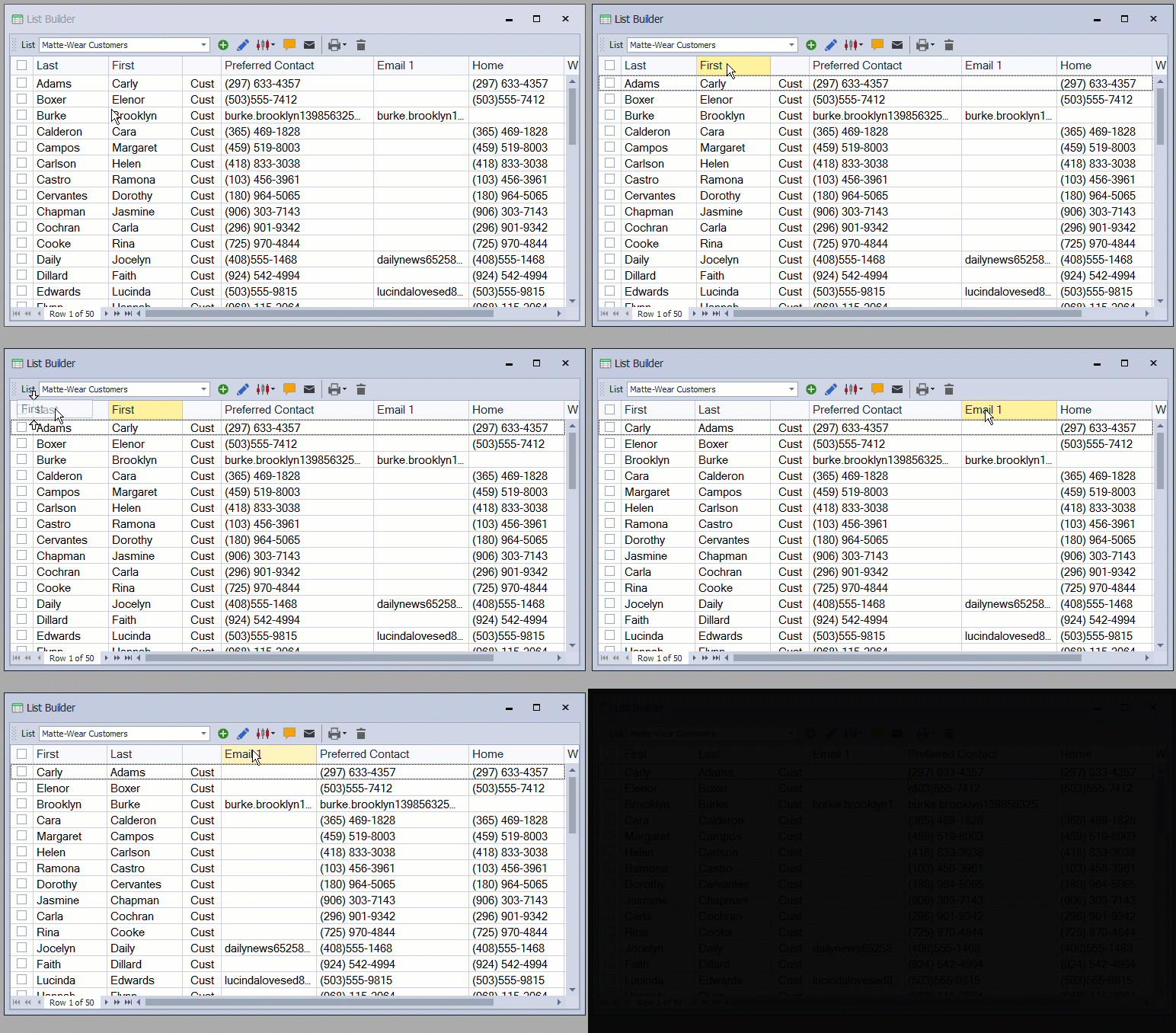
Columns can be arranged in any order.
- Click and hold onto the column header. White arrows will appear above and below the column header
 .
. - Drag the column header to the desired location.
Hide Columns

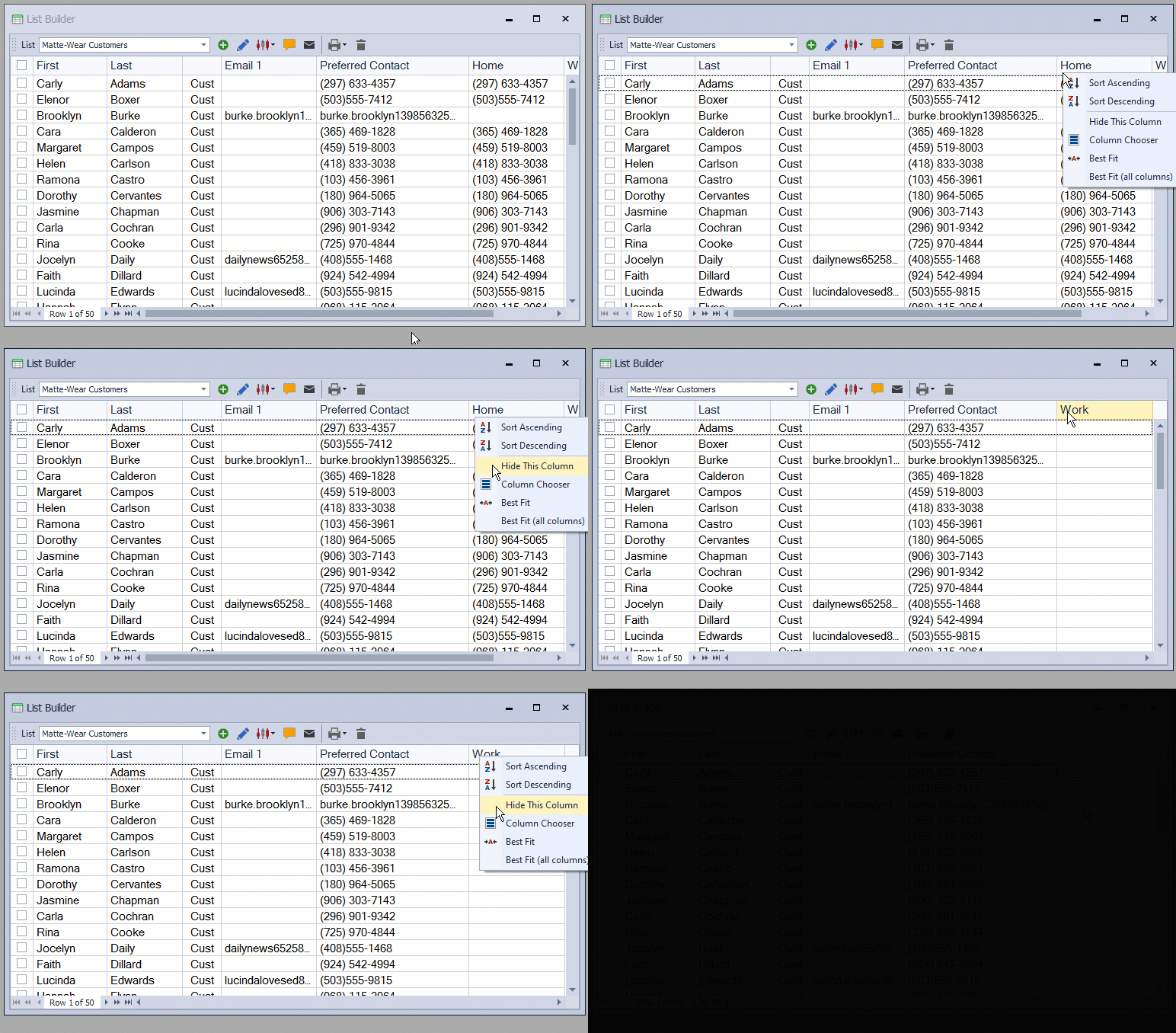
Additional Information
Tip: To reset a list to the default layout, click and select Reset.