There are a couple of ways to get caught up and enter past customer sales information into Boulevard, depending on whether your on-hand inventory is accurate.
Options:
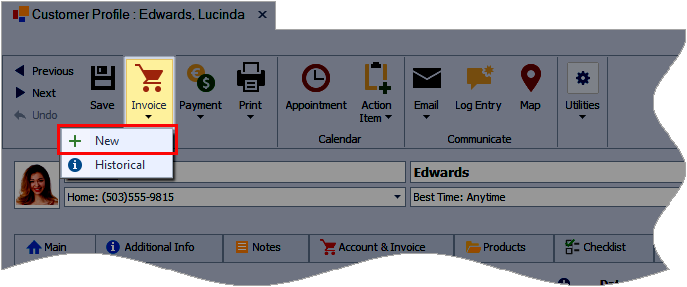
If Your On Hand Inventory is NOT Accurate: Follow this method to add new invoices to add past sales information if the inventory quantities in the On Hand field are inaccurate.
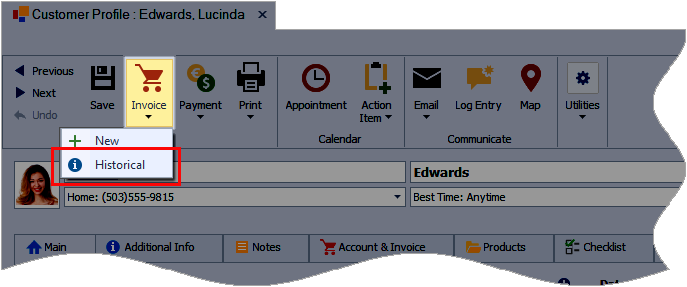
If Your On Hand Inventory is Accurate: Follow this method to add historical invoices to add past sales information if the inventory quantities in the On Hand field are accurate.
Your On Hand Inventory is NOT Accurate
If your on-hand amounts are inaccurate, create new invoices using the original transaction date. The sample image shows from inside the contact profile; however, there are several different ways. When finished, see Entering Your Base Inventory to update your On Hand amounts.
Your On Hand Inventory is Accurate
If your on-hand amounts are accurate, follow the steps below to create Historical invoices, entering the original transaction date. Historical invoices will not change your current on-hand inventory amounts.
- Open the customer's contact profile to be invoiced.
- From the toolbar, select Invoice, then Historical from the drop-down.
- Click Yes to confirm that you are creating a historical invoice.
- When finished creating the invoice, click
 Save.
Save.