Connect your email address to Boulevard to send both individual and group messages directly from the application. When using the group email function, Boulevard sends each message separately, similar to the way the bcc method works, so recipients only see their own copy of the email.
Please note that due to the many variables outside our support scope, we cannot assist with setting up the connection if you choose Options 2 or 3.
Options:
Gmail or Microsoft Email Addresses: This is the recommended method and applies if your email address is Gmail.com, Outlook.com, Live.com, Hotmail.com, or MSN.com.
Other Email Providers: If you do not have an email provider listed under Option 1, but would still like to utilize Boulevard's integrated email function, use this method.
Desktop Application: If you use an installed desktop application (such as Outlook, Mail, or Thunderbird) and prefer it when launching an email instead of Boulevard's integrated email function, follow this method. This option cannot be used when emailing Direct Payment Links.
From the main toolbar, select  Options, then
  Account & Email (or from the Edit menu, select Preferences, then the Online Sync tab.
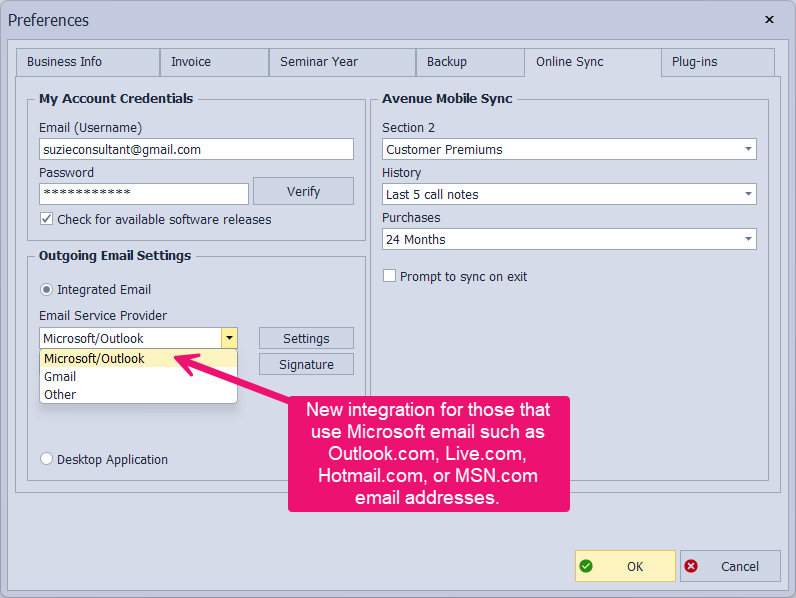
Option 1: Gmail or Microsoft Email Addresses (Recommended)
- Gmail/Google addresses, see Connect Your Gmail Account to Send Email for detailed instructions.
- Outlook.com, Live.com, Hotmail.com, MSN.com, or other Microsoft addresses, see Connect Your Microsoft Account to Send Email for detailed instructions.
Option 2: Other Email Address Providers
- Under the Outgoing Email Settings section, select Integrated Email. Then from the drop-down menu, choose Other (if necessary, click Settings).
- Enter your email address and the password associated with your email account in the Email Address and Password fields.
- Enter the applicable information for your email provider in the SMTP Host, Port, and, if necessary, Use SSL (Download the PDF for Common Outgoing Server Settings). View
- Click Verify to ensure that the password and email address were entered correctly and that the connection has been established.
- If successful, a message will be sent to the email address entered with the following Subject Line: Test Email from Boulevard. Click OK to confirm, then OK to save and close the Settings form.
- Click OK to save and close Preferences.
Note: If you are having trouble sending email through Boulevard, ensure your anti-virus software isn't blocking Boulevard's access to send messages and that your email address, email password, and other settings associated with your email provider are correct.
Option 3: Desktop Application
To launch a desktop email application such as Outlook, Mail, or Thunderbird, see Launch Desktop Email App from Boulevard (Outlook, etc.).
Additional Information:
When using the integrated email options, a record of each email sent will be added to the Contact Log tab of each recipient's profile.
- Send a Personalized Group Email (Option 1)
- Image & Asset Library
- Send a Sales Event Email with a Listing of Items Included
- Email an Invoice
The following external links are provided as a courtesy. If you need further help, please refer to Google support.
- Automatically forward Gmail messages to another account (to forward Gmail messages to another email address)
- Check email from other accounts in Gmail (to forward other email addresses into Gmail)
- Create a Google Account