A group email can be started from any contact list (Customer, Unit, or Address lists), the List Builder, or from the Business Tools menu. Each message is sent separately to maintain recipient privacy.
Before using the email feature in Boulevard, first add your outgoing email settings in Preferences. See Sending Email through Boulevard for detailed steps. Also, ensure your email signature includes your contact information, including a physical mailing address, to comply with anti-spam laws such as the CAN-SPAM Act (US) and CRTC (Canada) when sending promotional emails.
Options:
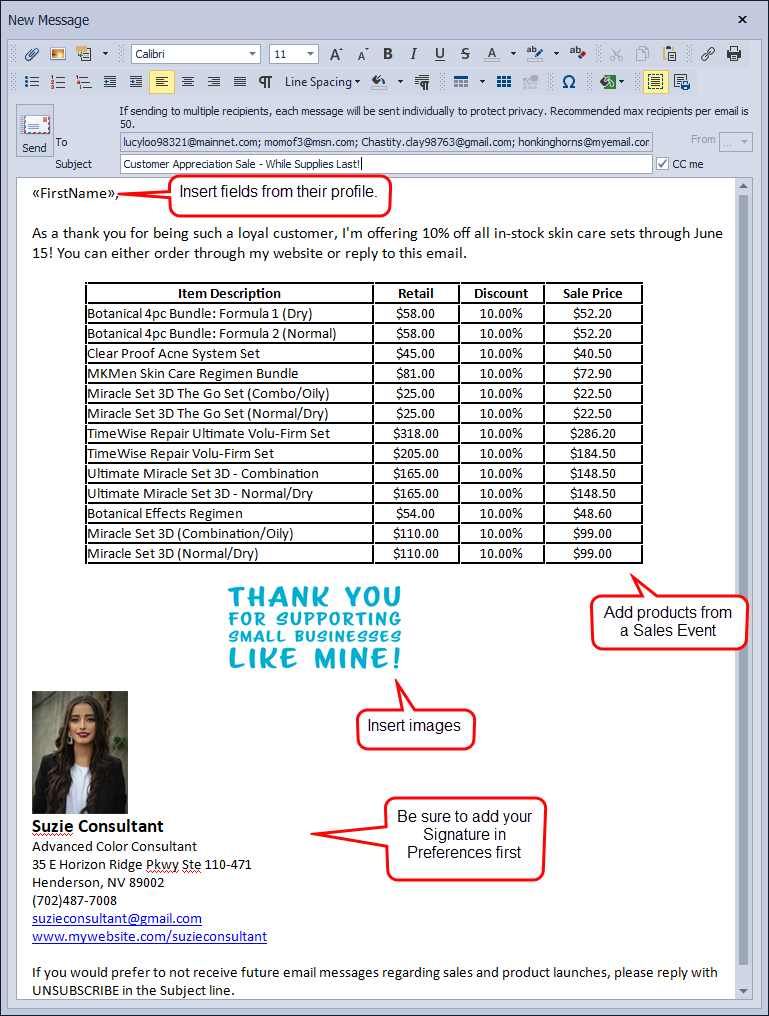
From any contact List, List Builder, or Contact Log (recommended): This option works best when you use Boulevard’s integrated email feature and want to include personalized details from each recipient’s contact profile, select specific recipients, and apply filters.
From the Business Tools menu: This option is best suited if you are launching a desktop email application, would like to include recipients from multiple contact lists, or want to copy the email addresses to paste outside of Boulevard.
From any Contact List, List Builder, or Contact Log
-
From the Filter sidebar on any contact list, select the Email filter and choose Has Email to make sure you only pick contacts with an email saved in the Email 1 field of their profile.

- Select the checkboxes next to the names you want to include.
- From the toolbar, click
 Email to launch the message.
 -
When composing the message body, select
 from the New Message toolbar to insert personalized information from the recipient's contact profile. Fields added to the message will include this information for each contact after the email is sent.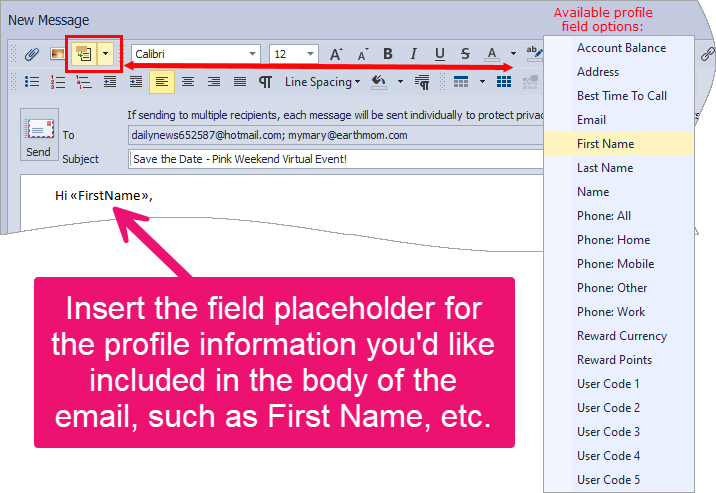
- If you would like a copy of each email sent, select the CC me option. Otherwise, ensure a Subject has been added, then click
 Send.
Send.
Each recipient will have an event logged into their Contact Log that an email message was sent. To view, open their profile and click on the Contact Log tab.
From the Business Tools menu
See Send a Group Email from the Business Tools menu (Option 2) for detailed steps.
Additional Information:
- Product Sales Events
- Add a Default Signature to Email Messages
- Create Custom Documents & Images using the Document Builder
- View Entries from the Contact Log
To prevent internet service providers from blocking your email address from reaching your intended recipients, we recommend that you do not send more than 50 email messages at a time. For bigger email blasts, we recommend using an email marketing service (Mailchimp, Constant Contact, SendinBlue, etc.) so your email address stays safe and doesn’t end up on spam lists.