An account balance can be corrected by adjusting a payment on an invoice, editing or deleting a payment, or posting an offsetting payment. The method used depends on how the payment was originally added to the account. If it’s unclear how the balance was created, posting an offsetting payment will clear the balance and return it to zero.
How was the Payment Applied?
On the Invoice: Use this method if the payment was applied to the invoice. For Direct Ship or Guest Checkout invoices, either delete and re-enter the invoice or follow Option 3.
From the Payment Form: Use this method if the payment was posted outside of the invoice using the payment form.
I'm not sure (Clear Balance): Use this method if you've checked Options 1 & 2 and cannot find where the original payment was applied.
On the Invoice
Payments applied to the invoice can be adjusted to show the correct payment made at the time of sale. If payment was made after the invoice was created, we recommend posting a payment rather than editing the original invoice.
- Open the contact profile, and select the Account & Invoice tab.
- Under the Invoice section, locate the invoice where the payment was applied, then double-click to edit it.
- At the bottom of the invoice, under the Details tab, adjust the incorrect payment amount under the appropriate payment type (Cash/Check or Credit Card).
- Click Save to close the invoice.

From the Payment Form
Payments that are not associated with an invoice or approved credit card payment can be reversed.
- Open the contact profile, and select the Account & Invoice tab.
- Under the Account section, ensure that the option, Show all transactions is checked.
- Select the payment to remove, then right-click and choose Edit Payment or Reverse Payment.

I'm not sure (Clear Balance)
Posting a payment will clear an account balance for any contact with an incorrect balance, whether their account shows they owe or have a credit. This will clear the credit or amount owed and put their account back to zero.
- Find and select the customer on the customer list.
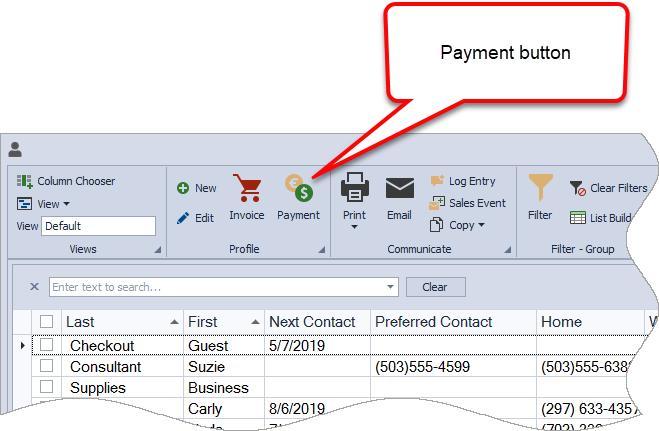
- From the toolbar, click
 Payment.
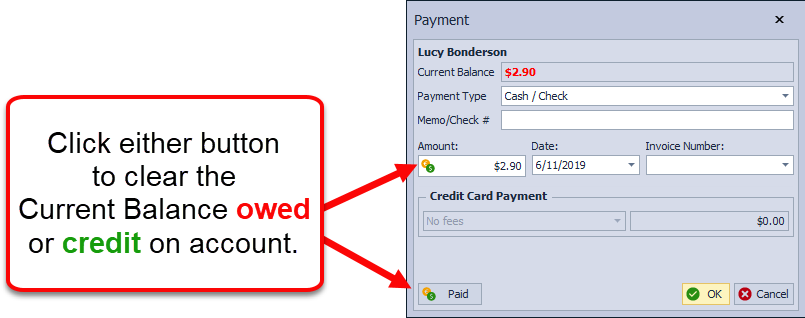
 - In the Amount field, click the payment button
 to clear the balance (or click Paid).
 - Click OK to close the form.