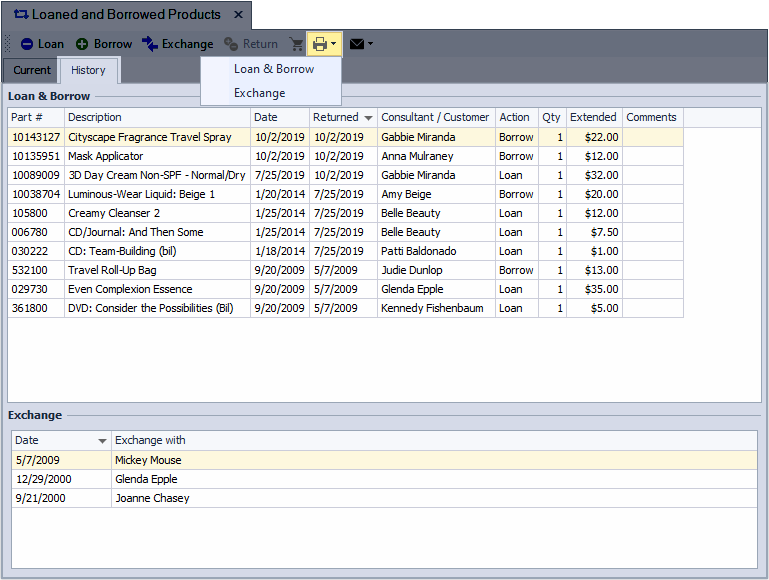
Items that you have loaned out, borrowed, or exchanged can be printed or exported. You can choose to print current transactions or select from the history tab to access past transactions. Depending on what you select, the report will show either all loan/borrow activity or a specific exchange you picked.
From the Product menu, select Loan/Borrow & Exchanges.

Current Loan & Borrow Transactions
- From the toolbar, click the print button
 and select Loan & Borrow.
 - From the Print Loan/Borrow screen, under the Filter section, choose All Items (selected by default) or For a single Consultant (if desired, select New page after each Consultant).
- Click OK.
- From the Preview window, click
 to print (or
  to export as a pdf).
Exchange, or Loan & Borrow History
- Click on the History tab.
-
If printing an exchange, select it from the Exchange section at the bottom of the form first. Then, from the toolbar, click the print button
and choose Loan & Borrow or Exchange.Note: If Loan & Borrow is chosen, additional options can be chosen from the Print Loan/Borrow pop-up. If Exchange is chosen, only the selected exchange will print.
- From the Preview window, click to print (or to export as a pdf).