Year‑end inventory is essential for accurate tax reporting. Print the Inventory Listing by Category report to capture your current cost of goods before entering new tax year information. This report is time‑sensitive and reflects your in-stock inventory as of the point in time it is generated. If sales or product orders have already been recorded for the next year, use the Estimated Inventory Value report instead.
Steps:
Print Report, then Export as a PDF: Print the Inventory Listing by Category report, then we recommend exporting it as a PDF as well, so you have an electronic version for future reference.
Create Backup File: Creating a separate final year‑end backup as a snapshot preserves your inventory and other data exactly as they were at that specific time, providing a fixed reference for tax reporting, audits, and resolving future discrepancies.
Print Report, then Export as a PDF
After printing the Inventory Listing by Category report (or a Product Listing worksheet that includes all retail items), make any necessary adjustments to the amounts, then print a final copy to capture your year-end cost of goods information.
Tip: You can display your name and other business information on tax reports from the Business Info tab in Preferences.
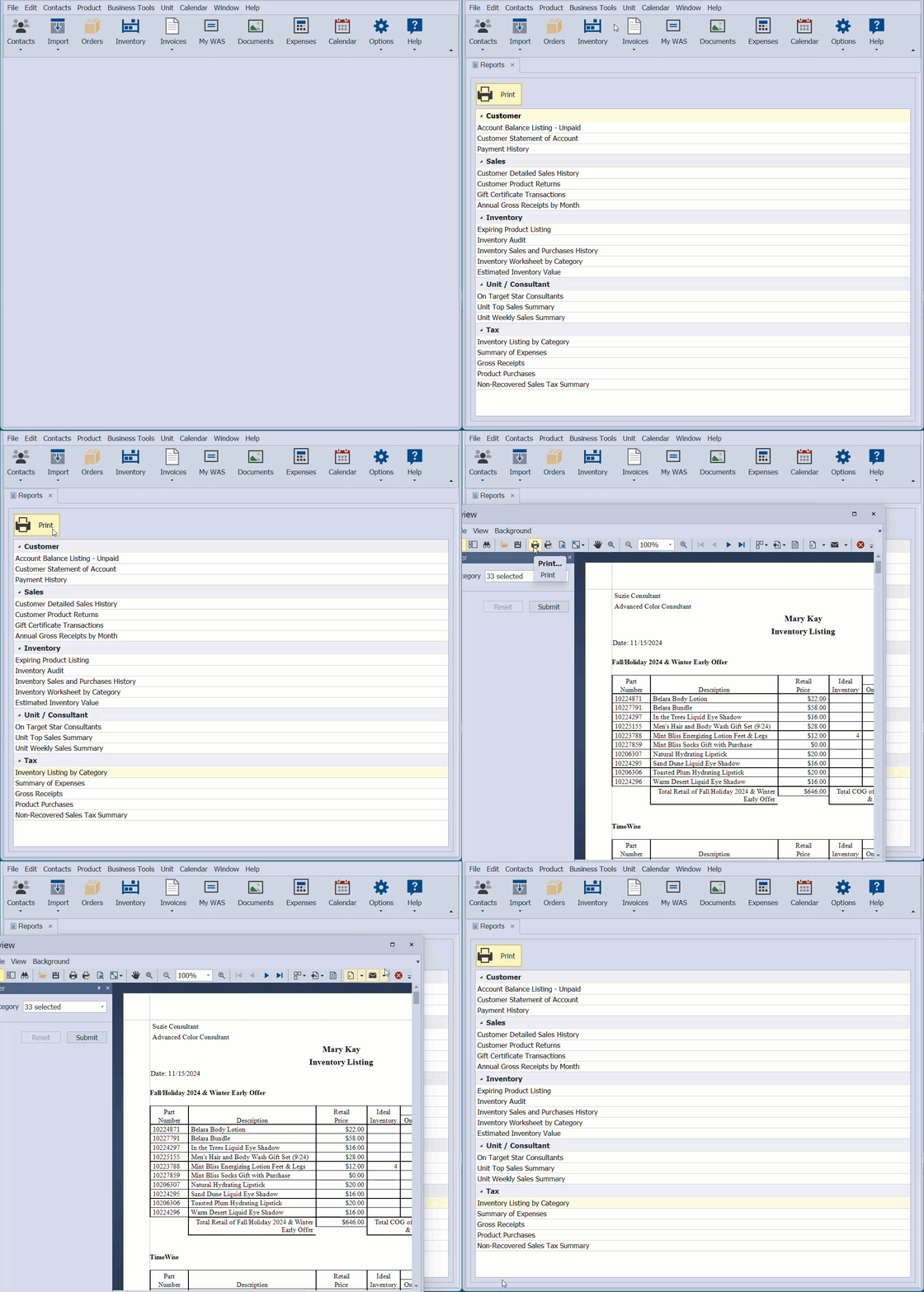
From the Business Tools menu, select Reports.
- Under the Tax section, select the Inventory Listing by Category report, then select
 Print (or double-click on the report).
 - From the preview window, click the print button
 to print (or export button
  to export as a pdf).

Create a Backup
From the File menu, select Backup.
- From the Save in drop-down options (or if you click This PC or Computer from the left-hand side), navigate to where you'd like to save the .zip backup file.
- We recommend changing the name to include the tax year for the backup file name (i.e., 20XX-YEAR-END). When finished, click Save.

