Inventory adjustments can be made directly from the product list, by creating a base inventory order, or through the Physical Count form for minor changes.
Before proceeding, we recommend printing an Inventory Listing of your current on‑hand amounts or an Inventory worksheet that includes all retail items so you can compare and record your actual inventory.
Options:
-
(1) Correcting On Hand or Adding Your Base Inventory (recommended)
This option provides two ways to update inventory, whether you’re making minor corrections or entering your complete inventory. -
(2) Edit Physical Count form
Choose this option when your on‑hand amounts are mostly accurate, but you need to adjust the wholesale value, expiration date, or quantity for a few items.
Option 1: Correcting On Hand or Adding Your Base Inventory
Once you’ve printed and recorded your current inventory count, add the amounts to Boulevard by entering them directly into the On Hand field of the product list or by creating one or more base inventory orders. For detailed instructions, see Entering Your Base Inventory.
Option 2: Edit Physical Count form
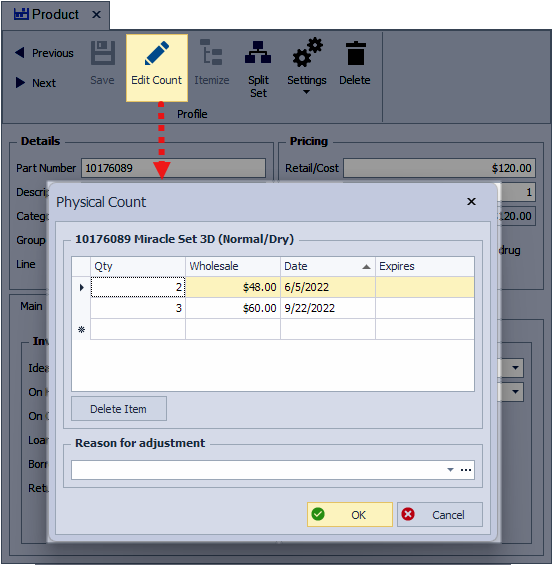
Use Edit Count when your on‑hand amounts are mostly correct, but a few item quantities or wholesale values need adjusting. Wholesale values are calculated from the Default Discount in Inventory Orders Settings, which should be set before making changes. If your on‑hand amounts are accurate but many wholesale values are off, use Update Wholesale instead.
From the main toolbar, select  Inventory (or from the Product menu, select Product List).
- Using the search field, type a partial product description or part number.
- After locating the desired product, double-click to open the product profile.
- From the product profile toolbar, click
 Edit Count to open the Physical Count form.
 - Adjust the quantity and, if necessary, the wholesale amount.
- Click OK to save and close the form.
Tips:
- If applicable, track a product's expiration by adding it under the Expires field. See Track Expiration Dates for more information.
- Add or select a Reason for adjustment from the drop-down list, which will then be included in the Inventory Audit information.

Additional Information:
- Year-End Guide & Checklist
- Once your inventory is accurate, see Close Year-End & Run Tax Reports to print the cost of goods on hand information and other necessary reports for tax purposes.