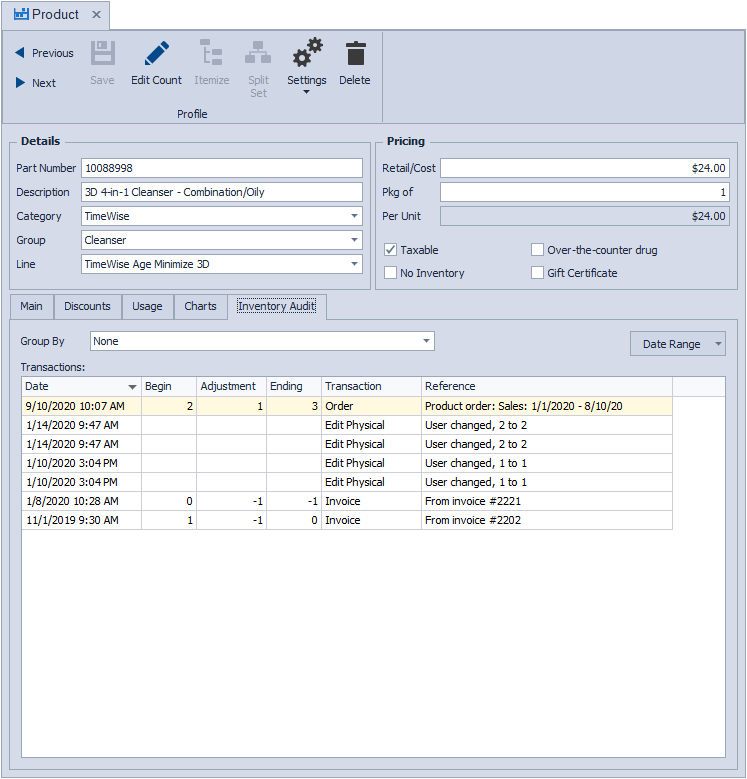
The Product Profile displays detailed information for an individual product in Boulevard, including pricing, inventory quantities, and product settings. From the Product Profile, you can view and update product details, adjust on‑hand inventory, and review activity related to that product. It provides a focused view for managing and maintaining accurate information for a single product.
From the main toolbar, select  Inventory (or from the Product menu, select Product List).
Sections:
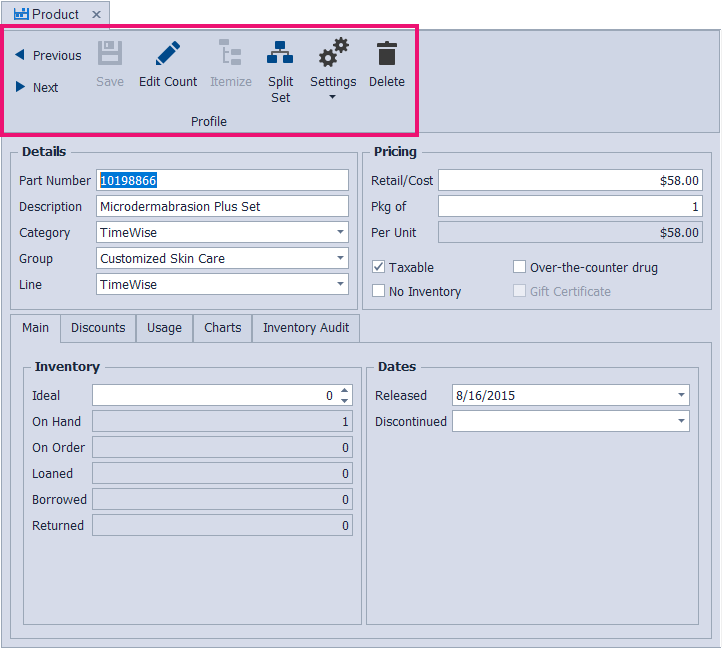
Toolbar
-
 Previous or
  Next: Moves to the next or previous product profile in the product list (only enabled if no changes have been made to the current profile).
 -
 Save: Saves the profile and closes it.
 -
 Edit Count: Edit the On Hand quantity, including the date and wholesale price when purchased. See Print Inventory & Make Adjustments for more information.
 -
 Itemize: Enabled only with product sets that are considered collections or pre-packs. It allows you to view the individual items included in the set. See Create a Product Prepack or Create a Product Collection for more information.
 -
 Split Set: Enabled only if the item has been coded as a set, the content of the set includes items that have profiles created, and if the set has an on-hand amount of at least 1.
 -
 Settings: Advanced Settings, and Chart Date Range (enabled only when the Charts tab is open).
 -
 Delete: Deletes the product profile.
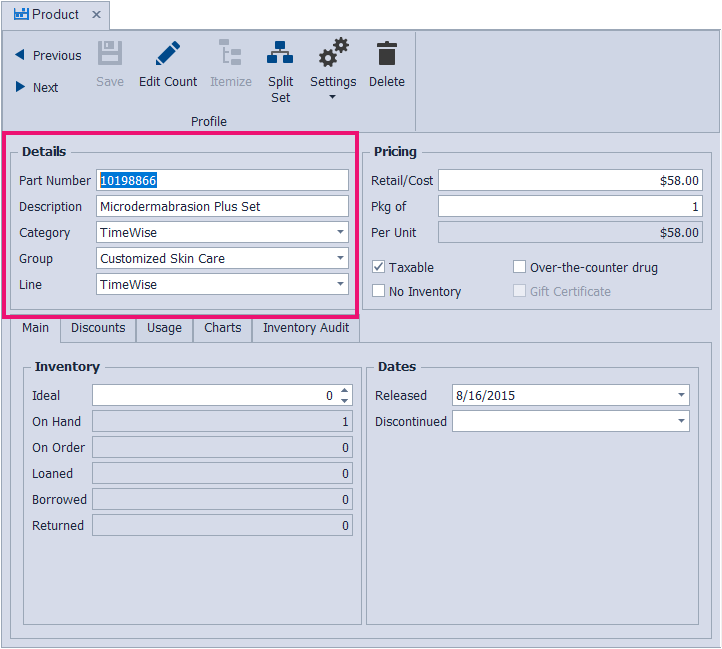
Details
- Part Number: Contains the unique part number for the item. This field allows up to 8 characters and can be a number, a letter, or a combination of both.
- Description: The description or item name can be up to 40 characters long.
- Category: Select the category where you would like the item to be located, or you can also type a letter to scroll to the next category starting with that letter.
- Group: Lists the type of product from a predefined set of groups. Product groups are used when creating product collections.
- Line: Lists the product line the item is associated with. Product Lines are used when tracking sales trends from the dashboard and creating reports.
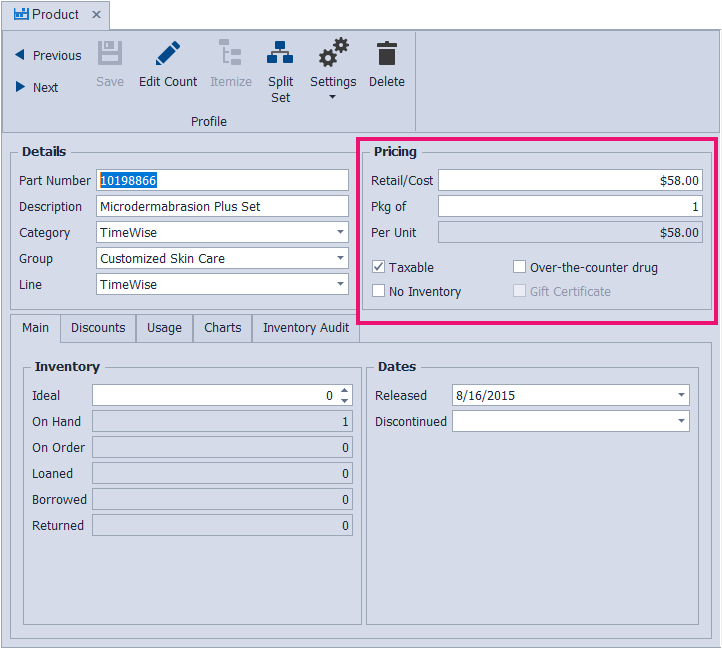
Pricing
- Retail/Cost: This number is the total retail price or cost of the product.
- Pkg of: By default, the package should be 1. In some cases (usually supplies), a higher quantity would be entered if there is more than one item in a package that is used separately.
- Per Unit: This is a read-only field and gives the per unit cost (Retail/Cost divided by the amount per package).
- Taxable: Indicates if tax will be calculated when buying or selling the item (for Canada, select Settings, then Advanced Settings).
- Over-the-counter drug: Indicates if the item has ingredients that are considered an over-the-counter drug or OTC.
- No Inventory: When this option is selected, inventory quantities are not tracked (usually for services or non-retail business supplies that do not need an on-hand amount to be tracked for tax purposes).
- Gift Certificate: Indicates that the item is a gift certificate, which is handled differently from a physical item being sold.
Tabs
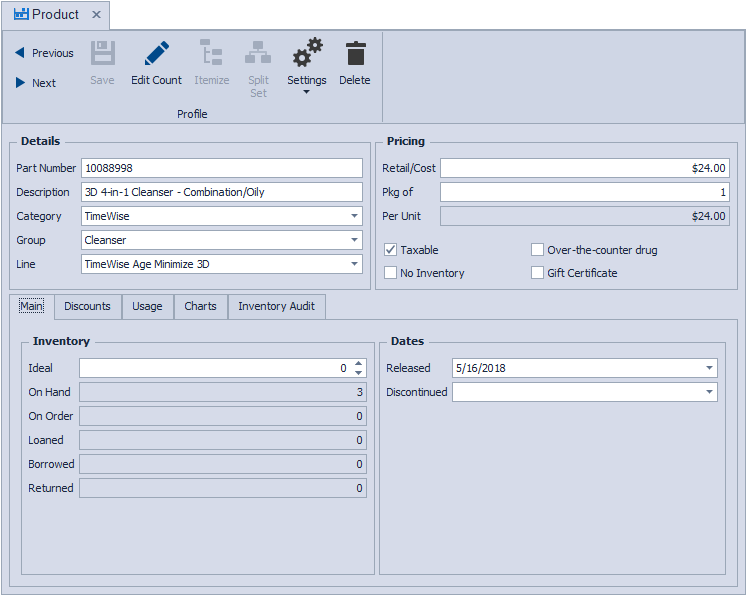
Main
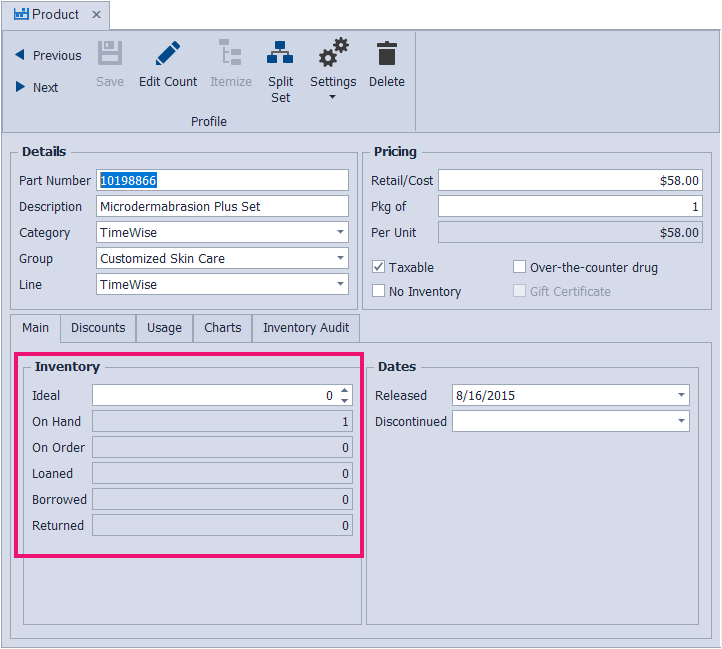
Inventory:
- Ideal: Stores the number you would like to keep on hand.
- On Hand: Stores the number you currently have on hand. See Print Current On Hand Inventory to view all on-hand amounts.
- On Order: Stores the number you have on order. See Inventory Orders Overview for more information.
- Loaned: Stores the number you have loaned out to others.
- Borrowed: Stores the number you have borrowed from others.
- Returned: Stores the number that has been returned to you and has not been processed as a replacement product order. See Product Replacement Orders for more information.
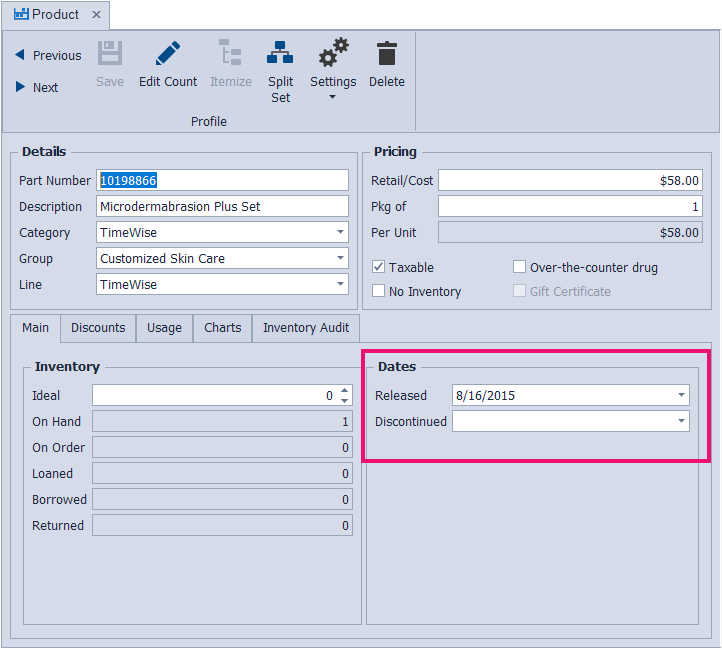
Dates:
- Released: The date the item was initially released.
- Discontinued: The date the item was discontinued (if applicable).
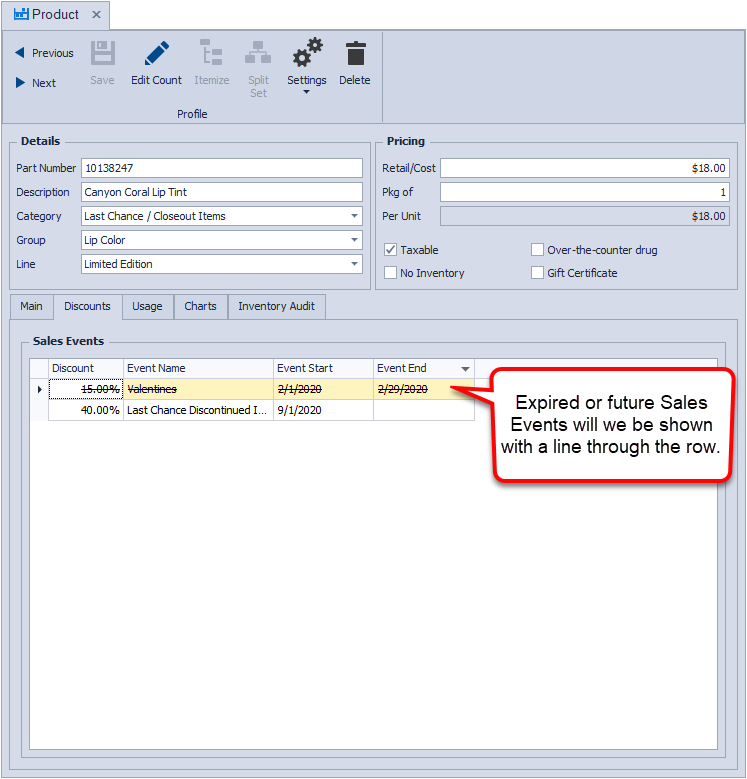
Discounts
Displays the Sales Events that include this item.
Usage
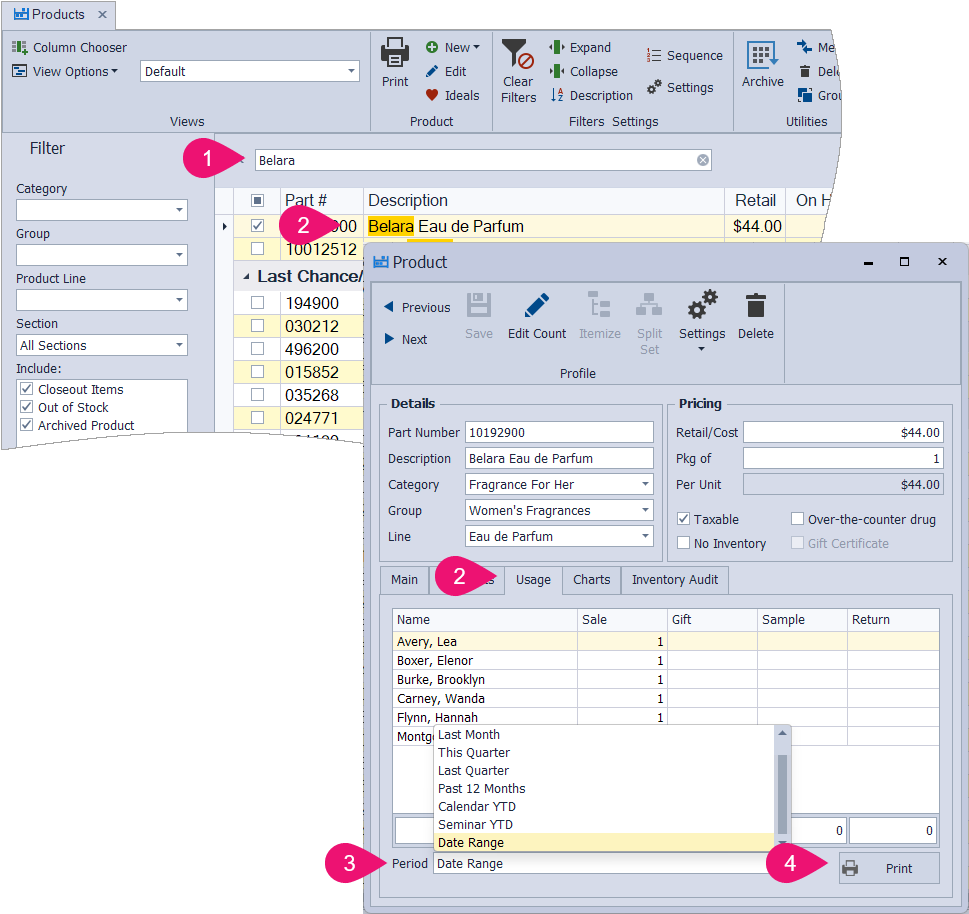
Displays the number sold, given as a gift or sample, and returned for the specified time frame, with the ability to print. See View Customer Product Usage for more information.
Charts
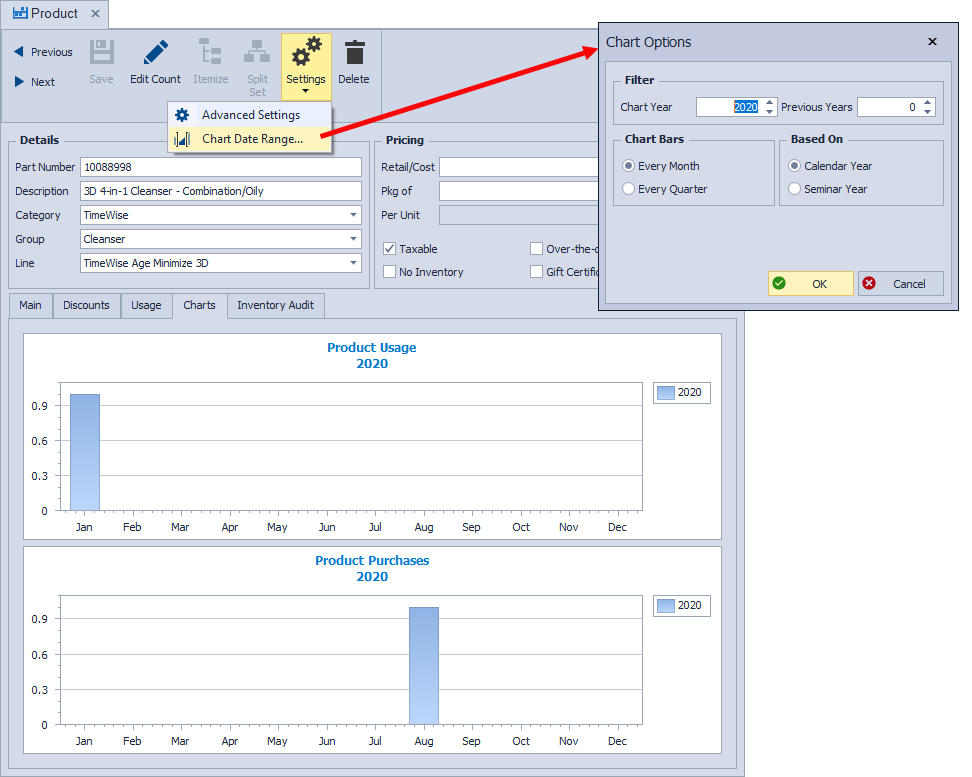
Displays charts for Product Usage and Product Purchases. Click  Settings, then select Chart Date Range for additional options. Tip! If the chart grid information is not displaying, increase the size of the product form (if you're using the Float setting), or switch to the Tab layout. See Boulevard Window Sizes & Layout Options for more information.
Inventory Audit
View each transaction and its source, within the past year by default, but can be changed using the Date Range button menu. An audit report of all inventory items can be found in Reports under the Business Tools menu.