The Calendar is used to manage appointments, action items, birthdays, anniversaries, and other events. It offers multiple viewing layouts, tools for navigating dates, creating appointments and tasks, printing the current view, filtering what is shown, and choosing color settings. The Calendar tab displays the selected layout and the To Do List tab shows action items, follow ups, and auto deliveries.
From the main toolbar, select  Calendar (or from the Calendar menu, select Calendar).
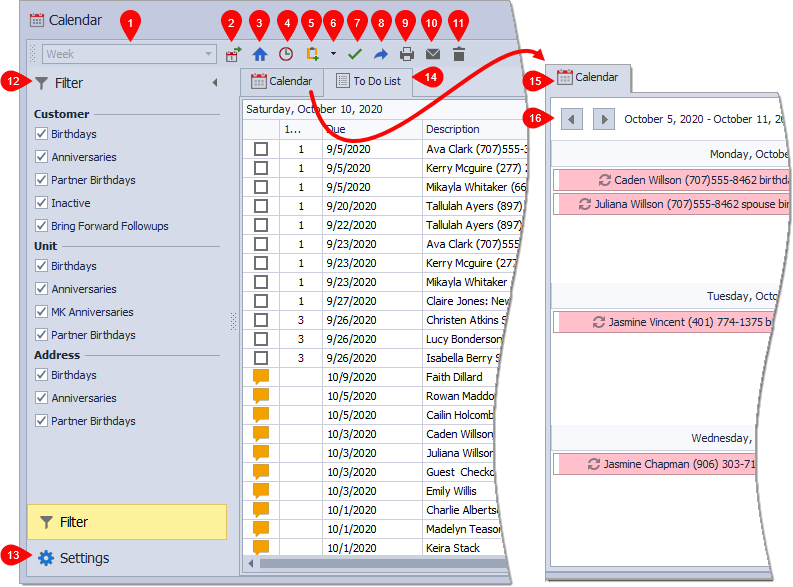
- (1) View: Enabled only when the Calendar Tab is being viewed. Choose to view the calendar in a Day, Week (default), Work Week, Month, or Agenda view.
-
(2)
 : Navigate to a specific date in the calendar and view it in your preferred layout.
 -
(3)
 : Navigates to today's date.
 -
(4)
 : Create a single or repeating appointment.
 -
(5)
 : Create a single action item.
 -
(6)
 : Create multiple action items when the To Do List tab is displayed.
 -
(7)
 : Mark action items, follow-ups, or auto-deliveries complete (only visible in the To-Do List tab).
 -
(8)
 : Move one or more action items or follow-ups to a future date (only visible in the To-Do List tab).
 -
(9)
 : Prints the current view layout.
 -
(10)
 : After selecting a contact, select to create an email (contact must have an email address saved in their profile).
-
(11)
 : Deletes the selected follow-up/action item from one of the view layouts on the Calendar tab, or select one or more follow-up/action items from the To Do List to delete a group of tasks at one time.
 -
(12)
 Filter: Choose which types of action items and events you'd like displayed in the calendar.
 -
(13)
 Settings: Select the color-coding for each action item or follow-up type, or turn color coding off.
 -
(14)
 To Do List tab: Displays action items, follow-ups, and auto-deliveries.
 -
(15) Calendar tab: Displays the selected view layout of the calendar.
-
(16)

 : Move incrementally forward or back using the navigation arrows inside each layout view.
Additional Information:
Double-click or use the right-click menu on calendar items for quick functions.