Appointments can be created from several areas in Boulevard. They can be started from the Calendar menu or toolbar, from a contact’s profile, from the Customer, Unit, and Address lists, from the List Builder, and from Upcoming Events under Appointments. After choosing any of these entry points, you can add the date, time, description, location, notes, and optional repeat settings before saving the appointment.
There are several ways to begin creating a new appointment. Choose from the following options:
- From the Calendar menu, select
 New Appointment
- From the calendar toolbar, click .
- From the contact profile toolbar, click Appointment.
- From the Customer, Unit, Address List, or List Builder, select the contact, then right-click and choose New Appointment.
- From Upcoming Events under Appointments, right-click and choose New Appointment.
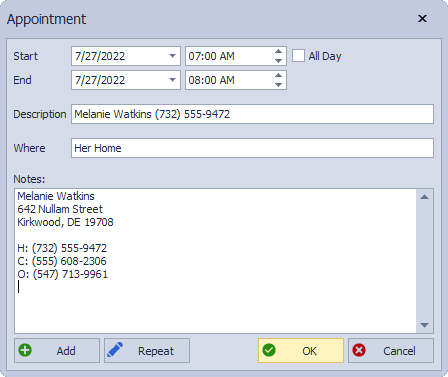
Appointment Details:
- Enter a Start and End Date and times or check All Day for an all-day appointment.
- Enter a Description, then the location of the appointment in the Where field, and any other pertinent information in the Notes field.
- If the appointment is recurring, click Repeat and enter the appropriate information under the Frequency and Duration sections, then click OK.
- To finish adding the appointment and create another, click Add, otherwise, click OK.