There are two methods for recording retail items given as gifts to ensure proper tax tracking purposes, depending on whether the recipient is known or unknown.
Options:
Gifts Given to Known Recipients: Use this option when giving away an item that you would like tracked under the recipient's contact profile.
Gifts Given to Unknown Recipients: Use this option to handle situations where your business is giving away a retail product for an event, such as a gift basket for a raffle created by multiple consultants, when the intended recipient is unknown.
Option 1: Gifts Given to known Recipients
- Create an invoice that includes the items being given away, along with any other items being sold (if applicable).
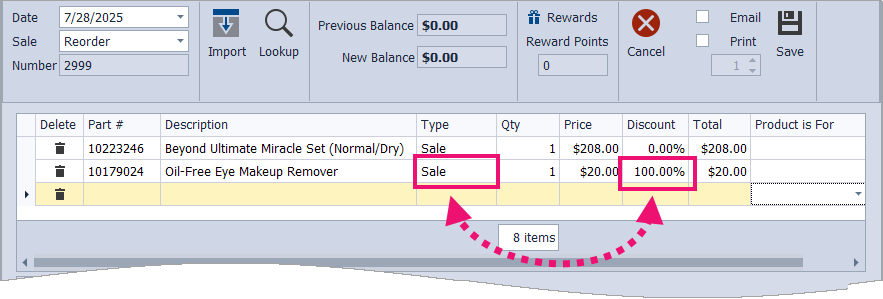
- Keep the sale Type as Sale and enter 100 in the Discount field (or if using a Flat discount, enter the amount equivalent to the Price).
- Add any additional items or payments as needed to complete the invoice, then click
 Save.
Save.
Keeping the sale type as Sale and entering 100 in the Discount field will display the item's value on the recipient's invoice. The retail amount will be included in the Gross Receipts report under Retail Subtotal, with an offsetting amount listed under Discounts, thereby lowering the Net Total.
Tip! Use the Day Code field to specify an item as a Gift (see sample image below). View Sample
Alternatively, using the Gift sale type for retail items will not include the item amount in the Retail Subtotal or Net Total on the Gross Receipts report. However, it will be included under the Discounts section as Retail Gifts Given.
Option 2: Gifts Given to Unknown Recipients
When donating items to a charity, raffle, or shared gift basket where the recipient is unknown, be sure to set up a Business Supplies profile before proceeding. See Handle Demos, Donations, or Expired/Product Loss for detailed instructions.
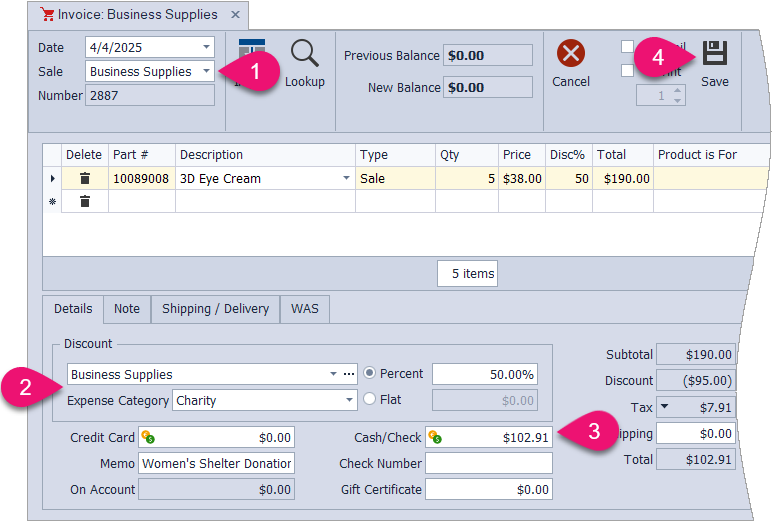
- Create an invoice under your Business Supplies profile with the invoice Sale type set to Business Supplies.
- Under the Discount section, ensure the discount type is set to Business Supplies. Then, from the Expense Category drop-down options, select the appropriate tax category.
- Mark the invoice as paid in full by clicking
 to the left of the Cash/Check field.
 - For additional information, enter a short description in the Memo field (such as Guest Event Raffle).
- When finished, click Save.
- Supplies (COG): Items used as section 1 demonstrators
- Gifts: Items for an event not tied to a specific recipient
- Advertising: Items used as a giveaway to obtain leads
- Charity: Items donated to a shelter or other charitable organization
- Expired/Lost: A product past its prime that is being discarded. Another use for this category would be products lost or damaged during shipment to a customer.
Additional Information:
- You can categorize the discounts you offer using various Discount Types and even create custom options.
- See Handling Sales Tax on Discounted Items for more information about how tax is calculated when applying discounts.
- When adding section 2 items (supplies), the sale type will automatically default to Gift or Sample. Section 2 items are accounted for on the Product Purchases tax report and should not be separately entered as an expense.
Main Street can only provide general suggestions, not tax advice. Please consult your tax professional for guidance on your specific situation.