Recurring expenses allow you to automatically record expenses or income that repeat monthly or annually by setting a description, next occurrence date, category, and amount. A recurring entry can include one or multiple categories, and future occurrences may be edited, deleted, or moved to a new date from the Recurring list without affecting previously posted entries.
From the main toolbar, select  Expenses (or from the Business Tools menu, select Expenses).
Options:
Create a New Recurring Expense
Edit, delete or move a future recurring expense
Create a New Recurring Expense
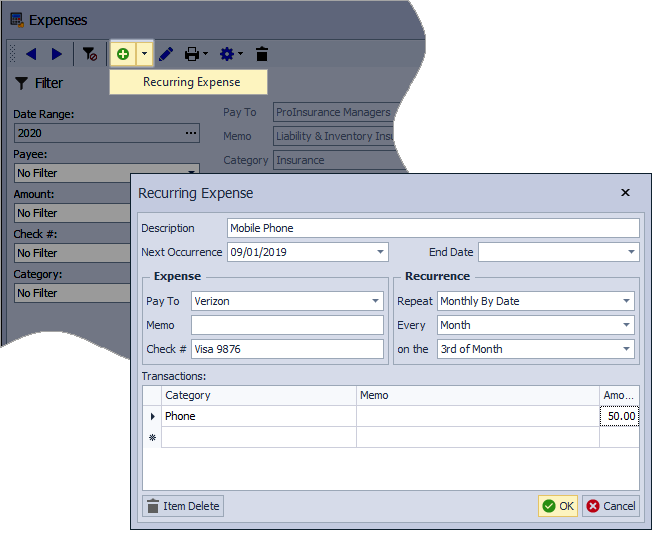
- From the Expense toolbar, click the arrow
 located to the right of the add
  button and select Recurring Expense from the drop-down options listed.
 - Enter a meaningful name in the Description field for the recurring expense (this can be the name of the Payee).
- Select a date from the Next Occurrence drop-down calendar (and if applicable, select a date from the End Date drop-down calendar).
- Under the Expense section, fill in the Pay to, Memo, and Check # (if a credit card is used, we suggest specifying which card).
- Under the Recurrence section from the Repeat drop-down, select how often the expense should recur either Monthly by Date or Annually.
- If Monthly by Date was selected, under the Every drop-down, select from one of the options listed.
- Under the on the drop-down, select the specific date the expense will occur on.
- Under the Transactions section, select the applicable expense Category, then the Amount (and optionally Memo field).
- If a recurring expense needs to be split among multiple categories, repeat the previous step until finished, then click OK to accept and close the form.
Edit, delete or move a future recurring expense
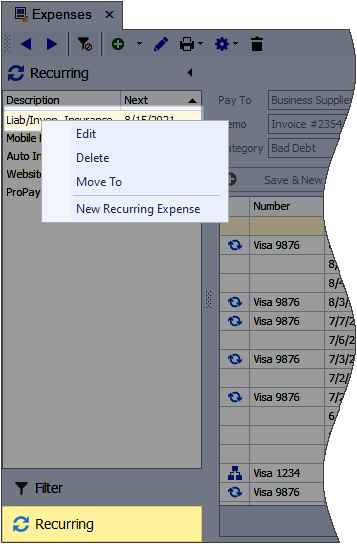
- From the lower left-hand area of the expense form, select
 Recurring.
 - Right-click on the desired expense, then choose either Edit, Delete, or Move To (which moves the recurring expense to a new Next Occurrence date).
Additional Info:
- When creating a new recurring expense, if a past date is entered in the Next Occurrence field, all applicable entries through the End Date (or the current date if left blank), will be added.
- For recurring expenses to populate, your Boulevard program and/or expense screen must be closed regularly.
- When a recurring or split expense transaction has been posted, the line entry will be marked with the following images to indicate a split
 or recurring expense. Hovering over the image will display additional information.
 - To delete or edit individual recurring transactions that have already been added, see Add or Delete an Expense Entry or Find and Edit an Expense Entry.
- Detailed Expense Listing
- Expense Reports