Boulevard can track items that have been invoiced but are not in your current inventory. After receiving an inventory order in your software program, Boulevard will alert you to view your back-ordered products and allow you to mark them as delivered when ready.
Options & Features:
Automatic Method: This method is recommended if you track inventory in Boulevard and your On Hand amounts are accurate.
Manual Method: This method is recommended if you do not track on-hand amounts in Boulevard.
Automatic Method
From  Options on the main toolbar, select
  Business Info (or from the Edit menu, select Preferences).
- Select the Invoice tab and check Track Backordered product.
- Click OK to save and close Preferences.
- When an item is added to an invoice that is not in stock, it will automatically be tracked under Backordered Products.

Manual Method
Tip: Before proceeding, note the invoice number associated with the back-ordered product (listed in the Account & Invoice tab of the contact profile).

From the Product menu, select Backordered Product.
- From the Backordered Product form, click Add Item.
- From the Add Backorder form, enter the item's Part Number or click Lookup to locate and add the item.
- Enter the Invoice number associated with the back-ordered product.
- Click OK to add the entry, the OK to close the Backordered Product form.
Overview
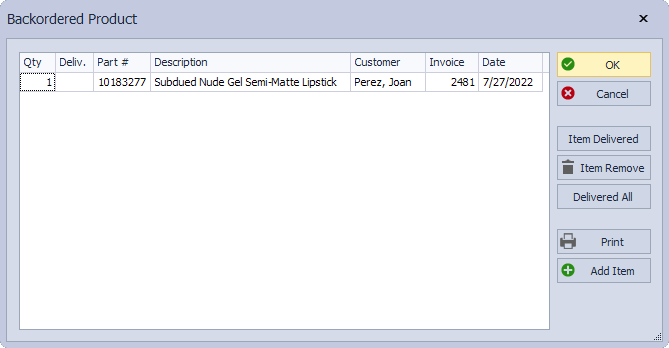
- Qty: Displays the quantity of each back-ordered product
- Delivered: Enter the quantity of each item that has been delivered, or click the Item Delivered button to match the Qty field
- Part #: Displays the part number of the item as it appears in the Product List
- Description: Displays the description of the item as it appears in the Product List
- Customer: Displays the customer that is owed the back-ordered items
- Invoice: Displays the invoice number that contained the out-of-stock items
- Date: Displays the date the invoice was generated
- OK: Saves any changes made, and close the form
- Cancel: Closes the form and does not save any changes made since the form was opened last
- Item Delivered: Adds the same amount from the Qty field to the Delivered field
- Item Remove: Removes the item from the list
- Delivered All: Adds the same amount from the Qty field to the Delivered field for all items on the list
- Print: Choose to print a listing that is grouped by customers or product, and additional filtering to print all customers with back-ordered items or a specific customer or by product
- Add Item: Adds an item to the back-ordered form that has been previously invoiced
Mark an Item as Delivered or Remove Item
Note: Tracking and delivering back-ordered products does not change your inventory in any way. It is simply a method for keeping track of the products owed to your customers.
From the Product menu, select Backordered Product.
Select the desired item, then click Item Delivered or Item Removed (either option will remove the item from the list but will not change your current on-hand inventory). Click OK to save any changes made and close the form.