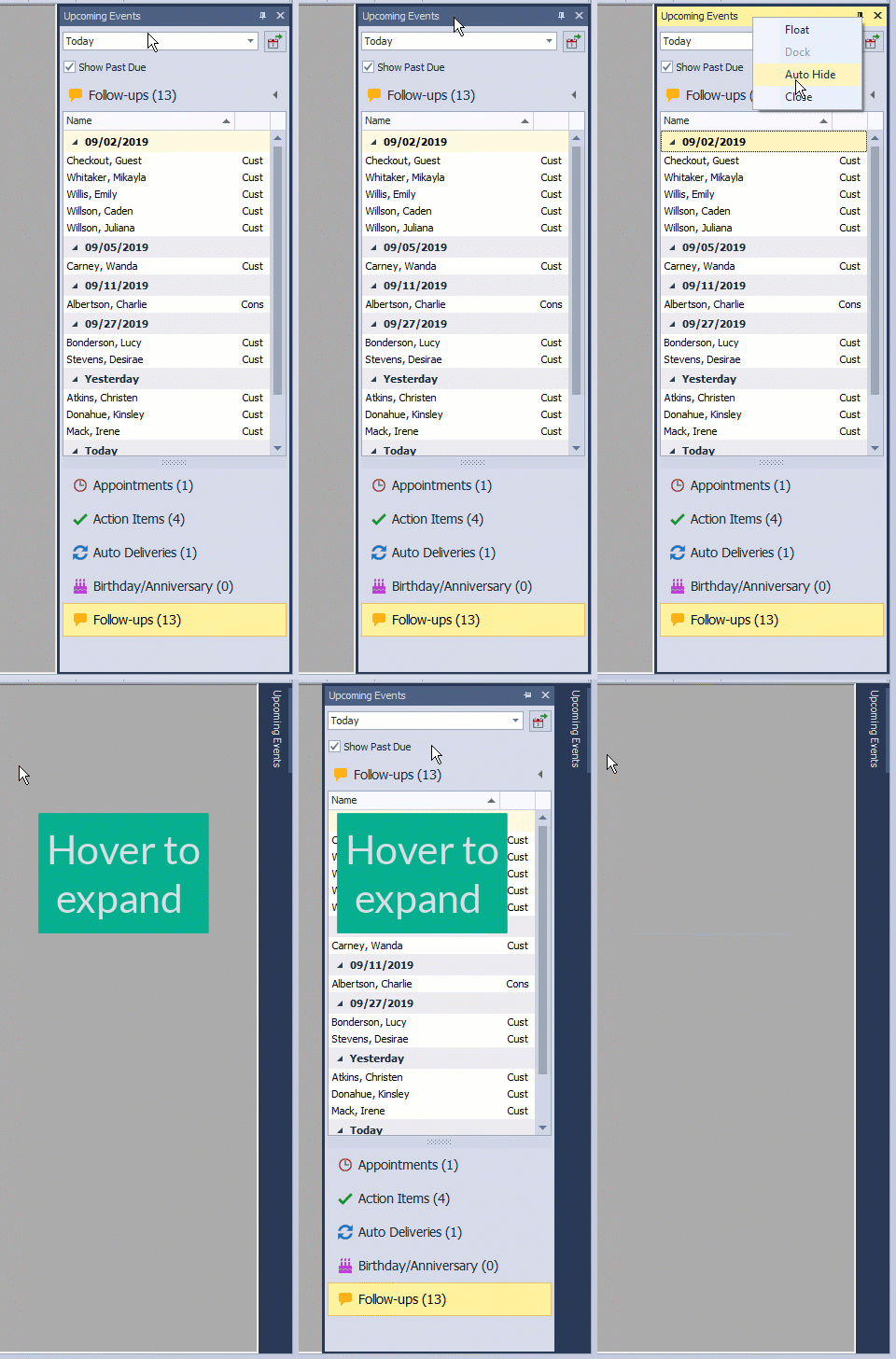
Forms such as the Shortcuts panel and Upcoming Events may be floated, docked, pinned, or closed to adjust the workspace layout. Floating allows placing forms anywhere on the screen, docking anchors them to an edge, auto‑hide collapses them until selected, and closing removes them from view.
|
Float: The Float option allows you to place the forms anywhere on your screen even outside of the Boulevard application. Dock: Anchor the forms using the drag-and-drop method to any of Boulevard's outer top, bottom, right, or left edges. To change the docked position, the float option must be chosen first. To tab, drag and drop onto the center tab image. Auto Hide/Pin: The Auto Hide/Pin options can be accessed by toggling the push-pin icon on the Shortcuts or Upcoming Events title bar (or right-clicking on the form's title). To expand the form, click the title with the left mouse button. The form will collapse and auto-hide after losing focus (as shown). Close: To close the forms, left-click the close icon or right-click on the form's title bar and select Close. Shortcuts can be reopened from the Window menu, and Upcoming Events from under the Calendar menu.
|