The Print or PDF an Invoice option allows invoices to be printed or exported in various file formats directly from Boulevard. Printing can be done from the invoice itself, through the Invoice Log, or contact profile. Exporting provides a PDF or other supported formats for saving or sending electronically.
Note: Before printing, ensure that your default printer is selected from the File menu under Print Setup.
Options:
From the Invoice: Use this option to print if you are initially creating the invoice. To print after the invoice is saved, we recommend following Options 2 or 3.
From the Contact Profile: Choose to print one or more invoices simultaneously for a contact.
From the Invoice Log: Choose to print one or more invoices for the same contact or multiple contacts simultaneously. A tabular report can also be printed.
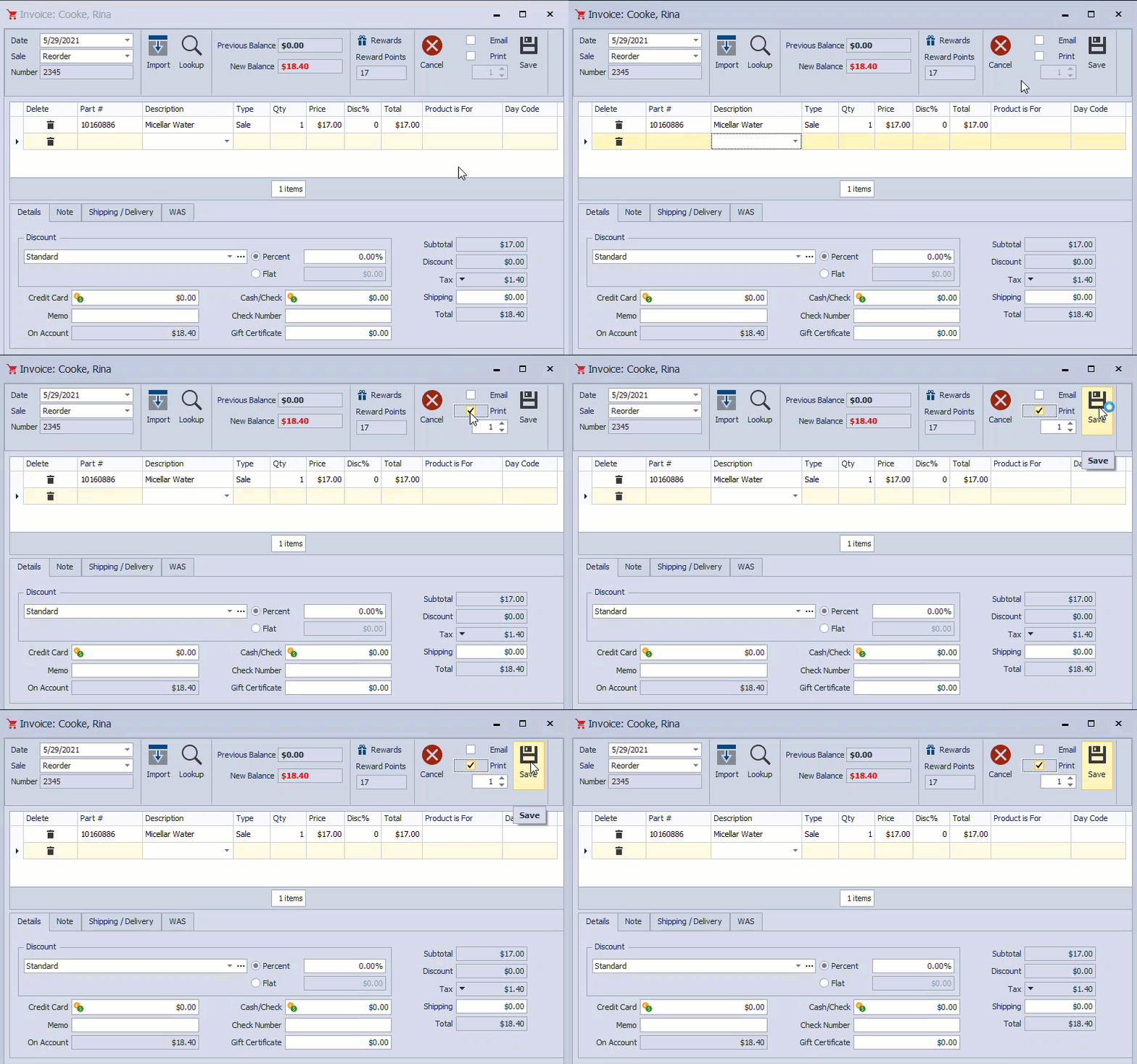
From the Invoice
If you are creating a new invoice, select the Print checkbox and decide how many copies to print before finishing the invoice.
Tip: Set the default number of invoices to print from the Invoice tab in Preferences.
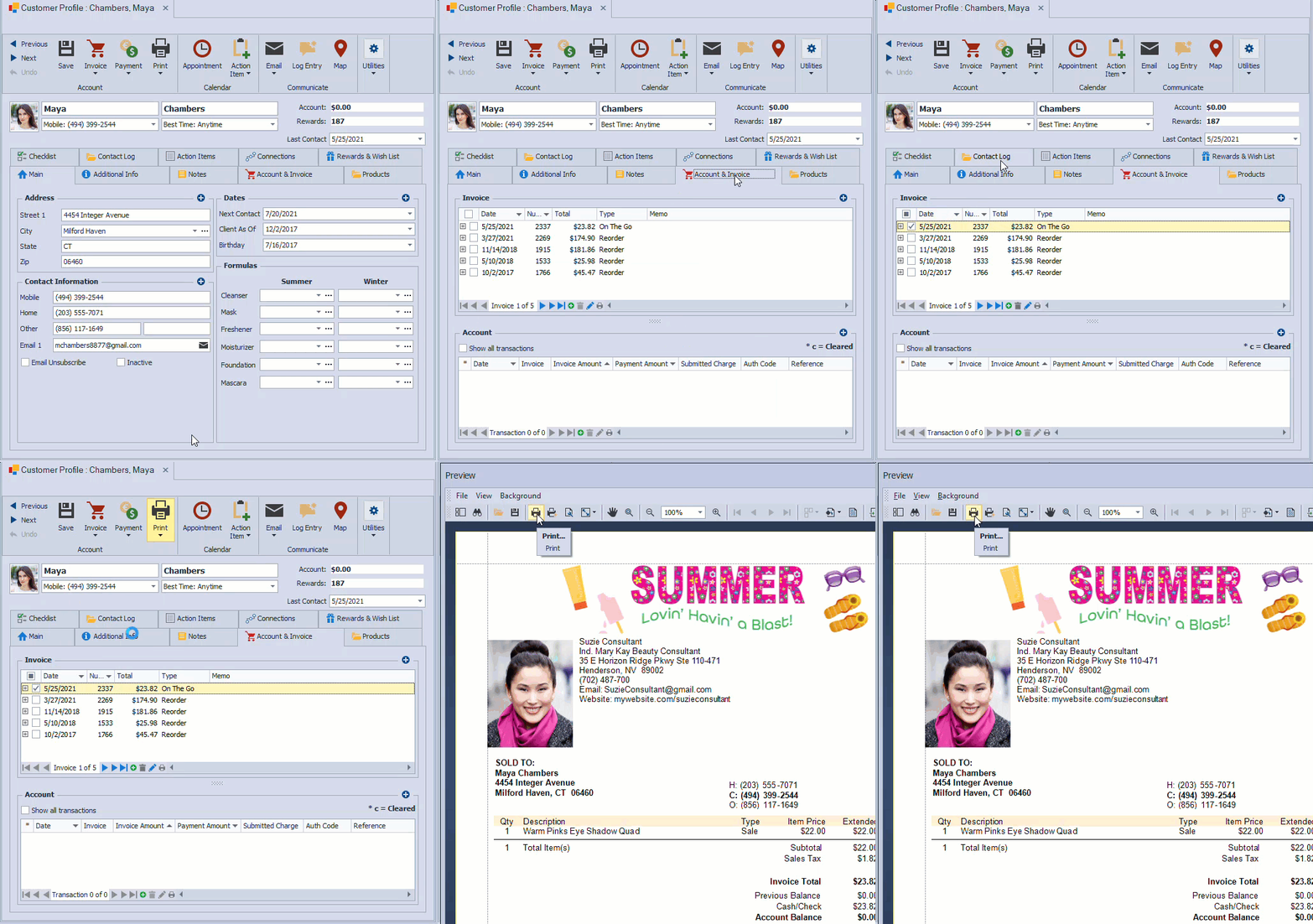
From the Contact Profile
Option :
- Open the profile and click on the Account & Invoice tab.
- Select the checkbox next to the invoice (or each you want to print).
- Click the print button
 and choose Invoices from the drop-down options listed.
 - From the preview window, click
 to print (or
  to export as a pdf).
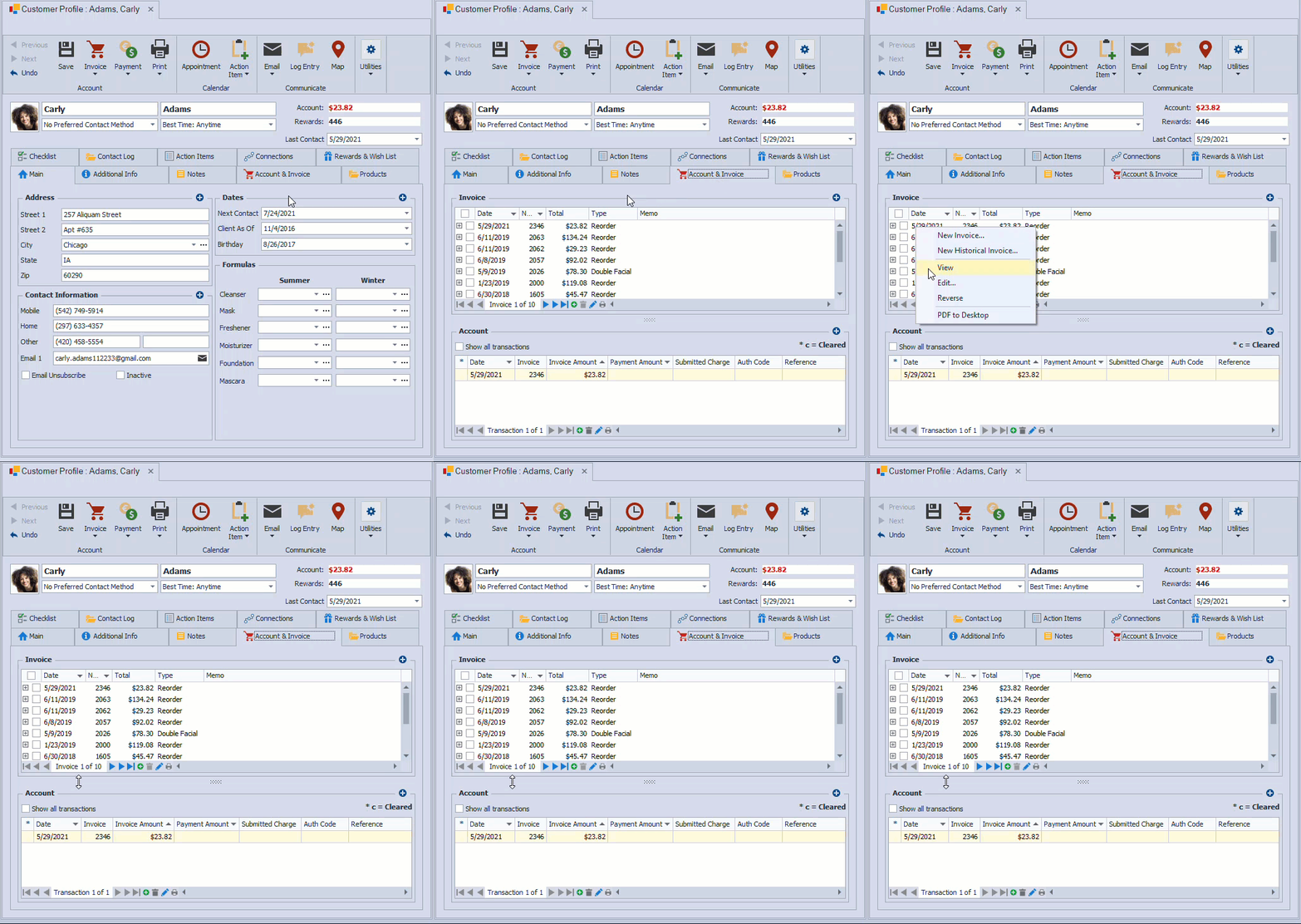
Option :
- Open the profile and click on the Account & Invoice tab.
- Right-click on one invoice, then select PDF to Desktop.
- The pdf invoice can be located on your Desktop, named Invoice 1234.pdf (with the invoice number in place of 1234).
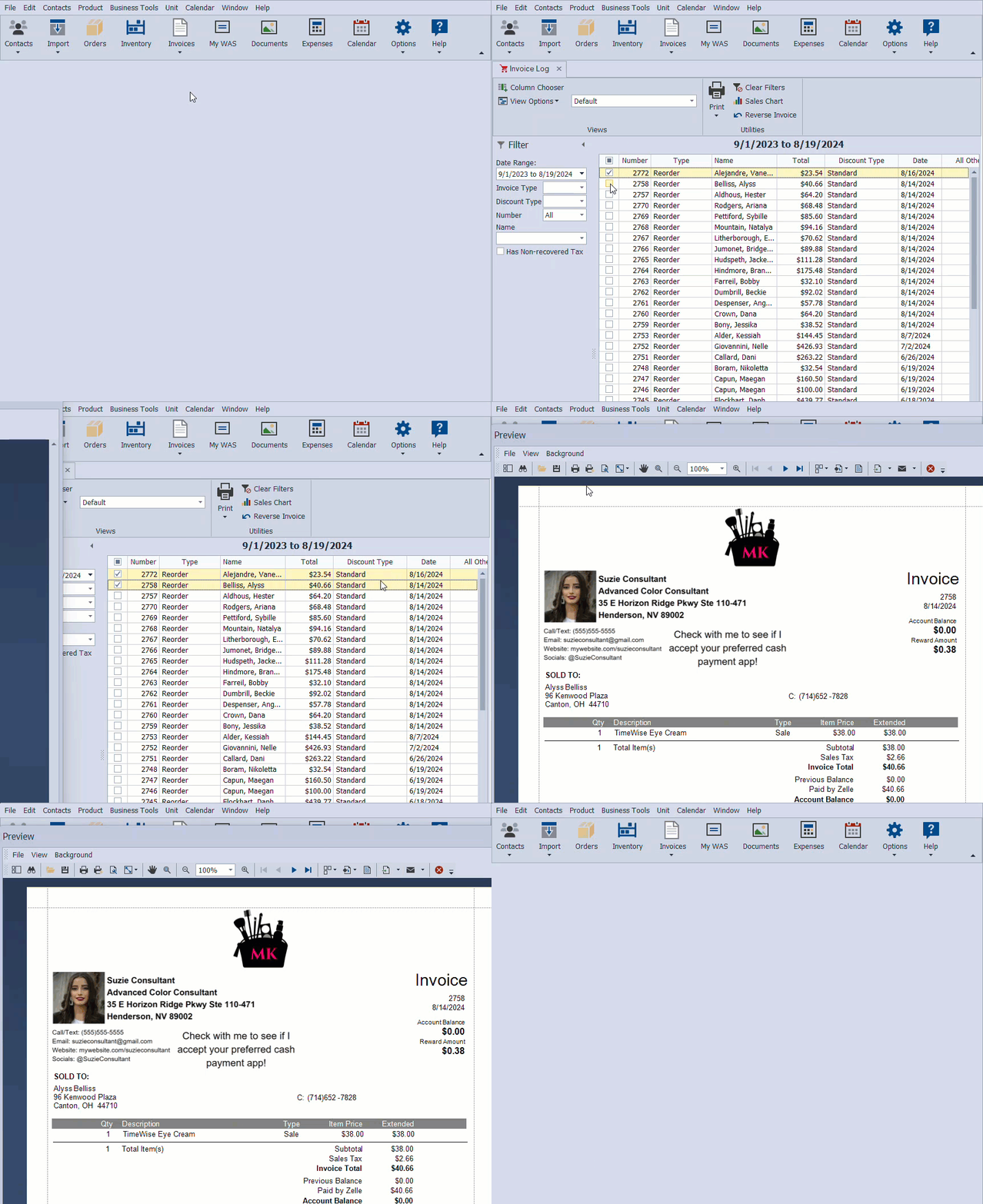
From the Invoice Log
From the main toolbar, select  Invoices, then select Invoice Log (or from the Business Tools menu, select Invoice Log).
- From the Filter sidebar, choose the applicable filters to locate the invoice(s) to be printed (Date Range, Invoice Type, Discount Type, Number, Name, Has Non-recovered Tax).
- Select the checkbox next to each invoice to be printed (if all are left unchecked, it will print all invoices displayed in a tabular format).
- From the toolbar, click
 Print, then select View.
 - From the preview window, click to print (or to export as a pdf).