Consultant Recognition summarizes weekly sales and wholesale production for consultants after the information has been entered or imported into Boulevard. Queries highlight top consultants based on selected criteria, and results may be viewed on screen, copied to the clipboard, or sent by email when email settings are enabled.
Choose from either displaying the information Screen (on-screen), Clipboard (copies to the Windows clipboard), or Email (launches an email). If Email is selected, your email settings must be set under Preferences first.
Options:
From the Unit List toolbar, select  Recognition (or from the Unit menu, select Consultant Recognition).
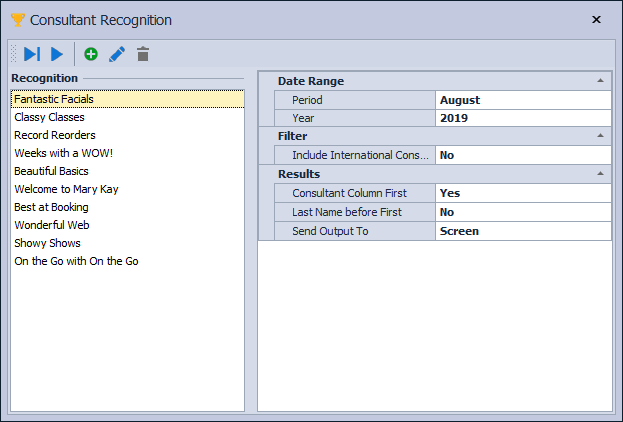
Create a Query
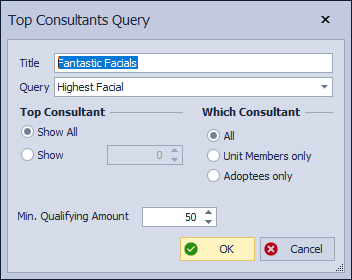
- From the Consultant Recognition toolbar, click the add button
 .
. - From the Top Consultants Query form, enter a query description in the Title field.
- From the Query drop-down list, select the desired query.
- Under the Top Consultant and Which Consultant sections, choose the applicable criteria, then click OK to save and close the form.
Edit a Query
Under the Recognition section, double-click on the query, or select it, then click  from the toolbar. Make any necessary changes, then click OK to save and close the form.

Delete a Query
Select the query under the Recognition section. Click the delete button  from the toolbar, then select Yes to confirm.

Run All or Individual Queries
Note: If you're running a query using one of the seminar date options in the Period field, before proceeding, ensure that your dates are set under the Seminar Year tab in Preferences. If you're on the Product Update Service, these dates are automatically updated for you each year.
On the right-hand side of the Consultant Recognition form, set the desired criteria from the Date Range, Filter, and Results section. To run one query, select it, then click run button  from the toolbar. Alternatively, to run all queries, click the run all button
  .
.
