To properly account for your year-end cost of goods on hand, all inventory should be cleared out of the Loan, Borrow & Exchange area in Boulevard each year. If you have loaned items that cannot be recuperated, follow the steps below to enter them as a bad debt expense.
Note: You'll first want to ensure that you have a Bad Debt Expense Category created in Expenses.
Options:
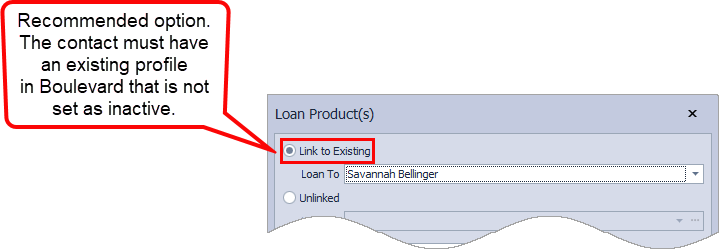
Linked to an Existing Contact (Recommended): Use this option if the product was loaned to a someone that has a contact profile created in Boulevard and the loan was linked to their profile.
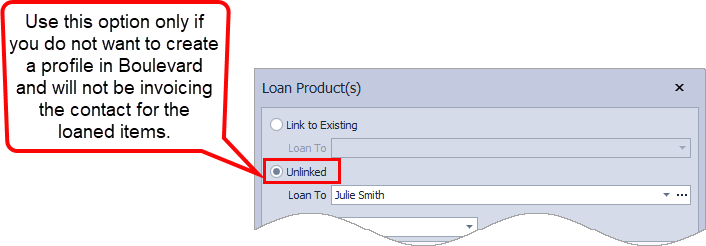
Not Linked to a Contact: Use this option if the product was loaned to someone that does not have a profile in Boulevard.
Linked to an Existing Contact (Recommended)
If the loan was linked to an existing contact in Boulevard when initially created, follow the steps below.
- From the Product menu, select Loan/Borrow & Exchanges.
- Select the loaned product for one person, then click
 to begin the invoice.
 - Choose Business Supplies as the invoice Sale type.
- At the bottom of the invoice, if you'd like, you can apply the typical discount you receive when ordering inventory (to write off the cost of the product versus if you had sold it for full retail to a customer)*.
- From the Discount drop-down, select Business Supplies.
- Then, from the Expense Category drop-down, choose Bad Debt.
- From the Details tab at the bottom of the invoice, in the Cash/Check field, click
 to zero out the balance of the invoice.
 - In the Memo/Check# field, enter a note such as BAD DEBT.
- If you'd like to print a copy of the invoice, select the Print checkbox, then click
 Save to save and close the invoice. Boulevard will automatically create the expense entry with the invoice number indicated.

Not Linked to a Contact
If the loan was not linked to an existing contact in Boulevard when initially created, follow the steps below.
- From the Product menu, select Loan/Borrow & Exchanges.
- Select the checkbox next to all loaned items to be written off, then from the toolbar, click
 Exchange.
 - In the Exchange With field, type BAD DEBT. View
- Click
 Note, and enter a short note indicating that the product is being written off. View
- Enter 1 in the Print Copies field to print. View
- Click
 OK to save, then Yes to continue with the uneven exchange.
 - From the main toolbar, click
 Expenses.
 - Click
 to create a new expense. View
- The Pay To is not required and can be left blank. In the Memo field, enter a short note indicating the entry is for product that was loaned and the amount could not be collected.
- If necessary, adjust the Date, and from the Category drop-down, select Bad Debt.
- Enter the cost of the product in the Amount field (your typical discount amount of the Retail from the printout in step 5)*. View
- When finished, click Save.
Additional Information:
* Note: Main Street cannot give tax advice, only general suggestions. Please seek advice from your tax professional on handling individual expenses and income for your tax situation.
- If you would like to reprint either of the options from above, you can see Print a Loan, Borrow, or Exchange.
- If the items were not entered into Boulevard as a loan but instead invoiced to a customer, please see Record a Bad Debt or Account Unrecoverable.