Card payments can be processed in Boulevard using a ProPay or Stripe account. If using another payment processor, fee details can be entered manually and assigned to the correct Expense category to ensure processing fees are recorded accurately.
Now Available! Be sure you have verified your credentials in Boulevard and that the current version is installed.
From the  Options button on the main toolbar, select
  Payment Processors (or from the Edit menu, choose Preferences, then select the Payment Processors tab).
Payment Processors:
Stripe: Select this option to either connect an existing account or create a new Stripe account.
ProPay: Select this option to connect an existing ProPay account.

Stripe
- In the Account Details area, select Stripe from the Processor drop-down menu, then click Connect.

- From the Stripe Onboarding dialog, enter your email address, then click Continue to either connect an existing Stripe account or create a new one.
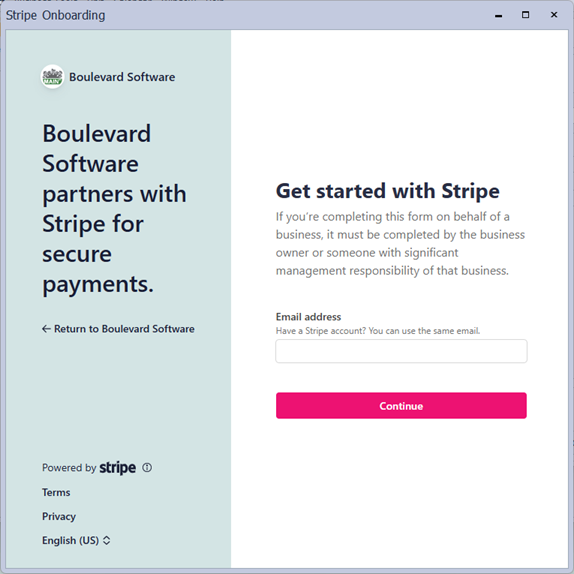
- Once you have successfully finished entering your information, click OK to close the account dialog.
- Within the Fees group, choose the Expense category to record processing fees and the applicable fees.
- When finished, click OK to save and exit Preferences.
Note: At this time, if you need to process a refund or update partial card information, such as the expiration date, you'll need to sign in directly to your Stripe account.
ProPay
- In the Account Details group, select ProPay from the Processor drop-down menu.
- Enter your ProPay account information in the Email and Account Number fields, then select Connect.
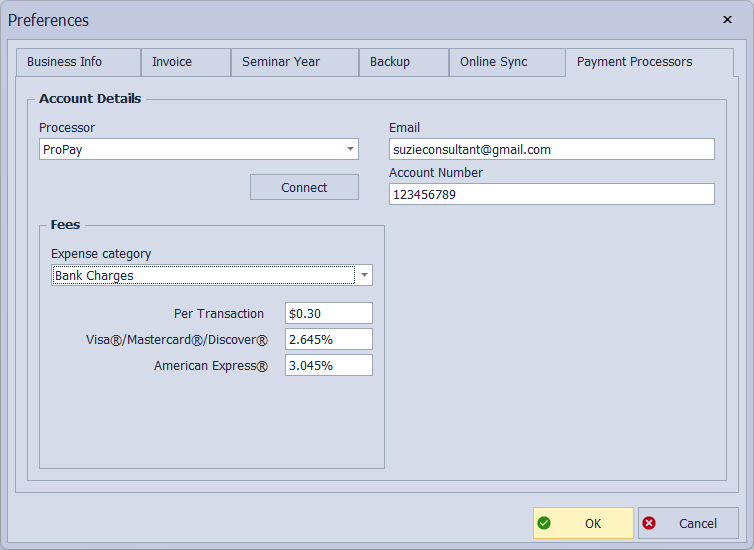
- Click OK to acknowledge that your account has been successfully connected.
- Within the Fees group, choose the Expense category to record processing fees and the applicable fees.
- When finished, click OK to save and exit Preferences.
Additional Information:
- Add or Update a Customer Payment Method
- Handling Credit Card Payments
- Email a Direct Payment Link for Stripe
The following links are provided as a courtesy. If you need assistance with Stripe or ProPay to find out if a payment was successfully processed or more information about a decline message, please visit their websites.
Stripe:
Support: https://support.stripe.com/
Payout Information: View Payouts (Support Article), or sign in to make changes at https://dashboard.stripe.com/settings/payouts
Communication Preferences: Set up account email notifications, and make changes at https://dashboard.stripe.com/settings/communication-preferences
Dashboard: https://dashboard.stripe.com/
Mobile App: https://support.stripe.com/topics/mobile-app
ProPay:
Support: https://epay.propay.com/Support/