After creating a new inventory product order in Boulevard (either manually or imported from an online source), the next step is to set the Status to Placed, placing it in a pending state. The On Order field will then reflect the quantities for each item ordered.
Before continuing, ensure your Default Discount is set in Inventory Order Settings and that the order total matches the company's packing slip, which indicates all items have been added and the wholesale discount percentage has been applied. Also, to add the Shipping as an expense entry, enable the setting.
From the main toolbar, select  Orders (or from the Product menu, select Inventory Order).
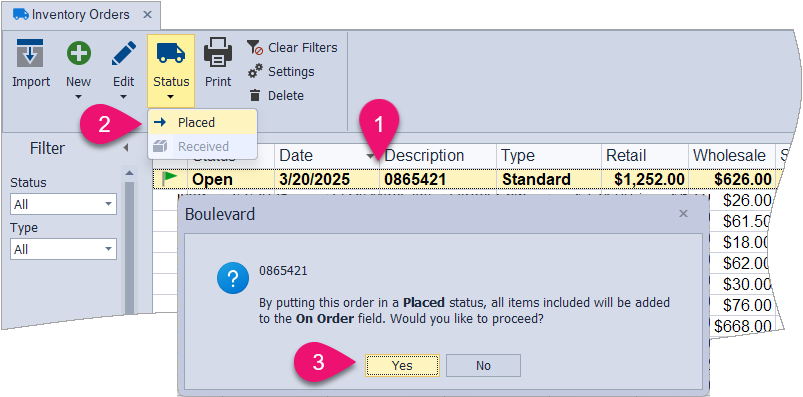
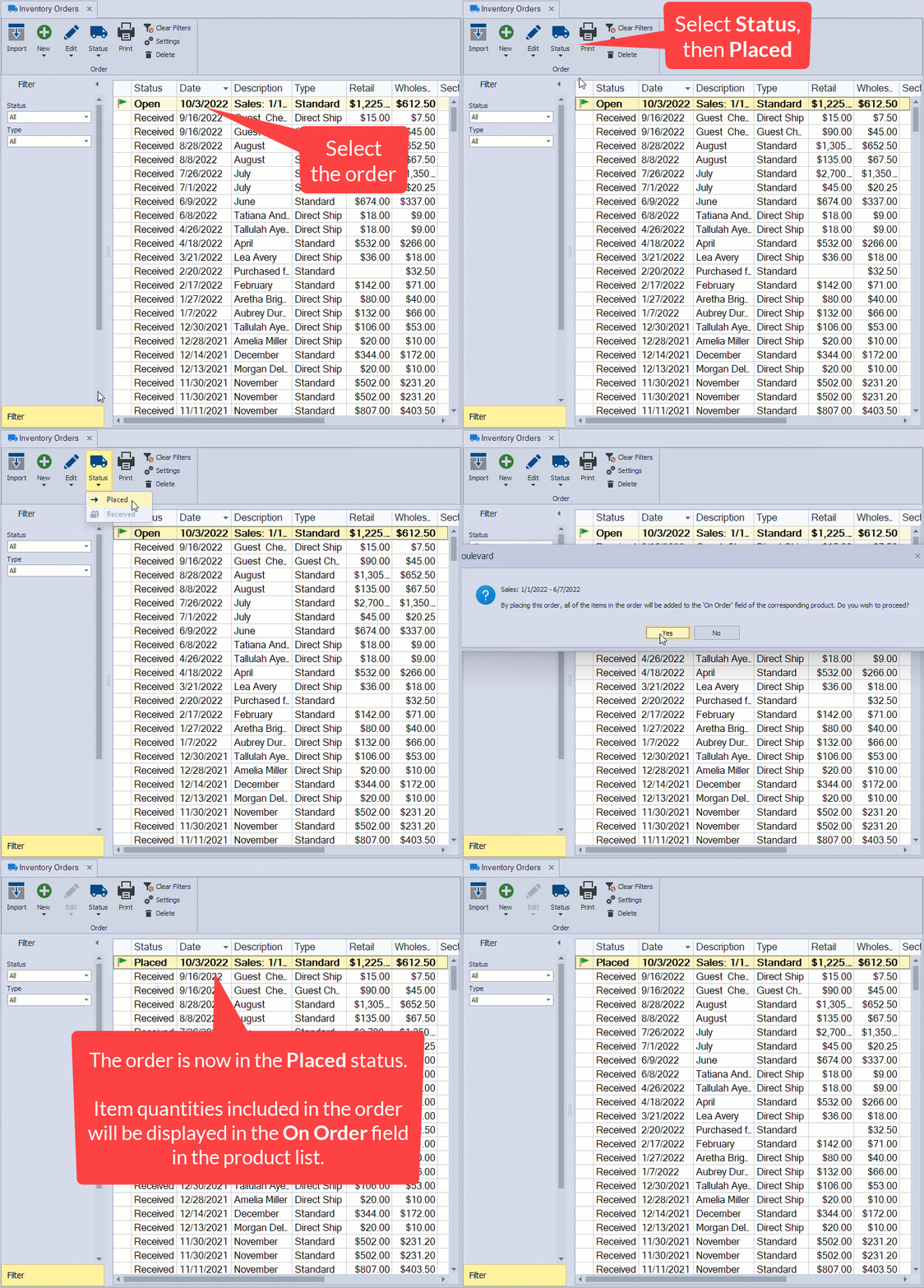
- From the list of orders, ensure that the correct order is selected. Then from the toolbar, click
 Status, then Placed from the drop-down options.
 - Click Yes to confirm that all items contained in the order will be added to the On Order field for each product.
After the order arrives, the final step in the ordering process is to move the order from Placed to Received. This will add the quantities from the On Order field to the On Hand for each item. See Inventory Order Statuses or Receive a Product Order into Inventory for more information.
Additional Information:
Setting the Status of an inventory order to Placed in Boulevard does not transmit it to the company. The actual order process must be completed through the company website.