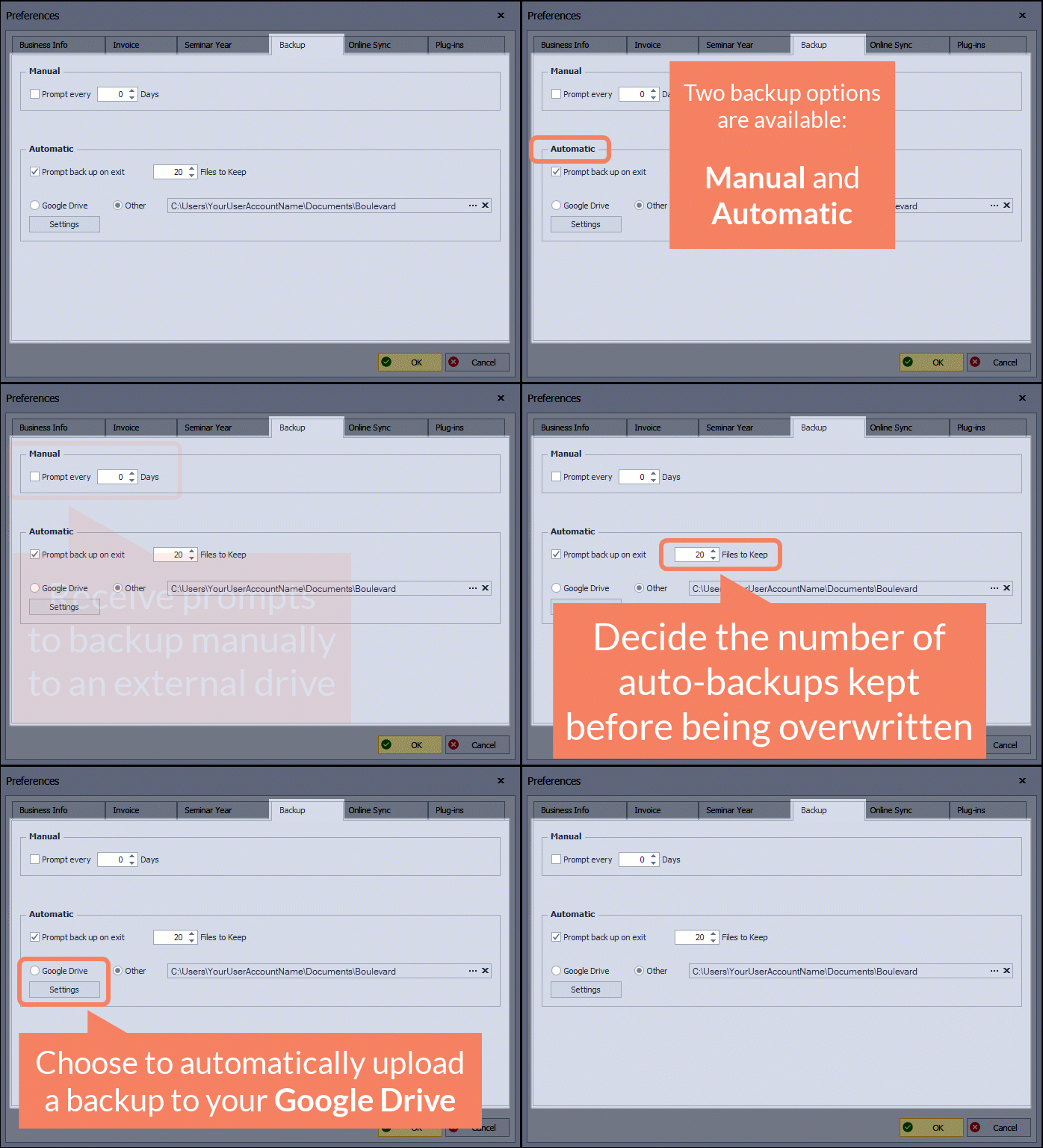
Boulevard supports automatic cloud backups. Google Drive is the recommended option, but any cloud service that syncs the Documents folder works. In Preferences under the Backup tab, set automatic backup on exit, choose how many backups to keep, and pick a synced folder if using another service. Make sure the cloud service includes the Boulevard folder when syncing.
Recommended Option:
Automatically Back up Boulevard to Google Drive
If you have a Gmail/Google account, you already have access to Google Drive (or create a Google account if you do not already have one).
Other Options:
If you would prefer to back up to a different location other than the default, follow the steps below.
Note: The default backup file location is under Documents, inside the Boulevard folder. If you choose to sync to a cloud-based option that allows you to include the Documents folder, ensure it also syncs subfolders so that the Boulevard folder is also included.
- From the Edit menu, select Preferences, then click on the Backup tab.
- Under the Automatic section, select Prompt back up on exit, then enter the number of Files to Keep before the oldest backup file is overwritten.
- To specify where the backup files will be saved, select Other.
- In the location field, click … and navigate to where you want the backups to be saved, then click OK.
- Click OK to save and close.
Additional Information:
- Boulevard Default Data & Backup File Location
- Preferences: Backup tab
- If you only rely on the automatic backup on exit, please ensure your Documents folder is being synced. See Sync Files with OneDrive in Windows for more information (which comes installed on most Windows computers).
- Dropbox