Boulevard backup files use a standardized naming format to help identify when each backup was created and can be restored from within the application when needed. Restoring a backup replaces the current data file with the saved version, and once restored, it’s recommended to verify the data by checking something recently entered, such as the latest invoice in the Invoice Log.
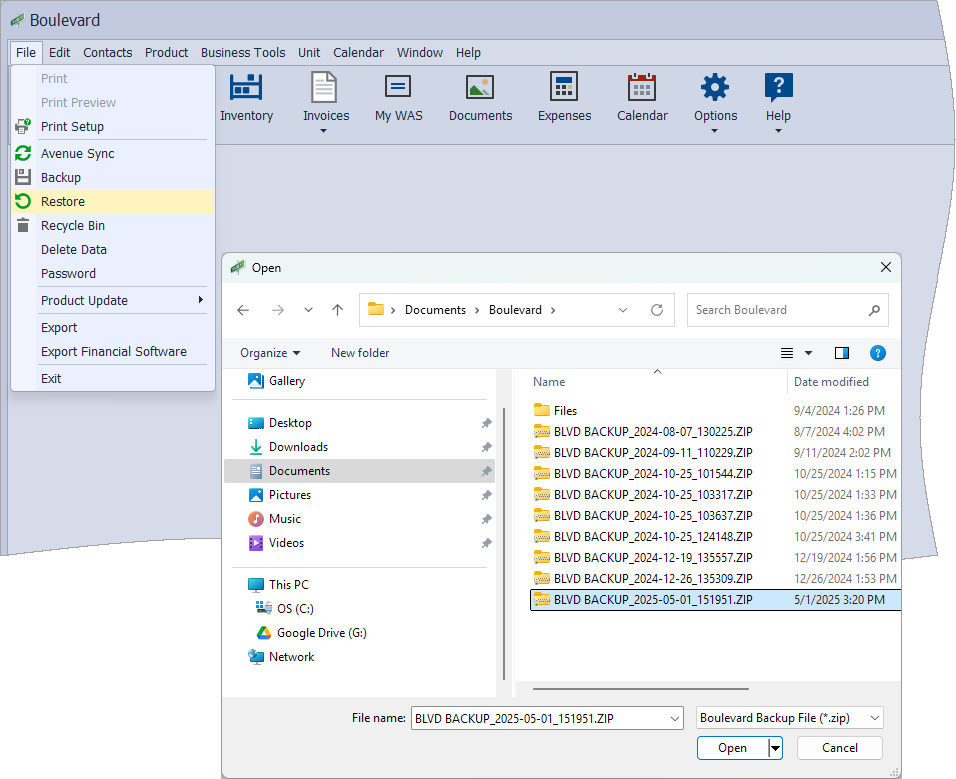
The naming format BLVD BACKUP_YYYY-MM-DD_HHMMSS.zip includes the date of when the backup file was taken and can be restored inside the application following the steps below.
From the File menu, select Restore.
- In the Open window, navigate to the location of the saved backup file, select it, and then click Open.
- Click OK to acknowledge that the backup file was successfully restored.
- Verify that the restored file includes the most current data. We recommend looking for something recently added to Boulevard, such as the last invoice created. From the Business Tools menu, select Invoice Log (or from the main toolbar, click
 Invoices, then choose Invoice Log).
Additional Info:
See Boulevard Default Data & Backup File Location for more information on locating the data file and the default location for backup files.