Contacts can be managed in Boulevard by moving them to another list, updating their inactive status, or deleting them altogether. Deleting a profile does not remove the related invoices, which stay accessible in the Invoice Log. These actions can be completed individually from a contact profile or applied to multiple contacts from any contact list.
Location & Options:
From a Contact Profile (Individual Only)
From a Contact List (Individual or Multiple)
Move to Another List or Change Inactive Status
From a Contact Profile (Individual Only)
Move to Another List
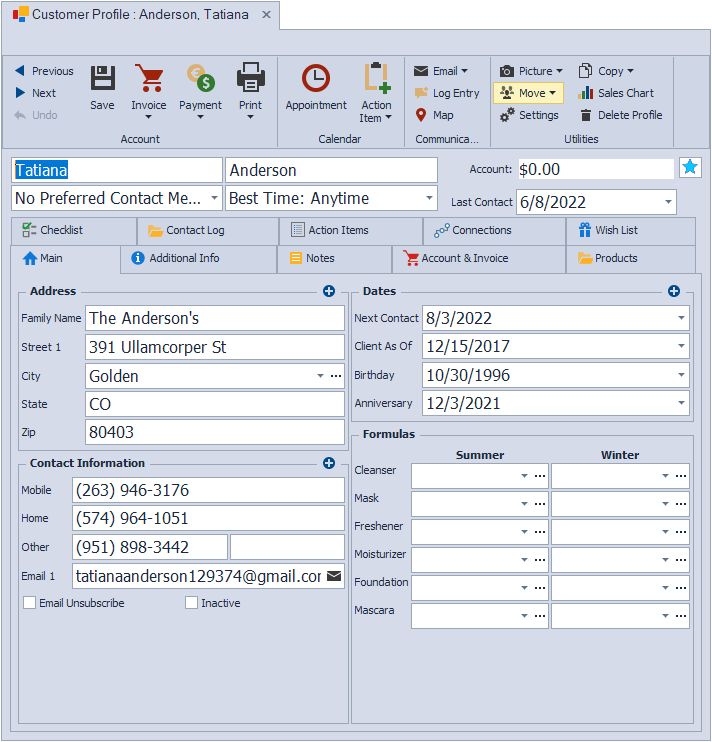
- On the profile toolbar, from the Utilities group, select Move, then choose the list the contact will be moved to.
- Click Yes to confirm the transfer.
Tip: After transferring a profile to the unit list, select  Clear Filters from the unit list toolbar, then update the profile with their consultant and unit number.
Change Inactive Status
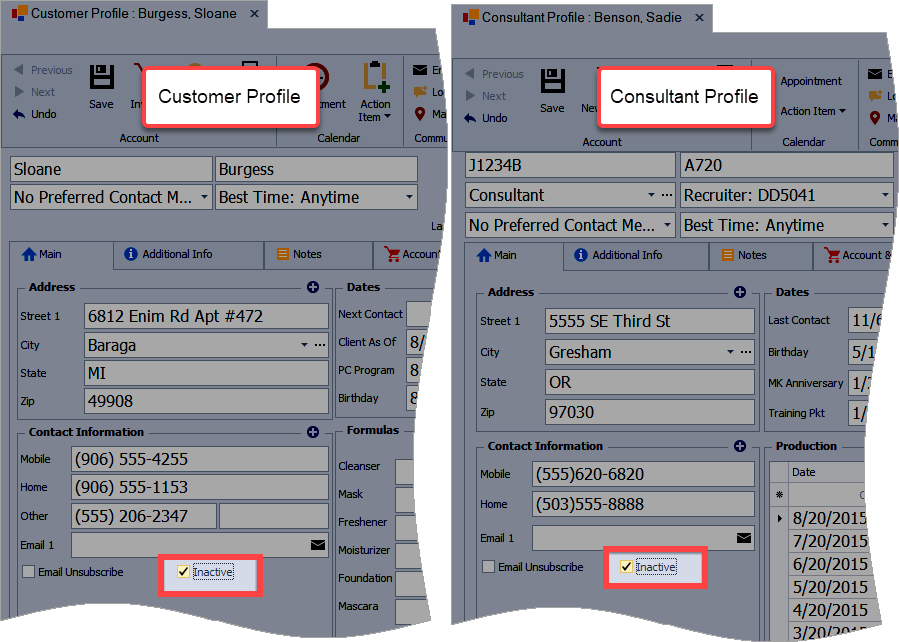
- Open the contact profile (from either the customer or unit list).
- From the Main tab on their profile under the Contact Information section, select (or de-select) the Inactive checkbox.
- Click
 Save and close the profile.
See Setting the Inactive Status on a Contact Profile for additional information.
Delete a Contact
- Open the contact profile.
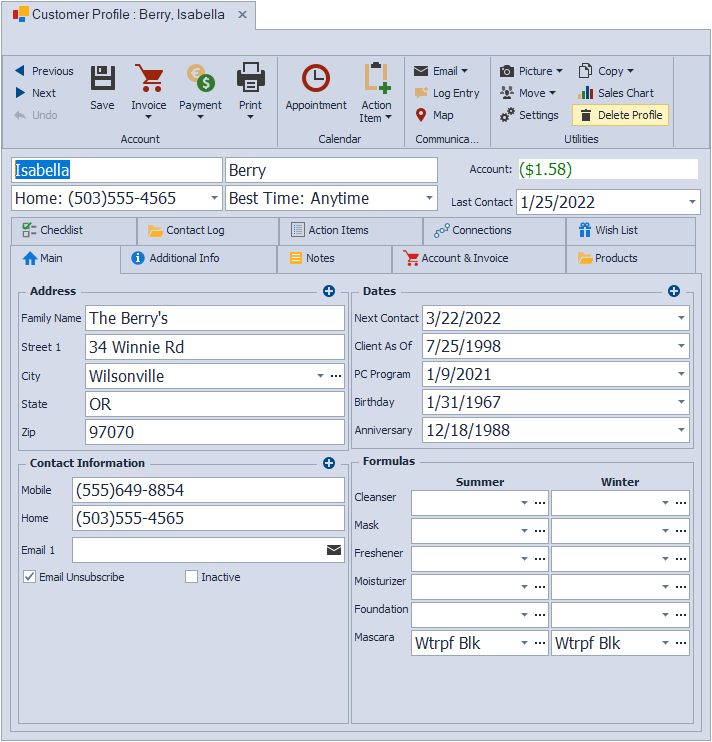
- From the profile toolbar, in the Utilities group, select
 Delete Profile.
 - Click Yes to confirm the deletion.
- To permanently delete the contacts, see Restore or Delete Contacts from the Recycle Bin.
From a Contact List (Individual or Multiple)
Move to Another List or Change Inactive Status
- If necessary, to view all contacts, from the toolbar of the list you are on, click Clear Filters to clear any filters set.
- Select the checkbox next to each contact to be moved or have their status changed.
- From the toolbar select
 Move; then Inactive (to mark inactive), Active (to mark active), Address List (to move to the Address List), Unit List (to move to the Unit List), or Customer List (to move to the Customer List).
- Click Yes to confirm the transfer.
Tip: After transferring profiles to the unit list, select Clear Filters from the unit list toolbar, then update each profile with their consultant and unit number.

Delete Contacts
- If necessary, to view all contacts, from the toolbar of the list you are on, click Clear Filters to clear any filters set.
- Select the checkbox next to each contact to be deleted.
- From the toolbar, click Delete.
- Click Yes to confirm the deletion.
- To permanently delete the contacts (or restore), see Restore or Delete Contacts from the Recycle Bin.

Additional Information:
Note: For tax purposes, invoices are not deleted when a contact profile has been deleted. If necessary, invoices can be deleted from the Invoice Log if the contact profile associated with the invoice has been deleted.