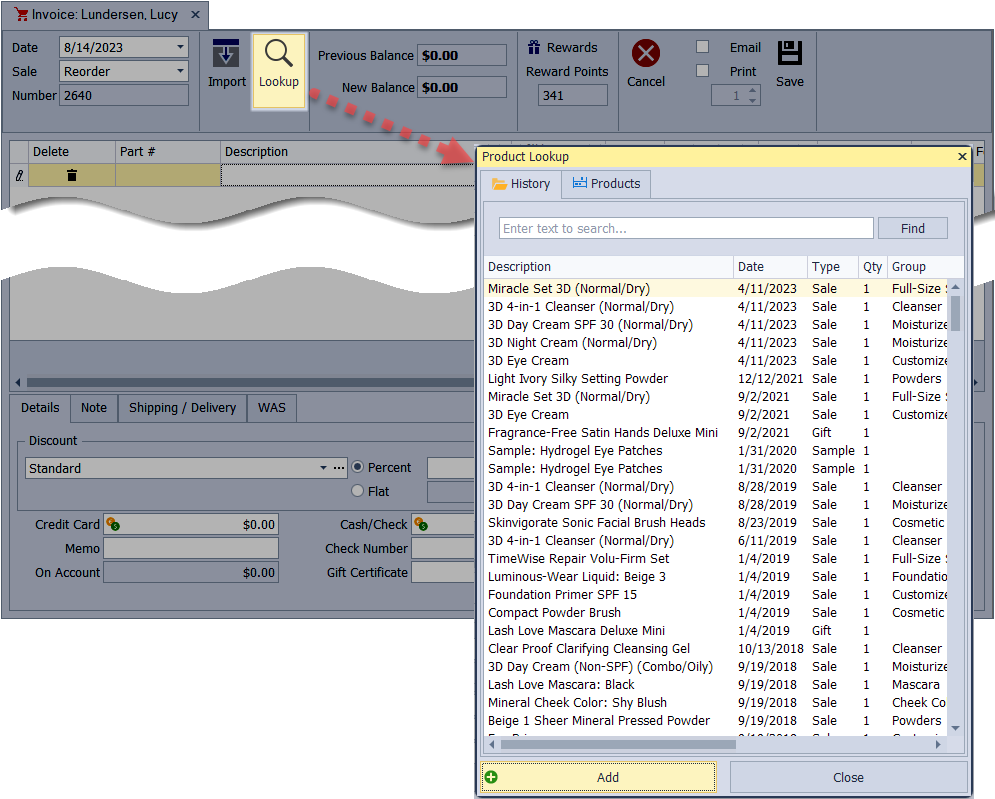
Quickly access a contact’s purchase history and add previously purchased items to a new invoice. Product history can be viewed from the Customer or the Address List, within a contact profile, or while creating an invoice, making it easy to review past purchases and include them in current transactions.
Options:
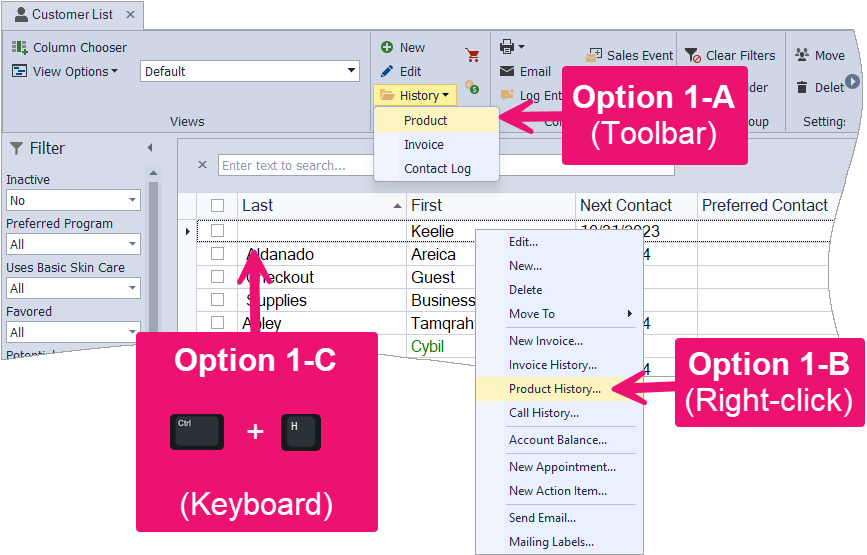
Customer or Address List: View purchase history through three methods from the customer or address lists: using the toolbar's History button, the right-click menu, or pressing Ctrl + H on your keyboard.
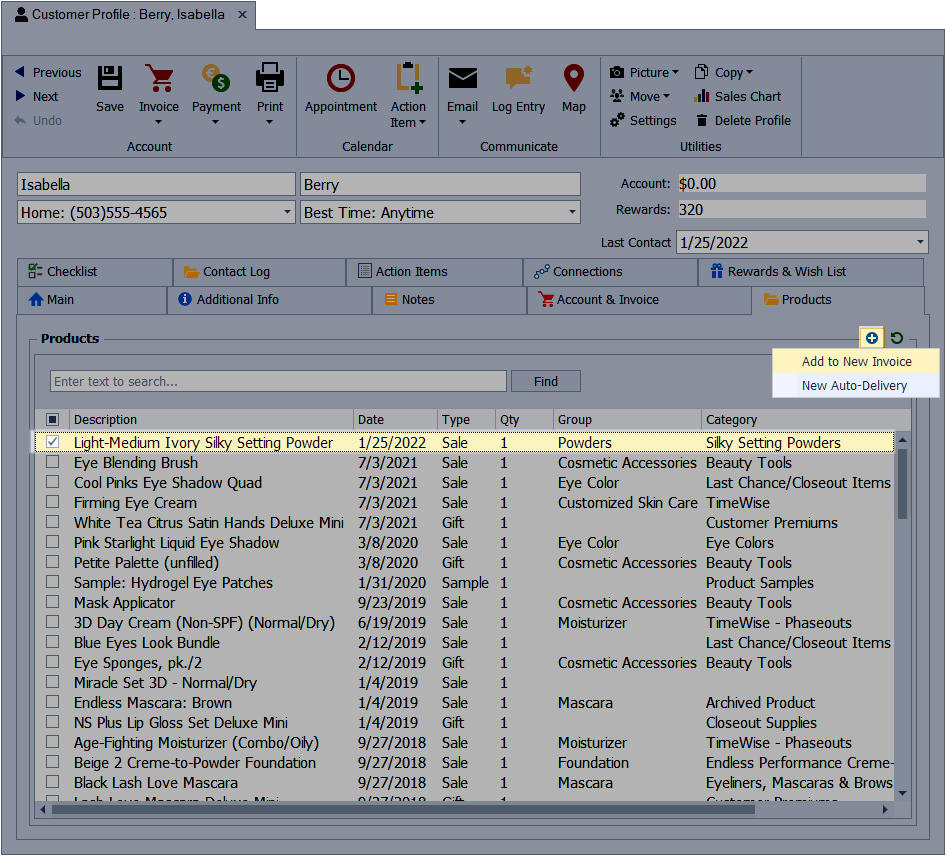
Contact Profile: View products previously purchased from the Products tab of the contact profile, and choose to create a new invoice for reordering or return.
Invoice: View products previously purchased from the Lookup button under the History tab when creating an invoice.
From the Customer or Address List
-
1-A: With their name selected (indicated by
 to the left of row, or dots around the selected row), from the toolbar, click
  History, then select Product.
- 1-B: Make sure no checkmarks are selected for any contact. Then right-click their name and select Product History.
-
1-C: With their name selected on the list (indicated by to the left of row or dots around the selected row), press the
 +
+  keys on your keyboard.
From a Contact Profile
- From the profile, click on the Products tab.
- Select the checkbox next to each item to add to a new invoice.
- Click
 and choose Add to New Invoice; or if the items are being returned click
  .
. - Add any additional items and payment, if needed, to complete the invoice, then click
 Save.
Save.
From an Invoice
- When creating a new invoice, select
 Lookup. The Product Lookup will appear, showing their previous purchases under the History tab. Select the Products tab to search all items that have not been archived from the product list.
 - Double-click to automatically add items to the invoice (or select the item, then click Add).
- When finished, click Close.