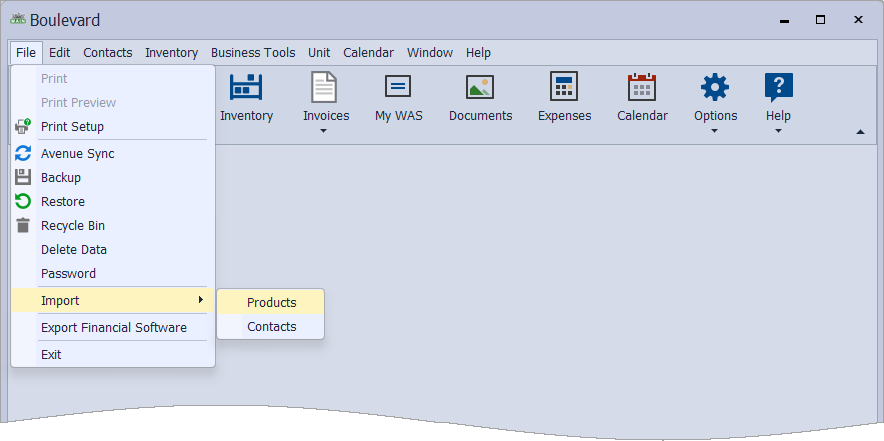
A custom product list for industries other than Mary Kay® can be created by entering item details into the downloadable template file. When finished, the file can be imported into Boulevard, where additional options may be assigned as needed.
Steps:
Add Product Information to the Template File
Download the Template File
Select the following link to Download the Template File. If you're not sure where the file saved, check your Downloads folder.
Add Product Information to the Template File
All product information to the template file. Below is a breakdown of the types of data that can be imported and their corresponding formats. When finished adding items, save the file, then proceed with importing the template file into Boulevard.
Note: When adding product information to the template file, the column heading names must not be changed for Boulevard to import it properly.
- SKU: Each product (or service) added to invoices requires a unique part number. They can be a combination of alphanumeric characters, but not special characters, and are limited to 8 characters.
- Description: The item description can be up to 40 characters, including spaces and special characters
- Section: Refers to whether the item is retail (1) or a business supply (2) not intended for resale. Specify 1 for retail or 2 for business supply.
- Ideal: Used to specify the preferred on-hand quantity to be kept in stock.
- Taxable: This is a yes-or-no field to specify whether the item or service is taxable.
- Discountable: This is a yes-or-no field to specify whether the item is eligible for discount. Usually, if the item is a non-retail business supply, it would be considered non-discountable.
- Lot Size: Refers to the quantity included with the item if sold in bundles or packages. The quantity is usually set to 1.
- List Price: The retail cost of the product. This is a currency field and can have up to two decimal places (do not add the currency symbol). For example, if the retail cost of the item is $50.00, enter 50.00.
- On Hand: Refers to the current quantity of stock you have available.
Import the Template File
- Ensure that the template file is completely closed.
- In Boulevard, from the File menu, select Import, then Products.
- Navigate to the saved template file, then double-click to import.
To make additional refinements to the products added, from the Product menu, select Product List (or from the main toolbar, click  Inventory). Create custom product categories, assign groups and product lines, and then move products into the product categories of your choice.