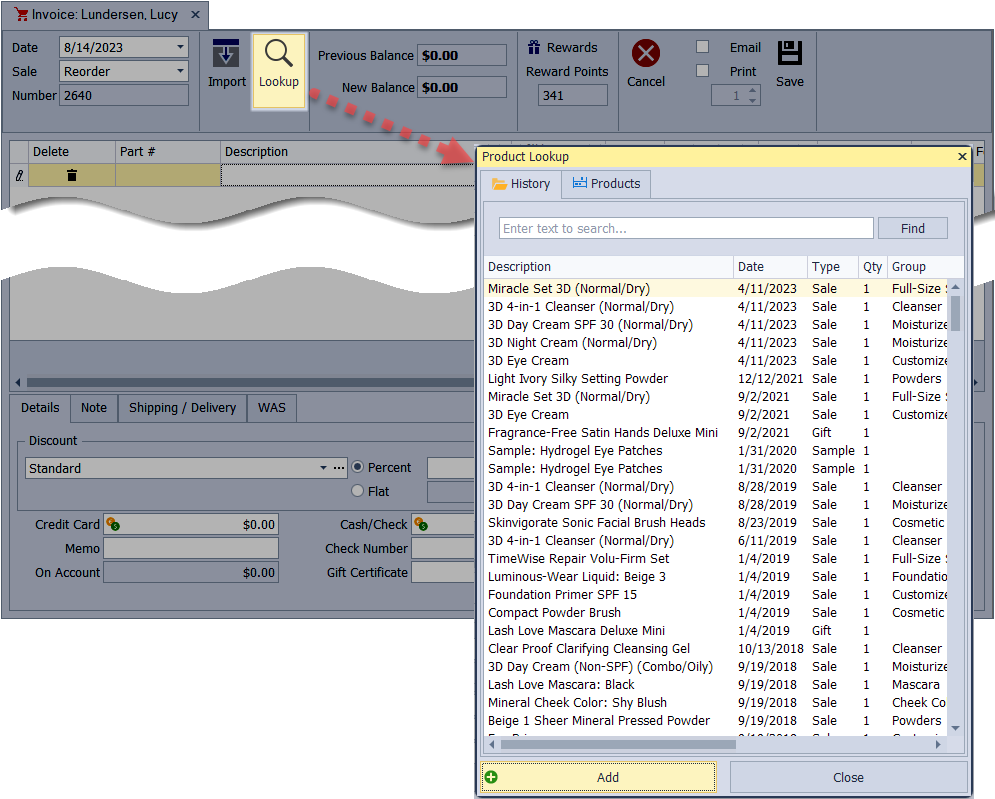
You can search for products in three ways: through the Product List, using Quick Search, or directly from an Invoice.
Options:
Product List Search: Search within the Product List by part number, description, or other product details.
Quick Search: Use the Find Product form to locate products anywhere in the application quickly.
Search from an Invoice: Add products while creating an invoice without opening the Product List.
Product List Search
From the main toolbar, select  Inventory (or from the Product menu, select Product List).
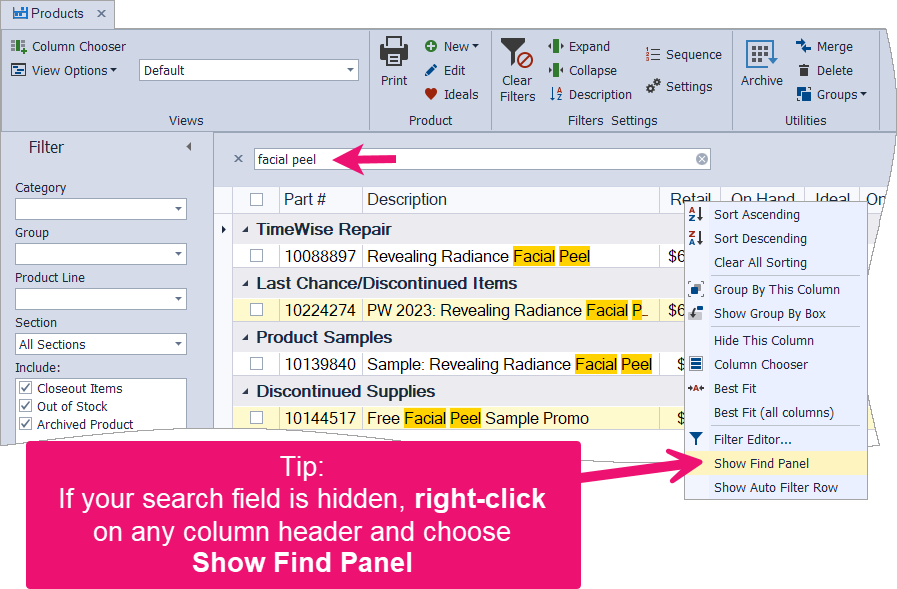
- In the search field, type a unique part of the item's name or partial part number.
- As you start typing, the list will drill down to only include items that fit the criteria you entered.
- Double-click on the desired item to view the product profile.
Tips: If your search field is hidden, right-click anywhere on the column header (Part #, Description, Retail, etc.) and choose Show Find Panel. Click  Clear Filters before you search to ensure no other filters are applied.
Quick Search
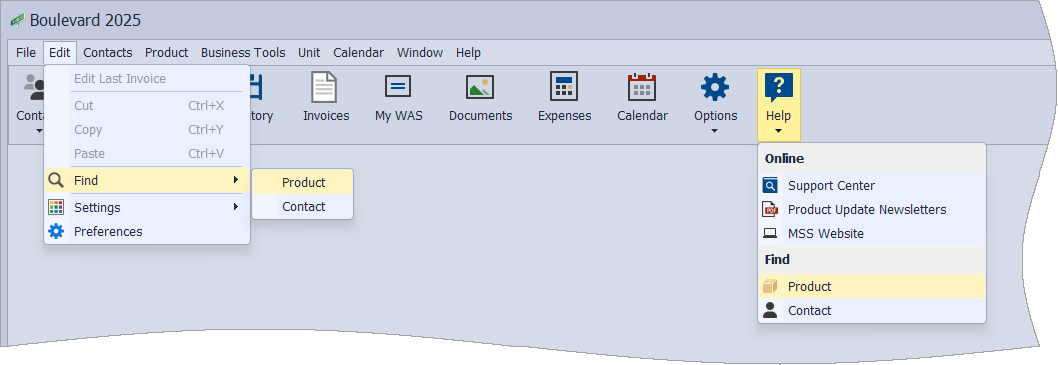
From the main toolbar, select  Help, then Product (or from the Edit menu, select Find, then Product).
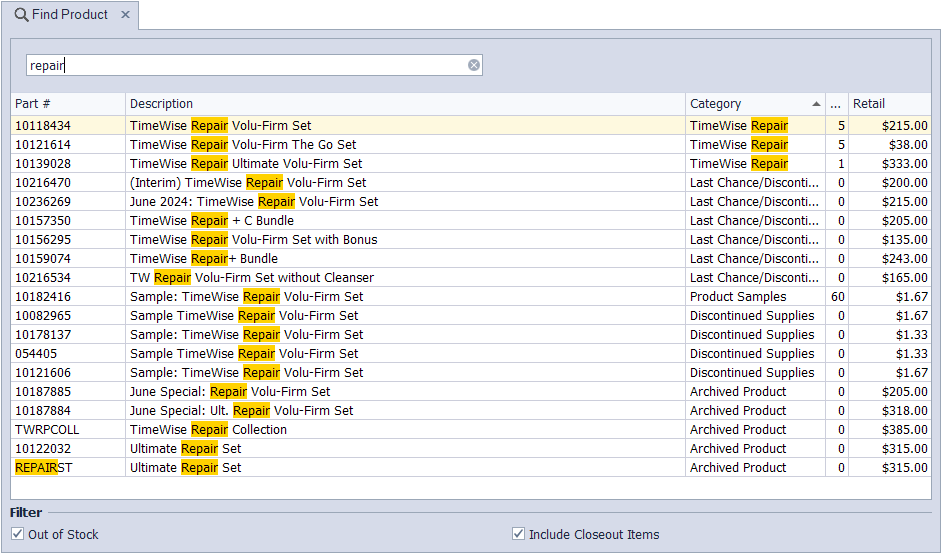
- Type a unique part of the item's name or partial part number in the search field.
- Double-click on the desired item to view the product profile.
Tip: Under the Filter section, choose whether to filter Out of Stock or Include Closeout Items to refine your search further.
Search from an Invoice
- While creating an invoice, click
 Lookup .
 - From the History tab, enter a partial description in the search box to view past purchases, or from the Products tab, use the search and filters to locate and add any item from the product list.
Tip: You can also quickly find products by typing a part of the item's name or partial part number in the Description field in the grid section of the invoice.