Backing up your Boulevard data creates a copy of your current information, protecting it if your computer or storage device fails. By default, backups are saved in the Documents folder within a Boulevard subfolder, but you can choose another location, such as a flash drive or cloud service. To confirm the backup was successful, look for a file named BLVD BACKUP_YYYY-MM-DD_HHMMSS.ZIP, which includes the date and time for easy identification.
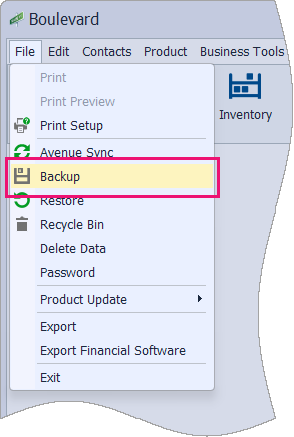
From the File menu, select Backup.
In the Save File As window, from the Save in drop-down, select where you would like to save the backup file (flash or external drive, or other cloud-based option), then select Save.

Additional Information:
We recommend that if you are not actively working in Boulevard, you exit the application. Shutting down Boulevard every day will then alert you the next time you launch the program when there is a new software release available.
Also, exiting Boulevard closes the connection between your software program and the database (the information you keep stored in the program) which will help prevent database issues or corruption as a result of Windows updates and other third-party applications.
- Boulevard Default Data & Backup File Location
- Preferences: Backup tab
- The backup file by default will be named using the following format:
BLVD BACKUP_YYYY-MM-DD_HHMMMSS.ZIP which indicates when the backup was taken but can be changed to a different name if you choose. - To avoid loss of data due to hardware failure, viruses, etc. we strongly suggest backing up to a cloud-based solution such as Dropbox, OneDrive, or Google Drive. See Remote Back up to the Cloud Automatically for more information.
- To restore a backup, see Restore a Boulevard Backup File for more information.