This step‑by‑step guide walks you through the essential setup tasks for Boulevard, from entering your base inventory to customizing preferences and creating your first invoices. Following these steps ensures your software is configured correctly, your product list is accurate, and you’re ready to manage sales, inventory, and customer information with confidence. If you purchased the Jump Start Setup Service, you'll want to ensure that you wait to follow this guide until after the service has been completed.
Quick Steps:
Install Boulevard: Download and install the latest version of the software.
Enter Your Preferences & Other Settings: The Getting Started Guide appears after you install Boulevard for the first time, helping you add your business details. You can also find this and other settings in the Preferences dialog, under the Edit menu.
Adding Contacts: Customers and, if applicable, consultants, can be added or imported.
Entering Your Current Inventory: There are two methods to choose from if you would like to add the quantities from your current in-stock inventory.
Entering Customer Purchases & Posting Payments: Add new invoices for your customers or decide how far back to record previous purchases and apply the payments they've made.
Download & Install Boulevard
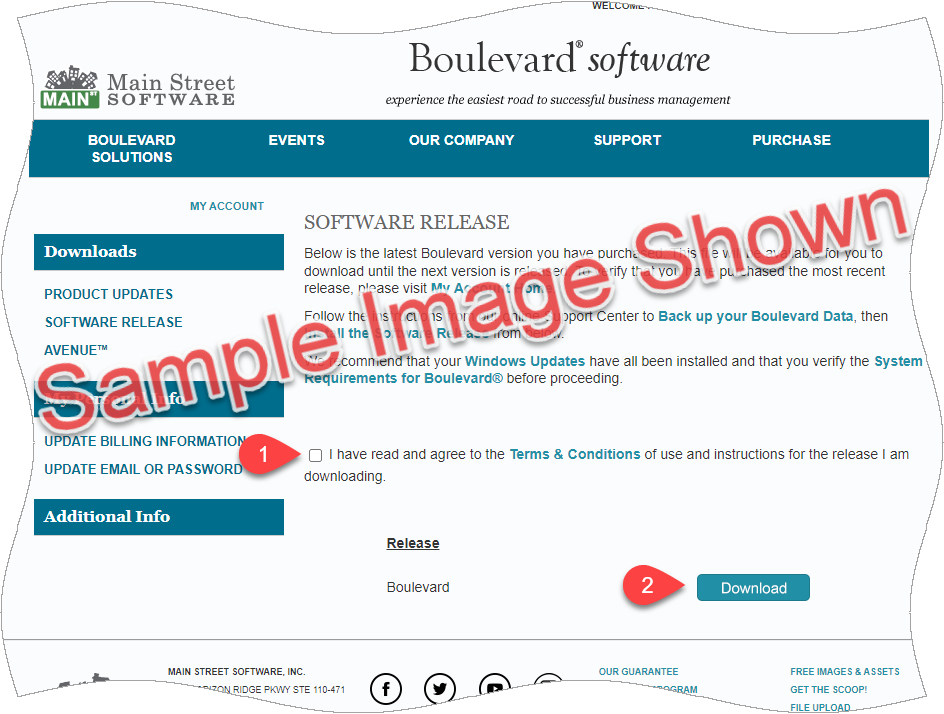
Sign in to your Main Street account to access the Software Releases and download the current software release for Boulevard. See Download & Install Boulevard and follow Option 2 for detailed steps.
Preferences & Other Settings
Note: If you've purchased the Jump Start Setup Service, you'll want to ensure you restore the backup emailed to you before continuing.

Once you’ve finished the Getting Started Guide, head to Preferences to choose the settings that tailor Boulevard to your business needs. This step ensures the software accurately reflects your specific requirements, making your setup more efficient. For additional guidance, explore the Preferences & Customizing Boulevard section, where you’ll find more tips and related articles.
Adding Contacts

Contacts can be imported from a file exported from the myCustomers area of the company website or by downloading an Excel template file. Individual profiles can also be created for new contacts as needed. For step‑by‑step instructions, see the Importing Contacts section, and the Creating a New Contact Profile support article.
Entering Your Current On-Hand Inventory
To add your inventory in Boulevard, you can either enter your current in‑stock amounts or import product orders from the company website for the past two years. Before using either option, we recommend performing a physical inventory count with a worksheet that can be printed from Boulevard. When finished, see Entering Your Base Inventory to decide which method best fits your needs.
Adding Customer Purchases (Invoices) & Posting Payments
You can record customer purchases by creating a new invoice, which will automatically decrease your inventory, or by adding historical invoices that don’t affect inventory levels. There are several convenient ways to create a new invoice, including the option shown below from the customer profile toolbar.


Payments made at the time of purchase can be included directly on the invoice. If the payment is made later, post it to the customer’s account so the transaction accurately reflects the date the payment was received, rather than editing the original invoice. You can apply these payments from the contact list or contact profile toolbars, as shown. For step‑by‑step instructions, see the Handle and Process Customer Payments article. You can also securely add credit card information and process the payment right from Boulevard or email a direct payment link using Stripe. For more details, check out the Handling Credit Card Payments article.
Additional Information:
Access the Boulevard Support Center by typing blvd.help in any web browser, or from within the software. From the main toolbar, click Help, then select Support Center. The Support Center includes a full library of articles with detailed steps, and many feature brief video tutorials to guide you visually.
- Back up to an Online Option Automatically (Cloud-based)
- Handling Personal Use
- Handle Demos, Donations, or Expired/Product Loss
- Add or Delete an Expense Entry or Create, Edit or Delete a Recurring Expense
- Sync & Install Avenue (applicable if you've purchased the Avenue app or Mobile Pro Bundle)
- To ensure that you are notified when we post important information, we recommend that you Follow Us on Facebook and add us to your News Feed.