Follow the instructions below to download and install the current Boulevard software, whether you're upgrading an existing installation or setting it up on a computer for the first time.
Before proceeding, we recommend installing all Windows Updates and verifying that your computer meets the System Requirements for Boulevard®. After installing Boulevard using either option, verify the version number in the upper-left corner of your software to ensure the current version was installed successfully.
Options:
Upgrading Boulevard: This option applies when a previous Boulevard release is already installed, and the current software or service release needs to be installed.
New Install: This option is intended for instances in which Boulevard is not currently installed, such as an initial installation after purchasing the software or installing it on a new computer when transferring from a different computer. It can also be used if you encounter any issues after following the steps under Option 1.
Upgrading Boulevard
If you are not prompted under step 2, you may need to Verify Your Credentials in Boulevard first. If you continue to have any trouble using this method, we recommend that you add Boulevard as an exception/exclusion to your anti-virus software settings, temporarily disable it, or try Option 2 below.
- From your computer, click the Boulevard shortcut to launch your software.
- When the Auto Update form appears, select Create Backup, then choose the location (default is Documents\Boulevard folder) and select Save.
- After the backup has finished, click the X to close the notification, then select Review Changes to view the information for the current software release.
- Select Download Now. A Please Wait message will then appear, indicating that the software release is downloading. The download time varies significantly depending on your internet speed.
- After the Setup Wizard begins, select Next.
- Accept the End User License Agreement, then click Next.
- Select Next to install to the default Destination Folder, then select Install to begin the installation process.
- If you receive a User Account Control form, select Yes.
- Select OK to automatically close and attempt to restart applications.
- Once the installation process is complete, click Finish.
- Locate the newly created shortcut
 and double-click to launch Boulevard.
Note: If the Auto Update form appears again (with the Download Now button), it usually indicates that the service release did not install correctly. Repeat the steps above, and if given the option to Repair or Remove during the installation wizard, select Repair, then complete the installation wizard again. Otherwise, try installing using the steps under Option 2.
New Install
Use Option 2 if you are a new Boulevard user, have never previously installed Boulevard on your current computer, are transferring to a different computer, or have trouble installing using Option 1. If you are not installing Boulevard for the first time on your computer, back up your data before proceeding, then ensure that Boulevard is completely closed.
- Click the following link and sign in: Software Release.
-
Click on the Terms & Conditions checkbox, then select Download.
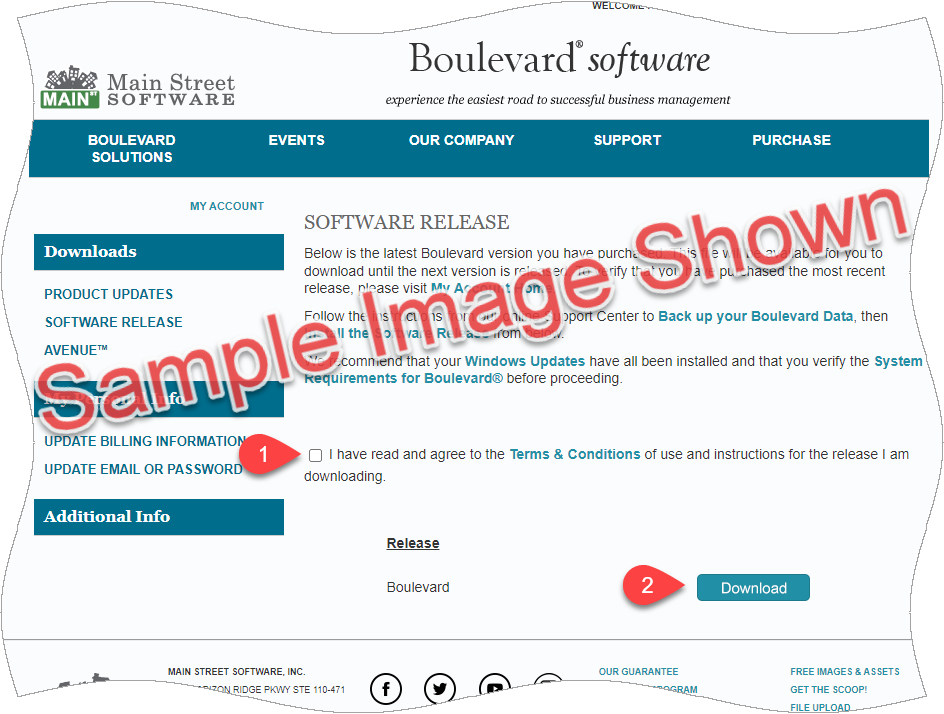
- If given the choice, please choose to Open or Run; otherwise, select Save.
- If you weren't given a choice to run or where to save the file, locate the setup.exe file for the browser you are using to open it. You can press Ctrl + J to view your recently downloaded files, or, from
File Explorer, open your Downloads folder to locate and double-click on the setup.exe file.

- After the Setup Wizard begins, select Next.
- Accept the End User License Agreement, then click Next.
- Select Next to install to the default Destination Folder, then select Install to begin the installation process.
- If you receive a User Account Control form, select Yes.
- Once the installation process is complete, click Finish.
- Locate the newly created shortcut and double-click to launch Boulevard.
If you're transferring from one computer to another, after installing Boulevard, restore a backup.
Additional Information:
Note: After installing the new version of Boulevard, please check each tab in Preferences (sales tax rate, email settings, default backup location, etc.). Some of your settings may not transfer during the upgrade installation due to necessary changes, and you may need to update them afterward.
- Boulevard Compatibility with Other Microsoft Office Applications
- Installing Windows Updates & Other Windows Help
- If you cannot locate a contact after installation, we recommend using the Contact Search feature to locate them.
- Register for Upcoming Live Webinars & Watch Recent Replays
- Switching out of S mode in Windows
- Setup File Blocked using Edge Browser