Inventory orders in Boulevard are edited differently based on their status. Open and Placed orders allow basic updates, while Received orders limit edits to the totals. If more extensive changes are required, the order may need to be deleted and recreated, or the adjustments made through the inventory tools.
From the main toolbar, select  Orders (or from the Product menu, select Inventory Order).
Select the inventory order Status displayed for the order you would like to edit. For a detailed explanation of each status, see Inventory Order Statuses.
Order Status:

Open
Open orders will be displayed in bold font and will have a green flag  next to the Status column, which will also be indicated as Open. To edit, either double-click on the selected order or, if the order is already selected, go to the Inventory Orders toolbar, select
  Edit, and then choose Selected Order. After making any necessary changes, select
  Save.
Save.

Placed
Placed orders will be displayed in bold font and will have a green flag next to the Status column, which will also be indicated as Placed. Only the Date and Description can be edited if the Status is Placed. If other changes are needed, the order must be deleted and reentered (or imported).

Received
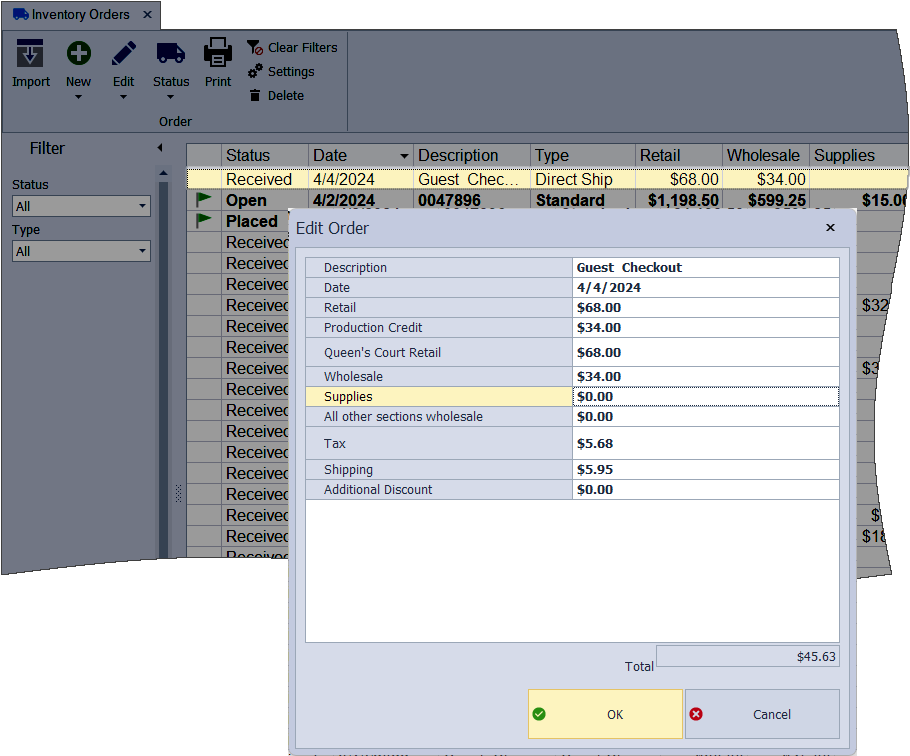
If the order has a Status of Received, only the Date, Description, and totals can be adjusted following one of the options below. Alternatively, the order can be deleted. However, deleting an inventory order with a Received Status does not change any On Hand amounts. If quantity or wholesale adjustments are needed to correct your inventory, see Print Inventory & Make Adjustments.
Edit Individual Orders
To edit the Date, Description, or amounts of an individual order, either double-click on the selected order or, if the order is already selected, go to the Inventory Orders toolbar, select Edit, and then choose Selected Order. After making any necessary changes, click OK to save and close the form.
Edit Multiple Orders in Grid View
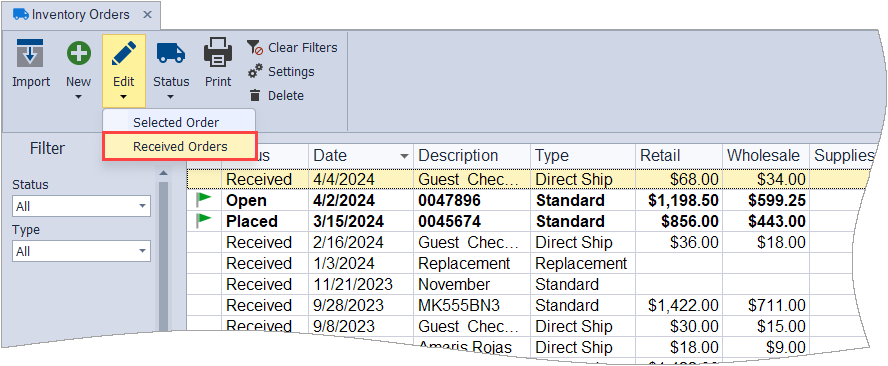
This option is best if you need to edit multiple orders that have already been received in your inventory.
- Click Edit, then select Received Orders from the drop-down menu to open the Inventory Orders grid in edit mode. When you tab out of each grid cell, changes are automatically saved.
- To exit the edit mode, click Edit, then uncheck Received Orders, or just close the Inventory Orders form to reset automatically.
Additional Info:
- Having trouble finding an order? From the toolbar, click
 Clear Filters to remove any filters.
 - Set Default Wholesale Discount for Inventory Costs
- Balance the Totals on an Inventory Order
- Entering Past Inventory Product Orders