It is important to confirm that the inventory order total in Boulevard matches the packing slip (or Order Details page online) that came with the shipment before setting the Status to Received so inventory and tax records remain accurate. The totals area and breakdown view help verify discounts, shipping, taxes, and any items that are not discountable. Missing items, wrong discounts, or incorrect tax settings are common issues to check.
Common Reasons and Resolutions:
Are all items accounted for on the order?
Is the correct Order Discount amount being applied?
Does your state or province charge tax on shipping?
Does your province not charge tax on section 2 (supplies)?
Are there any items that are highlighted in magenta?
Are there any items that are highlighted in yellow?
Did you receive any free retail items?
Are any items showing a price different from their regular retail price,
or has it changed since the order was placed?
Do your totals balance except for the tax?
If you need to adjust the order totals but the status is set to Received, see Edit an Inventory Order.
Compare your packing slip totals with the amounts listed at the bottom of the order in Boulevard. Use the Breakdown as an extra resource to see the default discount on the order, any items purchased that are not eligible for discounts (such as purchase-with-purchase items), along with other discounts applied.
| Boulevard | Company Packing Slip* |
|---|---|
| Retail | Retail Total Section 1 |
| Wholesale | Net Wholesale Total |
| Section 2 | Total Section 2 |
| Shipping | Shipping and Handling |
| Tax | Total Taxes |
| Total | Total Cost |
* Depending on your country or the warehouse your order was shipped from, your packing slip may look different and/or use other terminology. The table and image above are shown for illustrative purposes only.
Are all items accounted for on the order?
Orders imported will have a log that appears directly after import if any items cannot be imported. Disregard if the Order Import Log only includes Section 2 items given as a bonus or free.
- Print the Order Import Log if it contains any Section 1 retail items (see below for handling Section 1 bonuses).
- If you did not import the order or did not print the Import Log, print the order and compare each item listed on Boulevard's order with the packing slip (or Order Details page online) to ensure all items are included.
- If a part number has changed since the time you placed the order, use the new part number (to find the item, type part of the item name in the Description field).
- View your Product Update History to ensure you are not missing any product updates. After correcting your product list, edit the order to add the missing items.
Is the correct Order Discount amount being applied?
At the bottom of the order, in the Order Totals section, enter the discount you were given in the Discount field (E.g. 50.00%). To set the default discount for future orders, go to Settings.

Does your state or province charge tax on shipping?
Tax on Shipping
In the Order Totals section, in the Tax field, click  . In the Sales Tax pop-up form, select Calculate tax on shipping if you live in the US, or select the applicable tax on shipping option for Canada. When finished, select OK to save and close the form.
Set Tax on Shipping by Default View
 Does your province not charge tax on section 2 (supplies)?
To access your tax settings, from the Edit menu, select Preferences, then select the Tax tab (applicable in Canada only). Under the Tax Rate & Calculation Options section, ensure that Section 2 is not selected under your tax type. When finished, click OK to save and close the form.

Are there any items that are highlighted in magenta?
Taxable or Discountable
Items with a magenta background are either non-taxable or non-discountable. Are any of the items you ordered considered non-taxable where you live? Or does the item need to be changed from non-discountable to discountable?
Taxable:
- From the Product menu, select Product List.
- Double-click on the item to open the product profile.
- For U.S. users, under the Pricing section, uncheck the Taxable option. For Canadian users, select
 Settings, then Advanced Settings from the drop-down menu. Uncheck the applicable Taxable option, then click OK to save and close the form.
 - Click
 Save to accept the changes made and close the form.
Discountable:
- From the Product menu, select Product List.
- Double-click on the item to open the product profile.
- In the product profile toolbar, click Settings, then select Advanced Settings from the drop-down.
- Select the checkbox to indicate whether the item needs to be Discountable, then select OK to save and close the form.
 Sales Tax Exemptions (Provided as a reference only. As new products are released, we encourage you to check with MK for an updated listing.) See Over-the-Counter Drug Products to view all items in the product list marked as OTC products.
Are there any items that are highlighted in yellow?
Items with a yellow background are handled as prepacks and automatically split into the regular part numbers in the set once the order has been received into inventory. If the pre-pack was part of a special promotion, verify that the fixed wholesale amount is correct. If you're on the Product Update Service, we recommend printing the newsletter, which will explain how to handle items purchased during a special promotion.
Right-click the applicable item, then select Edit Wholesale. Enter the fixed wholesale amount charged, then select OK to close the form.
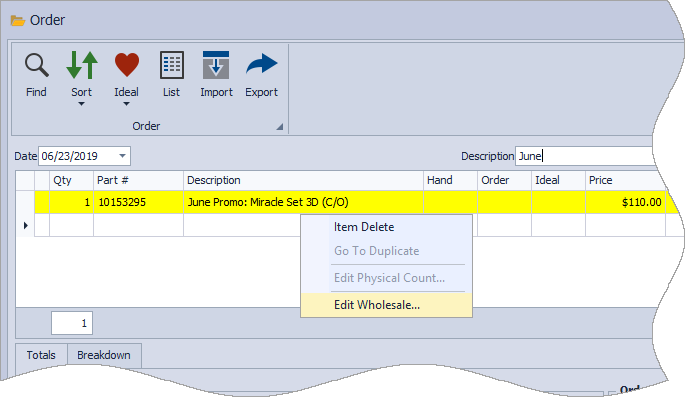
Did you receive any free retail items?
When you receive a Retail item (non-section 2 supply/sales aid) for free as a bonus, you must add the items to the order using the regular part number* for each item, then enter 100 in the Discount% column for that free item.
* Do not use the special bonus part numbers assigned, also called the Master part number.

Are any items showing a price different from their regular retail price,
or has it changed since the order was placed?
Items purchased from a special promotion where the item's retail price has been temporarily reduced, or if the retail price has permanently increased since the item was purchased, are common occurrences. If you're on the Product Update Service, we recommend printing the newsletter, which will explain how to handle items purchased during a special promotion. If there are any items with a price that is different in Boulevard, and you have confirmed that all applicable product updates have been loaded, you may need to adjust the amount in the Price column of the order (if you load a product update before the order form goes into effect, there could be price variances that you will need to make a note of and temporarily adjust in the Price field).

Do your totals balance except for the tax?
If your totals balance, except for the tax, in the Order Totals section at the bottom of the order, in the Tax field, click . Select Flat Amount and enter the correct amounts. When finished, select OK to close the form.
My totals now balance!
If the order totals balance after making any necessary adjustments, see Set a Product Order as Placed to change the status to Placed. The final step is to change the status to Received, which will move the quantities of the items included in the order from the On Order field to the On Hand field in Boulevard. See Receive a Product Order into Inventory for detailed steps.