Contact List Filters & Column Sort make it easy to find contacts by narrowing the list with simple filters like birthdays, email status, or activity. Lists sort by clicking a column header, and each column also supports its own filter for quick focus on specific details. The Clear Filters option restores the full list if something seems missing, and tips help identify hidden or accidentally deleted contacts.
Quickly apply filters to the Customer, Address, or Unit List for functions such as creating a group email, creating a list in the List Builder (or adding to an existing list), and creating a new view to print custom reports.
Sidebar Quick Filters
Click the links below to view more information about each filter.
Customer List
* based on Email 1 field |
Address List Filters
|
Unit List Filters
|
Sort by Column
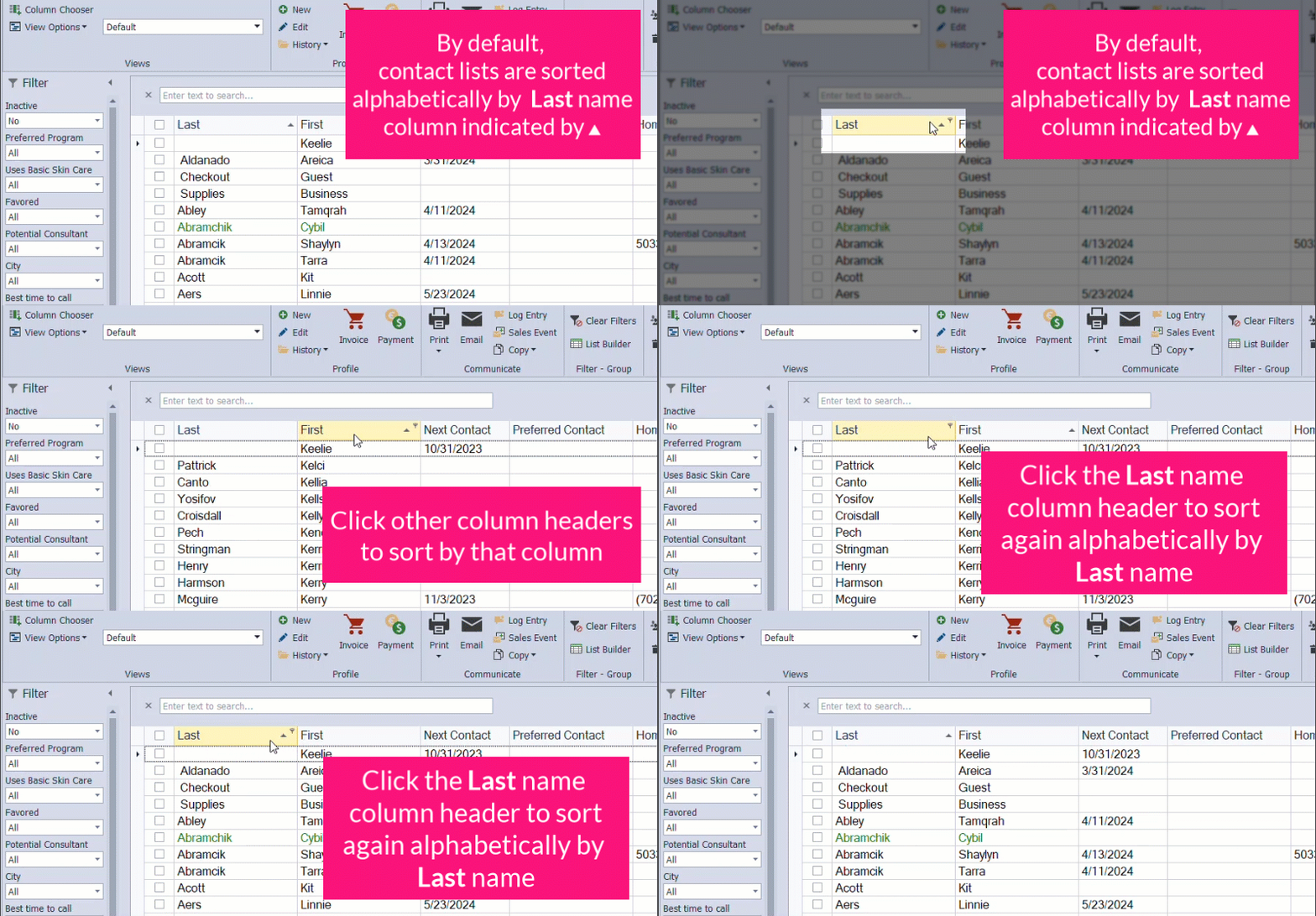
Column Header Filters
To filter a column, hover over the column header and click  . When finished, click
  Clear Filters to remove any filters. The example below shows how to add a column. See Add, Move, or Hide Columns on Contact Lists for more information.

Additional Information:
If the contact you are looking for is missing, check for the following:
- Do they appear when you perform a Search?
- Did the contact get accidentally deleted? If so, check Boulevard's Recycle Bin.
- Are there any filters set? From the toolbar, click Clear Filters to remove any filters. View
- To reset the current view back to the default, select
 View Options, then choose Reset.