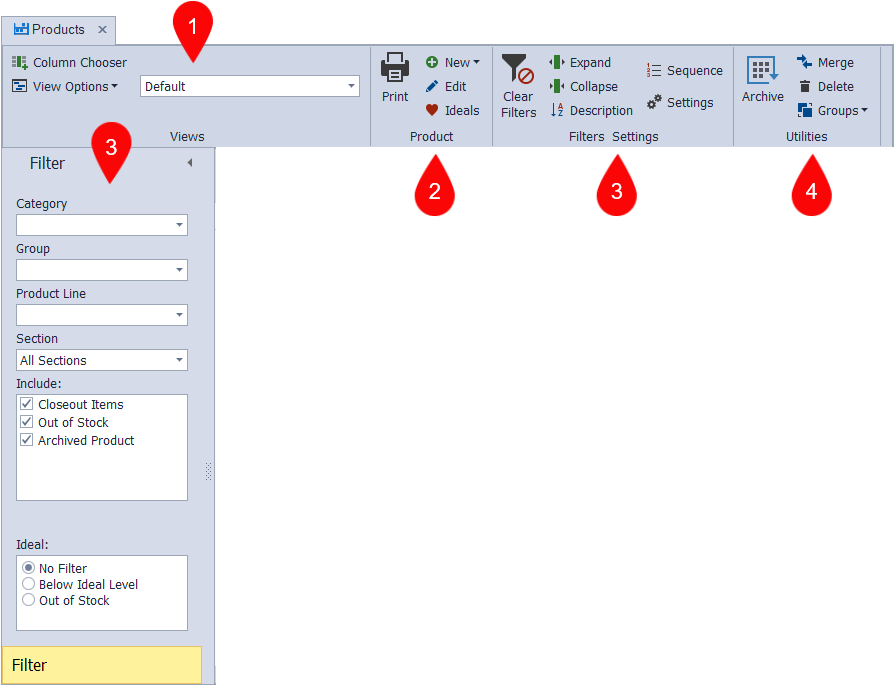
The Product List provides a centralized, customizable view of all products in Boulevard and is organized into four main functional areas: Views, Product, Filter & Settings, and Utilities. These areas allow you to adjust how products are displayed, add or edit product details, apply filters, manage inventory preferences, and maintain categories, groups, and product lines.
From the main toolbar, select  Inventory (or from the Product menu, select Product List).
Four Areas of the Product List
Views: Choose how products are displayed, add or remove columns, and access built‑in views like Inventory or Sales.
Product: Add new items, edit product details, print lists, or create inventory orders based on past sales.
Filter & Settings: Apply filters, adjust display preferences, and calculate ideal amounts to customize how products appear.
Utilities: Archive, merge, or delete products, and manage categories, groups, and product lines.
Tip: Additional information will be displayed when hovering over a button.
Views
-
 Column Chooser: Add additional columns (product profile fields) to the current view displayed
 -
 View Options: Create a new view, reset the current view, import pre-defined views based on previous reports in Boulevard, or delete the current view displayed.
 - From the drop-down access, standard views include Default (displayed by default), Ideal Amounts, Inventory, Sales, Usage by Customer, Usage by Month, and Worksheet. Alternatively, create a new view or import one from the View Options drop-down.
Products
-
 Print: Print the current view
 -
 New: Add a new product, pre-pack, set, or collection to the product list
 -
 Order: This button is only visible when the Sales view is selected; create an inventory order based on past sales
-
 Edit: Modify the selected item, including its settings, current on-hand quantity, and other details.
 -
 Ideals: When the Default view is displayed, use this function to estimate what your ideal levels should be based on past sales history
Filters Settings
Toolbar
-
 Clear Filters: Clears any filters set
 -
 Expand: Expand the categories
 -
 Collapse: Collapse the categories
 -
 Description: Sorts the products alphabetically within each category
 -
 Sequence: Sorts the products sequentially following the order form (or what has been set in the profile) within each category
Sidebar
- Category: The category where the item is located
- Group: The group of items based on the type of product
- Product Line: Another level of grouping that coincides with brand lines
- Section: The highest level of grouping to differentiate between items intended for resale (e.g., sections 1 & 5) and items that are business supplies (e.g., section 2)
- Include: Option to include items that are no longer on the current order form, items that are out of stock, and items that have been archived.
- Ideal: Option to choose either no filtering, items that are below the previously set ideal level, or out of stock entirely
 Settings
- Show grid lines: Option to display the grid lines on the form itself
- Alternate row colors: Option to alternate the colors of each row on the grid
- Landscape: Option to print the view in the landscape format
- Subtitle: Option to enter additional information to be printed on the report
- Do not Track Section 2: Option not to track Section 2 on-hand amounts (Section 2 items are business supplies - the cost is a tax write-off; therefore, it is unnecessary to track the quantities of each item.)
- Do not Track Deluxe Minis: You can choose not to monitor the on-hand quantities of customer premiums, including Deluxe Minis. Tracking them is not required for tax purposes since they fall under section 2. The tracking is solely for inventory stock purposes.
- Ideal Amounts: When the Default view is active and the Ideals function is used, the inventory to maintain on hand is calculated based on the number of months specified in the Ideal Amounts field, using the previous year's sales data. For instance, if 36 units were sold last year and the goal is to have a one-month supply, the ideal inventory level for the item would be 3.
Utilities
-
 Archive: Items can be moved to the Archived Product category and will no longer appear in reports or searches anywhere in the program, except on the product list (as a filter option).
 -
 Merge: Merges two items together, including sales history and on-hand quantity
 -
 Delete: Delete an item from the product list (removing it will not remove it from a customer's sales history).
 -
 Groups: A drop-down menu to access categories, groups, and product lines, which are all methods to group items.